Tutorial Homebrew
Updated
Building Atmosphère on Windows using MSYS2
Sometimes you need to build the binaries for Atmosphère, or you want to change something on the source code, for building your starting point should be: https://github.com/Atmosphere-NX/Atmosphere/blob/master/docs/building.md
On that document you can read:
That instructions are a little plain for we the noobs.
First you need Install a MSYS environment:
The latest instructions for install the MSYS environment are on https://gbatemp.net/threads/install-msys-environment.652234/ if you don't have one working, use them.
After you have the MSYS environment working you need to install DevKitPro
For that you can follow the instructions on the tutorial https://gbatemp.net/threads/setup-a-devkitpro-environment-on-windows.652238/
Now you can install DevKitPro packages:
You Need base DevKitPro packages:
And the Atmosphère prerequisites
I had to add
You also will need the packages
The package hactool need you to copy your own
LibNX Dependency
Atmosphère depends heavily on LibNX, generally when a major version of firmware is released or great changes on the code are made, changes to LibNX are also made.
The Atmosphère team works on their own repo of LibNX (https://github.com/Atmosphere-NX/libnx) and forward Pull Request to official SwitchBrew LibNX repo (https://github.com/switchbrew/libnx).
So ONLY if there are changes on LibNX repository, no yet committed to DevKitPro release, you need to build it and install on your setup.
Now is time to build the binaries
Clone the repository:
Go to new created Atmosphère folder
Be sure you have defined the environment variables for DevKitPro
You can test it running the command
You should have this:
COPY YOUR PROD.KEYS FILE TO THE .SWITCH FOLDER:
Copy prod.keys file on $HOME/.switch
In the case of MSYS for using localhost paths you must use "" by example in my case I use the commands:
Obviously you also can copy the file manually on windows to the equivalent path to
Atmosphère is a Python 2 project, even when python 2 has been deprecated by almost 5 years now. some * insist on never update it so as far as that is going, you need to change some files in order to work on python 3, on the files:
And now you are ready to start the building process:
I do use the "-j$(nproc)" parameter to "bleed" all the available CPU to run the compiler, without that the whole process could take up to 1 hour.
Also Note:, if you use
I want to thank a lot to @binkinator and @godreborn for all the help and inspiration to make this guide, and want to ask you for help improving this guide.
Also special thanks to @godreborn for been a support of the users replies and suggestions to the OP.
Remember, as you are getting a new set of binaries, you need new set of sigpatches if you use it. So the great tool from @mrdude comes in hand, the latest release can be downloaded from: https://github.com/mrdude2478/IPS_Patch_Creator/releases/; you use the program to generate a new set of patches for your recently build package3 file.
Latest IPS Patch Creator:
https://gbatemp.net/download/ips-patch-creator-1-5-9.38850/
-Edited: add sigpatches step and clean up a little-
-Edit 2, add LibNX build-
On that document you can read:
Building Atmosphère is a very straightforward process that relies almost exclusively on tools provided by the devkitPro organization.
Dependencies:
- devkitA64
- devkitARM
- Python 2 (Python 3 may work as well, but this is not guaranteed)
- LZ4
- PyCryptodome (optional)
- Hactool
Setup a DevKitPro environment: (https://devkitpro.org/wiki/Getting_Started)
Install the following packages via (dkp-)pacman:
- switch-dev
- switch-glm
- switch-libjpeg-turbo
- devkitARM
- devkitarm-rules
- hactool
Install the following library via python's package manager pip, required by exosphere:
- lz4
Finally, clone the Atmosphère repository and run make under its root directory.
That instructions are a little plain for we the noobs.
First you need Install a MSYS environment:
The latest instructions for install the MSYS environment are on https://gbatemp.net/threads/install-msys-environment.652234/ if you don't have one working, use them.
After you have the MSYS environment working you need to install DevKitPro
For that you can follow the instructions on the tutorial https://gbatemp.net/threads/setup-a-devkitpro-environment-on-windows.652238/
Now you can install DevKitPro packages:
You Need base DevKitPro packages:
Bash:
pacman -S --noconfirm switch-dev devkitA64 dkp-toolchain-vars libnx switch-tools switch-mesa switch-libdrm_nouveau switch-sdl2And the Atmosphère prerequisites
Bash:
Pacman -Sy --noconfirm devkitA64 devkitARM devkitarm-rules hactool mingw-w64-x86_64-python mingw-w64-x86_64-python-lz4 mingw-w64-x86_64-python-pycryptodome switch-dev switch-glm switch-libjpeg-turbo mingw-w64-x86_64-python-pipI had to add
zip package because even if wasn't explicit indicated on the build page, the code needs it.You also will need the packages
git make lz4 for all to work, use the command:
Bash:
Pacman -Sy --noconfirm zip git make lz4All packages on a combined command:
Bash:
pacman -S --noconfirm switch-dev devkitA64 dkp-toolchain-vars libnx switch-tools switch-mesa switch-libdrm_nouveau switch-sdl2 devkitA64 devkitARM devkitarm-rules hactool mingw-w64-x86_64-python mingw-w64-x86_64-python-lz4 mingw-w64-x86_64-python-pycryptodome switch-dev switch-glm switch-libjpeg-turbo mingw-w64-x86_64-python-pip zip git make lz4The package hactool need you to copy your own
prod.keys file on $HOME/.switch folder. (c:\msys64\home\USERNAME\.switch if you use the default installation folder)LibNX Dependency
Atmosphère depends heavily on LibNX, generally when a major version of firmware is released or great changes on the code are made, changes to LibNX are also made.
The Atmosphère team works on their own repo of LibNX (https://github.com/Atmosphere-NX/libnx) and forward Pull Request to official SwitchBrew LibNX repo (https://github.com/switchbrew/libnx).
So ONLY if there are changes on LibNX repository, no yet committed to DevKitPro release, you need to build it and install on your setup.
If you haven't done already, setup the environment variables
You can test it running the command
You should have this:
Then go to the Atmosphere-NX/LibNX repo and look what is the new branch for the current firmware, by example, for Firmware 16.0.0 the branch name is "1600_Support"
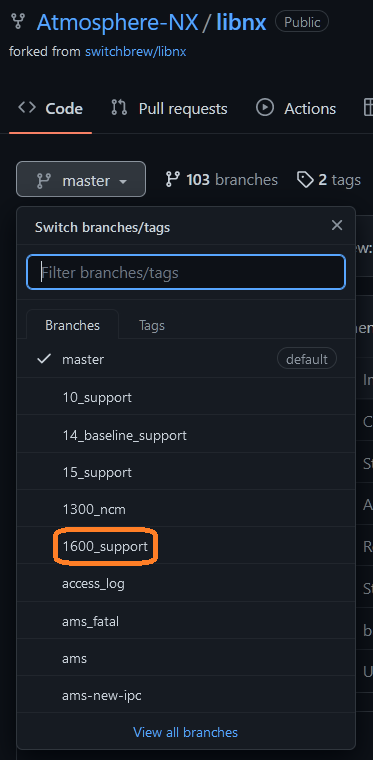
Then go to your MSYS MinGW64 window and clone the Atmosphere-NX/LibNX repo
And checkout the needed branch:
Then build and install the new LibNX libraries
Now you can build Atmosphère with latest LibNX code; remember if you update the pacman LibNX package the changes get reversed and you need to build LibNX again.
You can test it running the command
exportYou should have this:
Bash:
export DEVKITPRO=/opt/devkitpro
export DEVKITARM=${DEVKITPRO}/devkitARM
export DEVKITPPC=${DEVKITPRO}/devkitPPC
export PATH=${DEVKITPRO}/tools/bin:$PATH
Then go to the Atmosphere-NX/LibNX repo and look what is the new branch for the current firmware, by example, for Firmware 16.0.0 the branch name is "1600_Support"
Then go to your MSYS MinGW64 window and clone the Atmosphere-NX/LibNX repo
Bash:
cd ~
git clone --recursive https://github.com/Atmosphere-NX/libnx.git
cd libnx
And checkout the needed branch:
Bash:
git checkout 1600_supportThen build and install the new LibNX libraries
Bash:
make install -j$(nproc)Now you can build Atmosphère with latest LibNX code; remember if you update the pacman LibNX package the changes get reversed and you need to build LibNX again.
Now is time to build the binaries
Clone the repository:
Bash:
cd ~
git clone --recursive https://github.com/Atmosphere-NX/Atmosphere
Go to new created Atmosphère folder
Bash:
cd AtmosphereBe sure you have defined the environment variables for DevKitPro
You can test it running the command
exportYou should have this:
Bash:
export DEVKITPRO=/opt/devkitpro
export DEVKITARM=${DEVKITPRO}/devkitARM
export DEVKITPPC=${DEVKITPRO}/devkitPPC
export PATH=${DEVKITPRO}/tools/bin:$PATH
COPY YOUR PROD.KEYS FILE TO THE .SWITCH FOLDER:
Copy prod.keys file on $HOME/.switch
Bash:
mkdir ~/.switch
cp "c:\YOUR\CURRENT\PATH\TO\KEYS\PROD.KEYS" ~/.switch/prod.keys
In the case of MSYS for using localhost paths you must use "" by example in my case I use the commands:
Bash:
mkdir ~/.switch
cp "z:\Emulation\NSwitch\keys\switch\prod.keys" ~/.switch/prod.keys
Obviously you also can copy the file manually on windows to the equivalent path to
~/.switch/ which by default is c:\msys\home\USERNAME\.switch Where c:\msys is the installation folder and USERNAME is the current name for the user.Atmosphère is a Python 2 project, even when python 2 has been deprecated by almost 5 years now. some * insist on never update it so as far as that is going, you need to change some files in order to work on python 3, on the files:
- Atmosphere\fusee\program\update_mtc_tables.py
- Atmosphere\fusee\program\update_sdram_params.py
xrange( to range( save the files and continue.And now you are ready to start the building process:
Bash:
make -j$(nproc)I do use the "-j$(nproc)" parameter to "bleed" all the available CPU to run the compiler, without that the whole process could take up to 1 hour.
Also Note:, if you use
make -j is possible a Error 2 can be generated, run make again without parameters. The process will continue where failed, since the two latest versions of DevKitPro using the -j parameters is not synced and the make process can fail by timeouts.I want to thank a lot to @binkinator and @godreborn for all the help and inspiration to make this guide, and want to ask you for help improving this guide.
Also special thanks to @godreborn for been a support of the users replies and suggestions to the OP.
Remember, as you are getting a new set of binaries, you need new set of sigpatches if you use it. So the great tool from @mrdude comes in hand, the latest release can be downloaded from: https://github.com/mrdude2478/IPS_Patch_Creator/releases/; you use the program to generate a new set of patches for your recently build package3 file.
Latest IPS Patch Creator:
https://gbatemp.net/download/ips-patch-creator-1-5-9.38850/
-Edited: add sigpatches step and clean up a little-
-Edit 2, add LibNX build-
Attachments


Last edited by impeeza,