
How to fix the automatic repair loop on my dad's PC?

  • Thread starter Thread starter Xdqwerty
  • Start date Start date
  • Views Views 4,261
  • Replies Replies 42

Xdqwerty

Call me CJ/Quiver too
Member
Joined
Jul 8, 2023
Messages
2,719
Reaction score
7,892
Trophies
5
Age
17
Location
where?
Website
linktr.ee
XP
12,863
Country
Venezuela
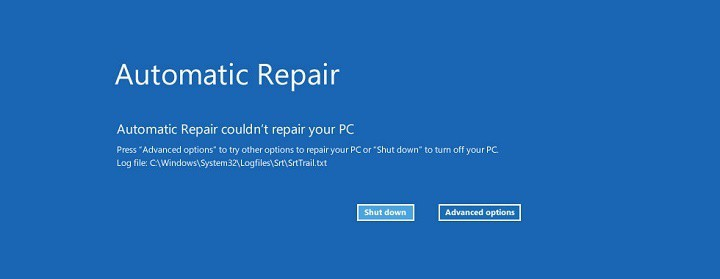
My dad's Windows 10 PC crashed with a bsod, then after restarting this screen appeared saying that "automatic repair couldnt repair your PC"
1728146836652.png

I tried turning it off, unplugging it for 5 minutes, then plug it in and turning it on again but it didnt work, then I tried with the "boot repair" option within the "advanced options" screen, but it still didnt work.
How do I fix this?
 
Last edited by Xdqwerty,

Most likely the issue is the hard drive.

If you have the possibility, detach the hard drive from the computer and test it using another one. You have to be very carefull as you could damage its data if you don't, rendering Windows installation useless (more than it already is).
 
  • Wow
Reactions: Xdqwerty
Most likely the issue is the hard drive.

If you have the possibility, detach the hard drive from the computer and test it using another one. You have to be very carefull as you could damage its data if you don't, rendering Windows installation useless (more than it already is).
My PC is at home
 
At this point I would make a backup of the HDD if you can using bootable media.

Previously I would recommend Macrium Reflect Free, but whilst I believe older versions can still be downloaded it's no longer officially supported.

I believe there are alternatives like Clonezilla, but I haven't used them.

If you can't, then I would at least fire up a Linux distro or maybe a PE enviroment (maybe Medicat?) and backup what data you can.

Afterwards there are somethings to try, for example, in advanced options try system restore or run chkdsk /f from command prompt.
 
At this point I would make a backup of the HDD if you can using bootable media.

Previously I would recommend Macrium Reflect Free, but whilst I believe older versions can still be downloaded it's no longer officially supported.

I believe there are alternatives like Clonezilla, but I haven't used them.

If you can't, then I would at least fire up a Linux distro or maybe a PE enviroment (maybe Medicat?) and backup what data you can.

Afterwards there are somethings to try, for example, in advanced options try system restore or run chkdsk /f from command prompt.
This doesnt help
 
At this point I would make a backup of the HDD if you can using bootable media.

Previously I would recommend Macrium Reflect Free, but whilst I believe older versions can still be downloaded it's no longer officially supported.

I believe there are alternatives like Clonezilla, but I haven't used them.

If you can't, then I would at least fire up a Linux distro or maybe a PE enviroment (maybe Medicat?) and backup what data you can.

Afterwards there are somethings to try, for example, in advanced options try system restore or run chkdsk /f from command prompt.
I recommend Rescuezilla if they gonna use a free backup tool. It's just Clonezilla with a GUI, so its easier for people that don't get all 300 options in Clonezilla.

https://rescuezilla.com/
 
  • Like
Reactions: tech3475
The question is, when did this happen?
How old is the machine?
Is it an SSD or HDD?

Prebuilt? Custom?
 
Then it can be a sleuth of things.
Memory, Harddrive, CPU, Motherboard or just Windows need a clean reinstall. It's extremely hard to explain without hands on and just an image.
 
The only step I would recommend is backup the current drive, and reinstall Windows 10 from a USB.
 
  • Sad
Reactions: Xdqwerty
Your options are trying to boot into safe mode which may be a solution, if not just what you've been told back everything up and then reinstall windows.

Only other option would be finding a program that you can put on a usb drive that lets you boot without windows and recover the startup sequence. I've done it before but it's a PITA and not user friendly.

You could try these also, there should be a command prompt available if you hit a certain key on the computer on boot, different ones for different computers mine is F2, some are F8, some escape.

3.CHKDSK:

If uninstalling did not help and is unrelated, the next step is to try using a Disk Check.

Choose Command Prompt in the list of troubleshooting.

Get the Current Windows Installation drive letter, which is either C, D, or E, Type BCDEDIT, and Press Enter. Note the letter.

Enter the command given below:
chkdsk X: /f /r (Replace X with the Current Windows Install Letter)

When done, you would see the output and restart the PC to check.

4.Another try you can give to fix is SFC SCANNOW through Offboot switch. For this follow the steps below:

First, find the Windows Install drive letter using BCDEDIT command.

Then, try entering the following command:
sfc /scannow /offbootdir=C:\ /offwindir=C:\Windows

After the scan completes you would see the results.
You can also try using DISM: dism /image:C:\ /cleanup-image /revertpendingactions


5. Reset this PC or clean install.

The last Step is a Reset. The catch with Reset is, all applications would be removed and files would be kept(you would be presented with the option to erase everything). Also, for this step, A healthy Reset Image is required, which maybe would be affected by corruption. If you are using Installation media, you can do a clean install after rescuing your files.
 
  • Like
Reactions: BigOnYa
I'm not asking about how to make backups

I suggested it because I highly recommend it, especially since we don't know what the issue is e.g. HDD failure, hardware failure, bad driver update, etc.

Sometimes trying to fix stuff can also make it worse.

Another option may be to select "disable automatic restart" on the startup settings (same menu you select safe mode from), so you can see what the actual error is.

edit:

Also I gave advice on the last line of my post.
 
You could try these also, there should be a command prompt available if you hit a certain key on the computer on boot, different ones for different computers mine is F2, some are F8, some escape.
The menu from the screenshot also has a button to open the cmd (after clicking advanced options)

IMG-20241005-WA0012.jpeg
 
Select (Símbolo de Sistema) and perform a chkdsk command on the drive.

Code:
chkdsk /f /r c:

chkdsk is the command

/f modifier, Fixes errors on the disk

/r modifier, Locates bad sectors and recovers readable information (requires using /f modifier when /scan is not specified)

c: modifier, Is the drive letter assigned by Windows to the drive to repair (c: drive is where Windows is normally installed)

That will perform basic repairs on the drive, but if the drive has deeper damage, it will not repair them.
 
  • Like
Reactions: Xdqwerty
I'm not asking about how to make backups
The number 1 step when dealing with an unknown issue that the OS can't automatically recover from is always make a backup, unless you just don't care about the data. If the issue is related to some sort of storage drive failure, doing anything before backing up can result in data loss, and depending on what the issue is exactly, that chance can be very high.

That said, in my experience, if automatic repair fails, there is only really a few things you can do to try and manually repair. #1 is what CMDreamer said by running chkdsk with automatic fixing on. If it fails or reports back errors that it fixed, I would hook it up to a working computer or boot from some external rescue drive to check on the SMART status. If that's failing, it's time to get a new storage drive. If the SMART status is ok, but chkdsk failed, nothing to do at that point but reinstall windows. If it succeeds and the SMART status is ok, but windows still doesn't boot, you can try booting safe mode. If safe mode won't boot, then your next best option is to try and use a restore point. If no restore points exist or it still can't boot after restoring to a previous point, in my opinion, it's usually not worth trying to manually repair at that point and you should just reinstall windows.
 
Select (Símbolo de Sistema) and perform a chkdsk command on the drive.

Code:
chkdsk /f /r c:

chkdsk is the command

/f modifier, Fixes errors on the disk

/r modifier, Locates bad sectors and recovers readable information (requires using /f modifier when /scan is not specified)

c: modifier, Is the drive letter assigned by Windows to the drive to repair (c: drive is where Windows is normally installed)

That will perform basic repairs on the drive, but if the drive has deeper damage, it will not repair them.
17281638199062114223972824658947.jpg

Ok, now what?
 

Site & Scene News