Tutorial
Updated
Get ANY OFFICIAL badges without other users' data
Video Guide (slightly outdated)
Introduction
This thread will guide you through on how to get any official badge you could possibly think of, and also how to group each badge into sets.
NOTE: Nintendo's servers have officially "shutdown" as of the 8/4/2024 and the downloading part of Allbadge Tool may stop working any day since it still relies on said servers. Replacing the links with mirrors that lead to the same files could be a way to go, but until the servers are fully down, we'll have to wait.
Setup
Before starting, you're going to need a few things:
Assumptions
This guide assumes the following:
Getting the arm9 bootrom
This will be needed for the allbadge tool, as it is required for decrypting some files.
Getting the badges
Having obtained the arm9 bootrom, you can now use the Allbadge Tool.
Creating badge data
To actually import the extracted badges, you will need to use Advanced Badge Editor.
Installing Simple Badge Injector and injecting the data
Finally, to use your badges, you're going to need to inject them.
Credits
This guide would not have been possible without a lot of research done by other people:
You cannot get banned by getting official badges this way (at least I don't think having them effects you in any way, I might be wrong though). If you get banned, that might be because you were caught using unauthorized software, in which case I recommend you use Luma3DS's (if you have it of course) "masking" feature to load Homebrew Launcher with a system application and also using the 3DSX version of the "Simple Badge Injector". (you need to patch the "SM" process using Rosalina (if you have Luma3DS) if you want to know what your NNID is).
Oh, and I discovered that you can only place up to 360 badges, and no more, on the Home Menu (with folders included)...
If you have succeeded in getting any badge you wanted, then take a screenshot and share it here =P (Just for fun)
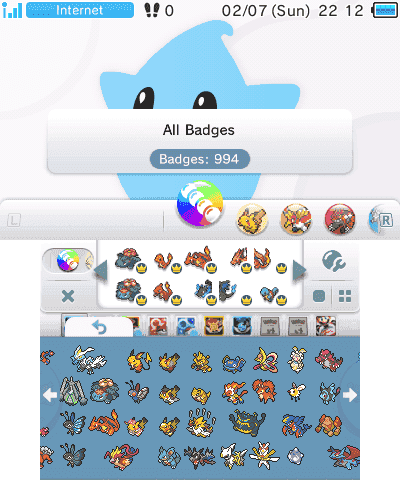
I hope this isn't illegal -.-
Introduction
This thread will guide you through on how to get any official badge you could possibly think of, and also how to group each badge into sets.
NOTE: Nintendo's servers have officially "shutdown" as of the 8/4/2024 and the downloading part of Allbadge Tool may stop working any day since it still relies on said servers. Replacing the links with mirrors that lead to the same files could be a way to go, but until the servers are fully down, we'll have to wait.
Setup
Before starting, you're going to need a few things:
- A modded 3DS with boot9strap
- Simple Badge Injector
- Allbadge Tool
- Advanced Badge Editor
- A way to read your SD card
Assumptions
This guide assumes the following:
- You followed the 3ds.hacks.guide step by step to mod your 3ds, or update your modded 3ds.
- You know some basic understanding of transferring files from your 3DS's SD card to your PC and vice versa.
Getting the arm9 bootrom
This will be needed for the allbadge tool, as it is required for decrypting some files.
- Boot your 3DS holding
Start. This should open GodMode9 - Move to
[M:] MEMORY VIRTUALand pressA - Move to
boot9.binand pressA - Move to
Copy to 0:/gm9/outand pressA - While holding
R, pressStartto turn your 3DS off
boot9.bin file should now be on your SD card inside of /gm9/out.Getting the badges
Having obtained the arm9 bootrom, you can now use the Allbadge Tool.
- Make sure your
boot9.binis in the same folder asallbadge_tool.exe - Open
allbadge_tool.exe - Select the versions you wish to download
ex.: EUR v131 - Click the begin button
- Wait until everything is done
- If any error occurs, make sure to read what the error says. If it's something you can solve manually, do it so. Report any other weird errors to me
- Once done, you should have zip files for the badges you want inside a
datafolder - You may want to extract the folders for the sets you want
This is not usually needed, but may include badges that are otherwise missing on the other files.
- Move this GodMode9 script to the
/gm9/scriptsfolder on your SD card - Boot your 3DS holding
Start. This should open GodMode9 - Press the
HOMEbutton - Nagivate to
Scripts...>BadgeExtractTool - Select the desired options from here
- Select
Exitand pressAonce you're done - While holding
R, pressStartto turn your 3DS off - Take any
pc_REGION.sarcfile from the/gm9/outfolder on your SD card and move them to thedatafolder of the Allbadge Tool - Running the Allbadge Tool, you can now make use of the
pc REGIONoptions to extract their contents
Creating badge data
To actually import the extracted badges, you will need to use Advanced Badge Editor.
- Open
Advanced_badge_editor.exe - Go to
File>New data - Go to
Import>Entire set data (*.prb and *.cab)- An alternative to this process could involve using the Simple Badge Injector to dump your own
BadgeData.datandBadgeMngFile.datfiles - In that case, use
File>Open dataand select the folder where those files are
- An alternative to this process could involve using the Simple Badge Injector to dump your own
- Select the set's
.cabfile - Select the set's
.prbfiles (you can select multiple) - Click
255 of each badgefor essentially all the badges you need - Go to
File>Save data to... - Select a folder to save the badge files to
- You can close the app
BadgeData.dat and BadgeMngFile.dat files.Installing Simple Badge Injector and injecting the data
Finally, to use your badges, you're going to need to inject them.
- Move the
SimpleBadgeInjector.ciato anywhere on your SD card - Move the
BadgeData.datandBadgeMngFile.datfiles to/3ds/SimpleBadgeInjectorrelative to the SD card's root- If the folder doesn't exist, make sure to create it and name it exactly the same!
- Boot your 3DS with the SD card inside
- Open
FBI - Install the
SimpleBadgeInjector.cia - Close
FBI - Open
Simple Badge Injector - Select
Dump badge data. This will backup any badge data you might have (optional) - Select
Inject badge dataand pressA- In case any unexpected errors occur, please report them to me
Credits
This guide would not have been possible without a lot of research done by other people:
- 3DBrew for documenting most of data I had to deal with
- Custom Mario Kart Wiki for having information on Yaz0 compressed files
- SciresM's BadgeArcadeTool for code on reading and extracting
SARCarchives - yellows8's boot9_tools for having a lot of information on the ARM9 Bootrom's AES keys
Introduction
This thread will guide you through on how to get ANY OFFICIAL badge you could possible think of, and also how to group each badge into sets!Setup
Before starting, you will need a few things:- Nintendo Badge Arcade. (optional)
- A 3DS system with CFW (Preferably with Boot9strap)
- GodMode9 v1.2.7 (Read the "Quick start guide". aeskeydb.bin, seeddb.bin and encTitlekeys.bin are not needed)
- A Tool Pack I made for this guide
- Nintendo Badge Arcade's latest update installed or as CIA. (optional)
- An SD card reader
Get the official badge data and get the arm9 bootrom file
This is the first thing you will need to do if you want to get anything at all.- Boot your 3DS while holding Start + Select + X. (you need to stop holding them if you want to boot normally)
- Turn your 3DS off.
- Un-zip the Tool Pack.zip you downloaded.
- Run "download data.bat" and select the data you want to download. (the data will be downloaded to the "gm9" folder)
- If you want every single badge, then download the Japanese badge data. (They have all the badges -.-)
- Insert your 3DS's SD card in your computer.
- Copy the boot9.bin file from the boot9strap folder on the root of your SD card to the Tool Pack folder.
- Copy the gm9 folder from the Tool Pack folder to the root of your SD card.
- Insert your SD card back in your 3DS and boot your 3DS while holding Start.
- If you have the CIA file of the latest Nintendo Badge Arcade update:
- Make sure the CIA file is inside the gm9 folder (on your SD card) and that it's named NBA Update [REGION].cia (replace [REGION] with the region of the CIA)
- Boot your 3DS while holding start to launch GodMode9
- Press the Home button
- Select the following options: More... > Scripts... > BadgeData CIA [REGION] (select the one with the region of the CIA)
- If you have the latest Nintendo Badge Arcade updateinstalled:
- Boot your 3DS while holding start to launch GodMode9
- Press the Home button
- Select the following options: More... > Scripts... > BadgeData Title [REGION] (select the one with the region of the installed title, usually the region of your console)
- Turn off your 3DS by holding R + Start.
- Insert your 3DS's SD card back into your computer.
Extract and decompress the compressed badges and sets
Now that you have the encrypted boss files (allbadge_[VERSION]_[REGION].dat) (and optionally, the badge_data_[REGION].sarc, which isn't BOSS encrypted), you will have to decrypt the boss encrypted files and extract the badges and sets within them:- Move the badge_data_[REGION].sarc (if you have it) file from the gm9 folder on your SD card to the Tool Pack folder on your computer.
- Run the extract badge data.bat batch file inside Tool Pack
- You should now have all of the badge data!
- Additional information:
- The badge data was extracted to the decompressed folder.
- The badges and set files are located in their respective set folder.
- This Pastebin has the names of all of the sets you can get from the European and American data (The Japanese data has more badges and sets)
Edit it your own badge data (for the users that have badges, either from Nintendo Badge Arcade or customized)
Now that you have the decompressed badges and sets, you might want to add some to your own badge data. But first, you will need to extract it...- Insert your SD card back in your 3DS and boot it up normally.
- Launch FBI
- Go to TitleDB and look for Simple Badge Injector. Install it.
- If for some reason you can't install it, then install it with the SimpleBadgeInjector.cia inside of the Tool Pack folder.
- Exit FBI
- Launch Simple Badge Injector
- Select the Dump badge data option, and wait...
- Exit the app
- Shutdown your 3DS and insert the SD card back into your computer.
- Inside of the Tool Pack, open Advanced badge editor
- Select File > Open data. Next, browse for your badge files folder (Select This PC > <Your SD card> > Dumped Badge Files)
- Repeat the following steps to add new sets:
- Select Import > Entire set data (*.prb and *.cab)
- Open the decompressed folder and choose a set folder.
- Select the set file inside of the set folder.
- Select all of the badges inside of that set folder.
- You can give yourself 255 of each badge by clicking the 255 of each badge button
- Select File > Save data to... and navigate to the root of your SD card and create a new folder called Badge Files (if it doesn't exist). Select it and click ok
- Close Advanced badge editor and insert your SD card back into your 3DS
- Boot your 3DS.
- Launch Simple Badge Injector
- Select the Inject custom badge data option, and wait...
- Exit the app
- Enjoy your new badges

Create badge data (for the users that never used Nintendo Badge Arcade and don't have badges)
This will let you create your own badge data without needing Nintendo Badge Arcade- Inside of the Tool Pack, open Advanced badge editor
- Next, select File > New Data. You will now have to find your NNID if you want your badge data to work (which is explained here).
- Insert your SD card back in your 3DS and boot it up normally.
- Launch FBI
- Go to TitleDB and look for Simple Badge Injector. Install it.
- If for some reason you can't install it, then install it with the SimpleBadgeInjector.cia inside of the Tool Pack folder.
- Exit FBI
- Launch Simple Badge Injector
- Copy the NNID number that is displayed on your 3DS to the NNID box in the Advanced badge editor application.
- Exit the Simple Badge Injector app
- Shutdown your 3DS and insert the SD card back into your computer.
- Repeat the following steps to add new sets:
- Select Import > Entire set data (*.prb and *.cab)
- Open the decompressed folder and choose a set folder.
- Select the set file inside of the set folder.
- Select all of the badges inside of that set folder.
- You can give yourself 255 of each badge by clicking the 255 of each badge button
- Select File > Save data and navigate to the root of your SD card and create a new folder called Badge Files (if it doesn't exist). Select it and click "Ok"
- Close Advanced badge editor and insert your SD card back into your 3DS
- Boot your 3DS.
- Launch Simple Badge Injector
- Select the Create ExtData archive 0x14D1 option, and wait...
- Select the Inject custom badge data option, and wait...
- Exit the app
- Enjoy your new badges
Credits
Here comes the part that everyone loves! Right?- Information about *.prb and *.cab files and links to the badge data files - @redunka
- CTRAesEngine and SARC.cs (used to make BadgeExtract) - @SciresM
- BadgeExtract - @TheMachinumps
- Advanced Badge Editor V1.3.1 - The one and only, @TheMachinumps
- Simple Badge Injector - Once again, @TheMachinumps
- FBI - @Steveice10
- GodMode9 - dok3 (on GitHub)
Help
Have any questions? Just ask me, and I will try to answer them =)You cannot get banned by getting official badges this way (at least I don't think having them effects you in any way, I might be wrong though). If you get banned, that might be because you were caught using unauthorized software, in which case I recommend you use Luma3DS's (if you have it of course) "masking" feature to load Homebrew Launcher with a system application and also using the 3DSX version of the "Simple Badge Injector". (you need to patch the "SM" process using Rosalina (if you have Luma3DS) if you want to know what your NNID is).
Oh, and I discovered that you can only place up to 360 badges, and no more, on the Home Menu (with folders included)...
If you have succeeded in getting any badge you wanted, then take a screenshot and share it here =P (Just for fun)
I hope this isn't illegal -.-
Last edited by AntiMach,