Hacking New system update (10.0.0-27)

  • Thread starter Thread starter KaleoOmega
  • Start date Start date
  • Views Views 100,492
  • Replies Replies 529
  • Likes Likes 6
Objection! Oh, sorry. Had a flashback about some attorney games.

You're right. Anyway, I don't see that much use to the 3DS browser (even the improved N3DS browser), but good for those who like to use it.
Yes, sure!... And, by the way: Take that!
I see you've beaten Tony Stark just with words like those. Impressive.

 
  • Like
Reactions: Kyojin and fmkid
I've updated my EMUNAND, and everything works fine, Browser Timestamp works to.
top_0000.png
 
  • Like
Reactions: TR_mahmutpek
Eventually Nintendo will make it completely compulsory to do system updates. It's gonna be kind of like in the new PS3 update, I couldn't play GTA online until I updated my PS3.
 
Eventually Nintendo will make it completely compulsory to do system updates. It's gonna be kind of like in the new PS3 update, I couldn't play GTA online until I updated my PS3.

It's already like that with the minimum firmware requirements for games. Of course they can make it so that ppl can't play online without having the latest firmware too. But in any case, I'm sure it would be possible to spoof firmware just like we already can do for eShop and other apps. So doesn't really matter.
 
How to update the emunand an offline ?
You will need, a gateway 3ds with Title Manager, and the latest version of 3DNUS. (Backup your SD card, and EMUNAND with emuNANDTool_1.0.3 just in case).
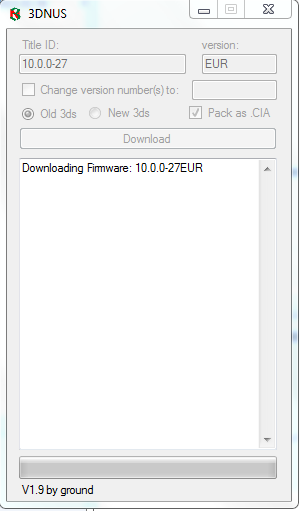
1. Open 3DNUS and download the firmware you want, in the version box write your 3ds region code like this:
3dsnus.png

2. Copy the 10.0.0-27 folder to your SD card.
3. Go to EMUNAND launch Title Manager, and click right on the d-pad once to reach the SDMC tab.
4. Once you reach the SDMC tab, select the 10.0.0-27 folder then press A to open it.
5. Now press down on the d-pad until you highlight one of the files in the folder. Notice how the top screen now has more options.
6. Press L+R+A in order to copy all of the files.
7. Press A then wait for the copying to be done. When 3DS tells you it finish copying all of the files, power off your 3DS. Now turn it back on and load EMUNAND. If everything has gone right then you should see this:
updating firmware.jpg

If not try again.
8. Go to System Settings and look at the firmware number.
top_0000.png

9. If your game needs an update before you can go online with it, I suggest you find a cia file of the latest update of that game than use the Title Manager to copy it to your 3DS.
10. If you are using AR CHEATS, you need to do a Browser Timestamp, a the end.

 
Last edited by tomx86,
You will need, a gateway 3ds with Title Manager, and the latest version of 3DNUS. (Backup your SD card, and EMUNAND with emuNANDTool_1.0.3 just in case).
1. Open 3DNUS and download the firmware you want, in the version box write your 3ds region code like this:
View attachment 25283
2. Copy the 10.0.0-27 folder to your SD card.
3. Go to EMUNAND launch Title Manager, and click right on the d-pad once to reach the SDMC tab.
4. Once you reach the SDMC tab, select the 10.0.0-27 folder then press A to open it.
5. Now press down on the d-pad until you highlight one of the files in the folder. Notice how the top screen now has more options.
6. Press L+R+A in order to copy all of the files.
7. Press A then wait for the copying to be done. When 3DS tells you it finish copying all of the files, power off your 3DS. Now turn it back on and load EMUNAND. If everything has gone right then you should see this:
View attachment 25284
If not try again.
8. Go to System Settings and look at the firmware number.
View attachment 25285
9. If your game needs an update before you can go online with it, I suggest you find a cia file of the latest update of that game than use the Title Manager to copy it to your 3DS.
10. If you are using AR CHEATS, you need to do a Browser Timestamp, a the end.



Nice tutorial! :yaysp:
 
You will need, a gateway 3ds with Title Manager, and the latest version of 3DNUS. (Backup your SD card, and EMUNAND with emuNANDTool_1.0.3 just in case).
1. Open 3DNUS and download the firmware you want, in the version box write your 3ds region code like this:
View attachment 25283
2. Copy the 10.0.0-27 folder to your SD card.
3. Go to EMUNAND launch Title Manager, and click right on the d-pad once to reach the SDMC tab.
4. Once you reach the SDMC tab, select the 10.0.0-27 folder then press A to open it.
5. Now press down on the d-pad until you highlight one of the files in the folder. Notice how the top screen now has more options.
6. Press L+R+A in order to copy all of the files.
7. Press A then wait for the copying to be done. When 3DS tells you it finish copying all of the files, power off your 3DS. Now turn it back on and load EMUNAND. If everything has gone right then you should see this:
View attachment 25284
If not try again.
8. Go to System Settings and look at the firmware number.
View attachment 25285
9. If your game needs an update before you can go online with it, I suggest you find a cia file of the latest update of that game than use the Title Manager to copy it to your 3DS.
10. If you are using AR CHEATS, you need to do a Browser Timestamp, a the end.
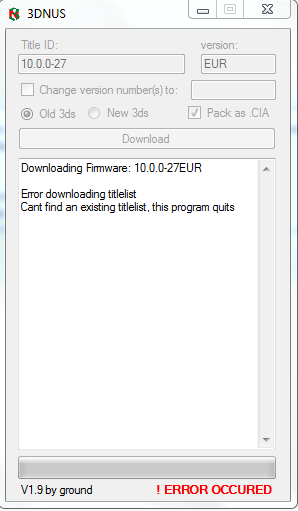
Thanks and this is for me :

bb92365503ad3d568c1f9f214982589f.png
&
b4a01e337e0e6a0e38269618c378cbb4.png

Nothing happening :( and error :(
 

Site & Scene News

Popular threads in this forum