Hacking Homebrew Tutorial
Updated
How to get Nintendo TVii icon back without downgrading + extras
Credits go to JustMLC for creating this mod!
Rosé Patcher has been officially released! You can download it at the GitHub page. You can get the TVii on the
Wii U Menu and the HOME Menu (something not possible with this guide) only by adding an Aroma plugin to your SD Card (safer, easier and MUCH faster), as well as the functional TVii itself! So this is now the recommended way, but the tutorial will stay here, as it might still be useful in some cases.
Important Details
Before starting the tutorial, it's important to know that you need a jailbroken Wii U (also works on Cemu, just look at the FAQ) with either Aroma or Tiramisu (you can use Legacy [aka as Haxchi, CBHC or Mocha] too, but it has some limitations, those being the fact that you need SDCafiine for the TVii, and that it's not practical to autoboot SDCafiine). You don't need any extra plugins or apps to get the TVii (except for Legacy), but if you want to also/only get the OG switch GamePad/TV button and/or the OG applet bar jumping animation without changing the files permanently via FTP or Theme Manager/StyleMiiU, you need to have the SDCafiine Plugin (for Aroma) or the SDCafiine (HBL version) (for Tiramisu/Legacy).
This guide isn't supposed to brick your console and there has never been any bricking confirmed by someone doing this tutorial, as it does not change system files, only applies a mod each time you boot, which in the worst case can cause a soft brick. But if anything happens, I'm not responsible for the damage, follow this guide at your own risk.
This guide has been only confirmed to work in 5.5.5/5.5.6 versions, so I cannot guarantee it will work in older versions.
I. Getting the files
To get the patch files go to the creator's video description, you will see two links, the first one is where you download the files and the second one is the website where you can patch the files (which will be talked about later). Go to the first link, you'll be redirected to a Google Drive page where there will be two files and three folders:
men.rpx.bps will be inside the folders, choose one of them corresponding to your men.rpx file region (will be explained soon in the guide) (USA - American file; EUR - European file; JPN - Japanese file).
• Download
men.rpx.bps if you want the TVii icon back;• Download
Men.pack.bps if you want the OG switch GamePad/TV button back;• Download
Men2.pack.bps if you want the OG applet bar jumping animation back (if you decide to download Men2.pack.bps you'll also need to download men.rpx.bps or it won't work later on).
You can download more than one, they work together.
If you want to understand what each one means, you can watch these videos: (showing the TVii icon and the OG applet bar jumping animation) and (showing the OG switch GamePad/TV button), he shows each one of the features.
Then, you'll need to get the any region
men.rpx (needs to be the same region as your men.rpx.bps file)/any region Men.pack/any region Men2.pack file(s) depending on what you chose earlier. You can either get them by dumping from your Wii U via FTP (JUST DON'T MESS WITH YOUR WII U FILES OR YOU CAN BRICK IT) or Theme Manager (this ones only allows you to get Men.pack and Men2.pack); by downloading them online or by using JNUSTool/other similar tools. I got Men.pack and Men2.pack from Theme Manager and men.rpx using WiiUFtpServer.II. Patching the files
This step is easier, just go to the second link of the video, then you'll see two options,
ROM file and Patch file, on the first one, choose the men.rpx/Men.pack/Men2.pack file(s), and on the second one, choose, respectively, the men.rpx.bps/Men.pack.bps/Men2.pack.bps file(s). Next you need to press Apply patch.You should get the
men (patched).rpx/Men (patched).pack/Men2 (patched).pack file(s), then you need to rename it/them by removing the (patched). You should end up with men.rpx/Men.pack/Men2.pack file(s), but patched (they can't have (patched) in the name or they won't work).Important Message
In steps III and IV, I'll teach where to put the files without modifying system files, as it's riskier to do so.
But, if you decide to do this way (recommended for more experienced users), you can skip steps III, IV and V too, and look at the FAQ.
One of the good sides is that it will remove the need to boot SDCafiine everytime on Legacy and Tiramisu, but PLEASE, don't forget to have a cold boot exploit whenever modifying system files.
But, if you decide to do this way (recommended for more experienced users), you can skip steps III, IV and V too, and look at the FAQ.
One of the good sides is that it will remove the need to boot SDCafiine everytime on Legacy and Tiramisu, but PLEASE, don't forget to have a cold boot exploit whenever modifying system files.
III. Placing men.rpx
(if you didn't download men.rpx skip this section)
Put your SD Card in your PC (or you can also access your SD Card via FTP) and place
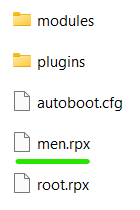
men.rpx in sd:/wiiu/environments/[ENVIRONMENT]/ (change [ENVIRONMENT] to either aroma or tiramisu depending on which one you are using). It should look like the image below.
If you are using Tiramisu probably there will be no
plugins folder, it's okay, you don't need to create one.
• If you are in Aroma, put your SD Card in your PC (or you can also access your SD Card via FTP), then inside the
• If you are in Tiramisu or Legacy, put your SD Card in your PC (or you can also access your SD Card via FTP), if you don't see the
•
•
•
Next, inside this folder, create a folder with any name, it doesn't matter, but if you want to put the mod's name, it's
wiiu folder, if you don't see the sdcafiine folder, create one, then inside the sdcafiine folder, create a folder with the name:• If you are in Tiramisu or Legacy, put your SD Card in your PC (or you can also access your SD Card via FTP), if you don't see the
sdcafiine folder inside, create one, then inside the sdcafiine folder, create a folder with the name:•
0005001010040100 for American Wii Us;•
0005001010040200 for European Wii Us;•
0005001010040000 for Japanese Wii Us.Next, inside this folder, create a folder with any name, it doesn't matter, but if you want to put the mod's name, it's
Old Swap Icon And Old Icon Animation Wii U Menu Mod, then inside this one create a folder called code, then inside code, place the patched men.rpx file. It should look like this.
This video is an example of the USA version, so the numbers folder may vary.
If you are using Aroma, the
sdcafiine folder should be inside the wiiu folder.
Both ways work for Aroma and Tiramisu users, but the first one doesn't require SDCafiine and is faster to setup.
IV. Placing Men.pack/Men2.pack
(if you didn't download Men.pack/Men2.pack skip this section)
• If you are in Aroma, put your SD Card in your PC (or you can also access your SD Card via FTP), then inside the wiiu folder, if you don't see the sdcafiine folder, create one, then inside the
sdcafiine folder, create a folder with the name:• If you are in Tiramisu or Legacy, put your SD Card in your PC (or you can also access your SD Card via FTP), if you don't see the sdcafiine folder inside, create one, then inside the
sdcafiine folder, create a folder with the name:•
0005001010040100 for American Wii Us;•
0005001010040200 for European Wii Us;•
0005001010040000 for Japanese Wii Us.Next, inside this folder, create a folder with any name, it doesn't matter, but if you want to put the mod's name, it's
Old Swap Icon And Old Icon Animation Wii U Menu Mod, then inside this one create a folder called content, then inside content, create a folder called Common, then inside Common, create a folder called Package, and to finish it off, place the patched Men.pack and/or Men2.pack inside the Package folder. It should look like this.
This video is an example of the USA version, so the numbers folder may vary.
If you are using Tiramisu or Legacy, the
sdcafiine folder should be outside the wiiu folder, so ignore that part from the video.
V. Activating the files
The
men.rpx file will automatically work when you load Aroma/Tiramisu, so you don't need to do anything. But for the Men.pack/Men2.pack files:• If you are in Aroma, you need to activate the
Plugins Menu (L + Down + SELECT (-) for GamePad or B + Down + Minus (-) for WiiMotes), then go to SDCafiine and set Enable SDCafiine to true (you'll need to restart the Wii U afterwards).• If you are in Tiramisu, launch the
Mii Maker app (or the Homebrew Launcher forwarder if you have it), then search for SDCafiine, click on it, after that click Load. If you want to autoboot in Tiramisu, follow this guide (you'll lose access to the HBL though): Don't forget to download and install the [channel version of the Homebrew Launcher](https://github.com/dimok789/homebrew_launcher/releases/), it will be useful.
 Then after you installed all of this, boot/reboot your Wii U while holding
+, then select Homebrew Launcher as default autoboot. Take your SD Card of your Wii U and change the homebrew_launcher.elf in the wiiu/apps/homebrew_launcher with the SDCafiine one (rename it as homebrew_launcher.elf).Now, don't forget to put your themes in the title ID folder of your menu in the root
sdcafiine folder:• JP:
0005001010040000;• USA:
0005001010040100;• EUR:
0005001010040100.And done! You now have custom themes without replacing any file!
You can download some of them here (https://gbatemp.net/threads/share-and-download-custom-wii-u-themes.592318/).
You'll now wonder why I said you needed to download the Homebrew Launcher Channel; it is because, as you replace the .elf of the Homebrew Launcher, every time you will launch the Mii Maker Channel, it will launch SDCafiine instead of the Homebrew Launcher. That why you will need to download it.
Homebrew Launcher (it's different depending if you are in Haxchi, CBHC or Mocha), then search for SDCafiine, click on it, after that click Load.After those steps, a screen should pop up, you just need to press
- to activate autoboot, and after that press A. Then everything should be working, the TVii icon, the OG button and the OG animation. Any further questions just ask me (and if you see a typo or find something confusing tell me). Happy modding!
If you are in Aroma, I'd suggest that you open the
Plugins Menu then choose SDCafiine > Advanced settings and set Skip "Preparing modpack..." screen to true.
FAQ
There are two main ways, by extracting from your Wii U via FTP or by searching online, which I cannot show where, as it would violate the terms and rules.
So, if you want to do the FTP way, you'll need:
• A Wii U FTP client, like FTPiiU (Aroma), FTPiiU Everywhere (Legacy), WiiUFtpServer (Legacy) or others;
• A PC FTP client, like WinSCP, FileZilla or others.
Then, if you are on Aroma, enter the
Now you head over to your PC, open the FTP client and choose the IP and port that the Wii U shows, afterwards, follow this path WITHOUT MESSING WITH ANY FILES. If your Wii U is from:
• the USA, go to
• Europe, go to
• Japan, go to
And then just copy the file to your computer. Now you can turn off the FTP clients and even uninstall them if you want!
So, if you want to do the FTP way, you'll need:
• A Wii U FTP client, like FTPiiU (Aroma), FTPiiU Everywhere (Legacy), WiiUFtpServer (Legacy) or others;
• A PC FTP client, like WinSCP, FileZilla or others.
Then, if you are on Aroma, enter the
Plugins Menu (L + Down + SELECT (-) for GamePad or B + Down + Minus (-) for WiiMotes) and select FTPiiU, after that set Allow access to system files to true and do the same thing to Enable FTPiiU (just don't forget to turn it off after the guide if you don't want the FTP server to be online). But if you are on a Legacy CFW, enter the Homebrew Launcher and choose whichever FTP client you downloaded.Now you head over to your PC, open the FTP client and choose the IP and port that the Wii U shows, afterwards, follow this path WITHOUT MESSING WITH ANY FILES. If your Wii U is from:
• the USA, go to
storage_mlc\sys\title\00050010\10040100\code\men.rpx;• Europe, go to
storage_mlc\sys\title\00050010\10040200\code\men.rpx;• Japan, go to
storage_mlc\sys\title\00050010\10040000\code\men.rpx.And then just copy the file to your computer. Now you can turn off the FTP clients and even uninstall them if you want!
There are three main ways, by backuping them via Theme Manager, by extracting them from your Wii U via FTP or by searching them online, which I cannot show where, as it would violate the terms and rules.
So, if you want to do the Theme Manager way, you'll simply need Theme Manager in your Wii U. After that, open the app (if you're on Aroma it'll be in the Main Menu, but if you're on Tiramisu/Legacy, it'll be inside the Homebrew Launcher), and when it finishes loading and a screen saying
Select a theme: appears, press R on the GamePad to backup the files, now just wait for it to finish and you can close and even delete the app if you want. The files should be inside sd:/wiiu/themes/backup/ or similar to that.So, if you want to do the FTP way, you'll need:
• A Wii U FTP client, like FTPiiU (Aroma), FTPiiU Everywhere (Legacy), WiiUFtpServer (Legacy) or others;
• A PC FTP client, like WinSCP, FileZilla or others.
Then, if you are on Aroma, enter the
Now you head over to your PC, open the FTP client and choose the IP and port that the Wii U shows, afterwards, follow this path WITHOUT MESSING WITH ANY FILES. If your Wii U is from:
• the USA, go to
• Europe, go to
• Japan, go to
And then just copy the file to your computer. Now you can turn off the FTP clients and even uninstall them if you want!
• A Wii U FTP client, like FTPiiU (Aroma), FTPiiU Everywhere (Legacy), WiiUFtpServer (Legacy) or others;
• A PC FTP client, like WinSCP, FileZilla or others.
Then, if you are on Aroma, enter the
Plugins Menu (L + Down + SELECT (-) for GamePad or B + Down + Minus (-) for WiiMotes) and select FTPiiU, after that set Allow access to system files to true and do the same thing to Enable FTPiiU (just don't forget to turn it off after the guide if you don't want the FTP server to be online). But if you are on a Legacy CFW, enter the Homebrew Launcher and choose whichever FTP client you downloaded.Now you head over to your PC, open the FTP client and choose the IP and port that the Wii U shows, afterwards, follow this path WITHOUT MESSING WITH ANY FILES. If your Wii U is from:
• the USA, go to
storage_mlc\sys\title\00050010\10040100\content\Common\Package\Men.pack and/or Men2.pack;• Europe, go to
storage_mlc\sys\title\00050010\10040200\content\Common\Package\Men.pack and/or Men2.pack;• Japan, go to
storage_mlc\sys\title\00050010\10040000\content\Common\Package\Men.pack and/or Men2.pack.And then just copy the file to your computer. Now you can turn off the FTP clients and even uninstall them if you want!
This can happen due to MANY reasons, you can try checking if you:
• downloaded the latest version of the patch file;
• got the right region of the patch file (USA, EUR or JPN);
• are using the right ROM file with the right patch file (
• used a 5.5.5 or 5.5.6 (it may work with other versions, but I'm not sure) ROM file;
• didn't modify that file with another theme before.
If none of those work, I think the only thing left to do is search online for the ROM file you want to patch and hopefully find it (cannot link it here as it is against the rules).
• downloaded the latest version of the patch file;
• got the right region of the patch file (USA, EUR or JPN);
• are using the right ROM file with the right patch file (
men.rpx with men.rpx.bps, Men.pack with Men.pack.bps, Men2.pack with Men2.pack.bps);• used a 5.5.5 or 5.5.6 (it may work with other versions, but I'm not sure) ROM file;
• didn't modify that file with another theme before.
If none of those work, I think the only thing left to do is search online for the ROM file you want to patch and hopefully find it (cannot link it here as it is against the rules).
Probably related to an error during patching. See I receive message \" Source ROM checksum mismatch\" when patching.
Source ROM checksum mismatch\" when patching.THIS PART OF THE TUTORIAL IS MORE DANGEROUS, PLEASE BE CAUTIOUS!!!
There are two main ways, by inserting the files either via Theme Manager, or FTP. And although the Theme Manager way is easier and safier, it does NOT allow you to put the
There are two main ways, by inserting the files either via Theme Manager, or FTP. And although the Theme Manager way is easier and safier, it does NOT allow you to put the
men.rpx file in the system, so this one file requires the FTP way (and in case you wanna use men.rpx AND Men.pack/Men2.pack, start by inserting men.rpx with FTP inside the Wii U, as the other way around won't work very well).So, if you want to do the Theme Manager way, you'll need to download Theme Manager and put it in your Wii U, then create a folder with any name, but if you want to put the mod's name, it's
Old Swap Icon And Old Icon Animation Wii U Menu Mod, on this path in your SD Card: sd:/wiiu/themes/backup/[FOLDER], and inside this folder, copy the Men.pack and/or Men2.pack file(s). After that, open the app (if you're on Aroma it'll be in the Main Menu, but if you're on Tiramisu/Legacy, it'll be inside the Homebrew Launcher), and when it finishes loading and a screen saying Select a theme: appears, select the option with the folder name you chose and click A, this should apply the theme, then you can delete the theme files from the folder and even the app if you want.So, if you want to do the FTP way, you'll need:
• A Wii U FTP client, like FTPiiU (Aroma), FTPiiU Everywhere (Legacy), WiiUFtpServer (Legacy) or others;
• A PC FTP client, like WinSCP, FileZilla or others.
Then, if you are on Aroma, enter the
Now you head over to your PC, open the FTP client and choose the IP and port that the Wii U shows, afterwards, follow this path WITHOUT MESSING WITH ANY FILES. If your Wii U is from:
And then just copy the file from your computer. Now you can turn off the FTP clients and even uninstall them if you want!
• A Wii U FTP client, like FTPiiU (Aroma), FTPiiU Everywhere (Legacy), WiiUFtpServer (Legacy) or others;
• A PC FTP client, like WinSCP, FileZilla or others.
Then, if you are on Aroma, enter the
Plugins Menu (L + Down + SELECT (-) for GamePad or B + Down + Minus (-) for WiiMotes) and select FTPiiU, after that set Allow access to system files to true and do the same thing to Enable FTPiiU (just don't forget to turn it off after the guide if you don't want the FTP server to be online). But if you are on a Legacy CFW, enter the Homebrew Launcher and choose whichever FTP client you downloaded.Now you head over to your PC, open the FTP client and choose the IP and port that the Wii U shows, afterwards, follow this path WITHOUT MESSING WITH ANY FILES. If your Wii U is from:
• the USA, go to
• Europe, go to
• Japan, go to
storage_mlc\sys\title\00050010\10040100\code\men.rpx;• Europe, go to
storage_mlc\sys\title\00050010\10040200\code\men.rpx;• Japan, go to
storage_mlc\sys\title\00050010\10040000\code\men.rpx.• the USA, go to
• Europe, go to
• Japan, go to
storage_mlc\sys\title\00050010\10040100\content\Common\Package\Men.pack and/or Men2.pack;• Europe, go to
storage_mlc\sys\title\00050010\10040200\content\Common\Package\Men.pack and/or Men2.pack;• Japan, go to
storage_mlc\sys\title\00050010\10040000\content\Common\Package\Men.pack and/or Men2.pack.And then just copy the file from your computer. Now you can turn off the FTP clients and even uninstall them if you want!
This means that the files are corrupted. To temporarly fix the issue, simply turn off SDCaffine, but if you're unable to, just remove the files from the Source ROM checksum mismatch\" when patching as it's probably an error during patching.
sdcafiine folder on your SD Card. And there's no exact way to fix it, as it can happen due to MANY reasons, so try taking a look at I receive message \" Source ROM checksum mismatch\" when patching as it's probably an error during patching.Yes, you just need to install the Wii U Menu there first, by following the wiki or another tutorial. And you don't need to patch, just overwrite the files themselves from the Wii U Menu files that Cemu is loading from.
How can I contribute?
• Help find a way to autoboot SDCafiine in CBHC (it's probably not much different from the Tiramisu way, but I can't say for sure, so if anyone can tell me, I would apreciate it! ).
Changelog
- Fixed the incorrect appearance of the old swap icon;
- Added support for the
- Added support for the
men.rpx files from other regions that aren't Europe.- The mod just released!
Credits
• @JustMLC for creating this mod;
• @KirbyBot for creating this guide;
• @Maschell for creating Aroma, Tiramisu, SDCafiine, FTPiiU and JNUSTool;
• @FIX94 for creating Haxchi and CBHC;
• @dimok for creating Mocha CFW;
• @Xpl0itU for creating Theme Manager;
• @Laf111 for creating WiiUFtpServer;
• @Radnos for creating the SDCafiine autoboot in Tiramisu tutorial;
• @Juanen100 for creating StyleMiiU;
• To everyone else that contributed to the Wii U modding scene .
Last edited by KirbyBot,