Tutorial
Updated
PS4 SAA-001 UART reading and NOR Programming from a dummy.
Hello everyone,
I recently enabled and read the UART on the NOR of my PS4 with Blue Light of Death, so I wanted to make a guide so others would not have to suffer piecing together several different guides, forums, and videos like I had to.
The PS4 I was working on was a PS4 "FAT" with Motherboard SAA-001.
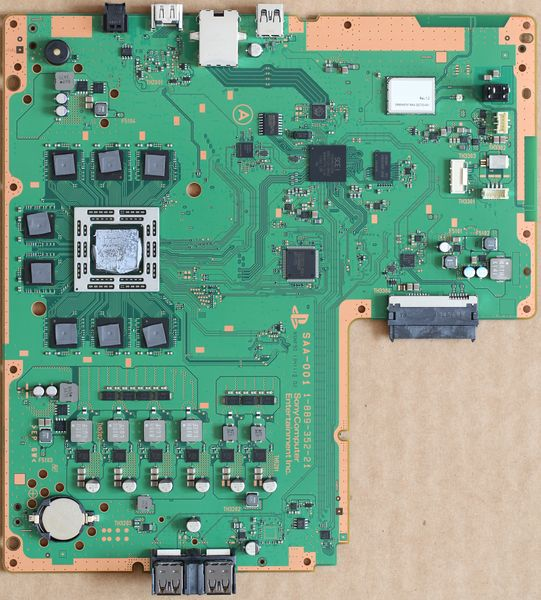
The NOR Chip on this board was an MXIC MX25L2565E 16-Pin chip.
(Not the same NOR chip, but a similar NOR chip. A good photo of one)

Located here on my motherboard:

The Programmer was a CH341a Programmer from Aliexpress.
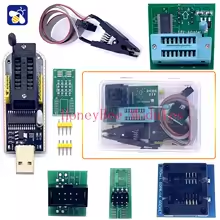

Sooooooooooooooooooo I didn't need to do any modifications. Neat.
What I did have to prepare was soldering together the adapter board for the 16-pin chip. Nothing crazy, just soldering those 4-pin connectors to the outer group of pins. I don't think it REALLY matters, but I'll follow what this person did on YouTube since it worked for them.
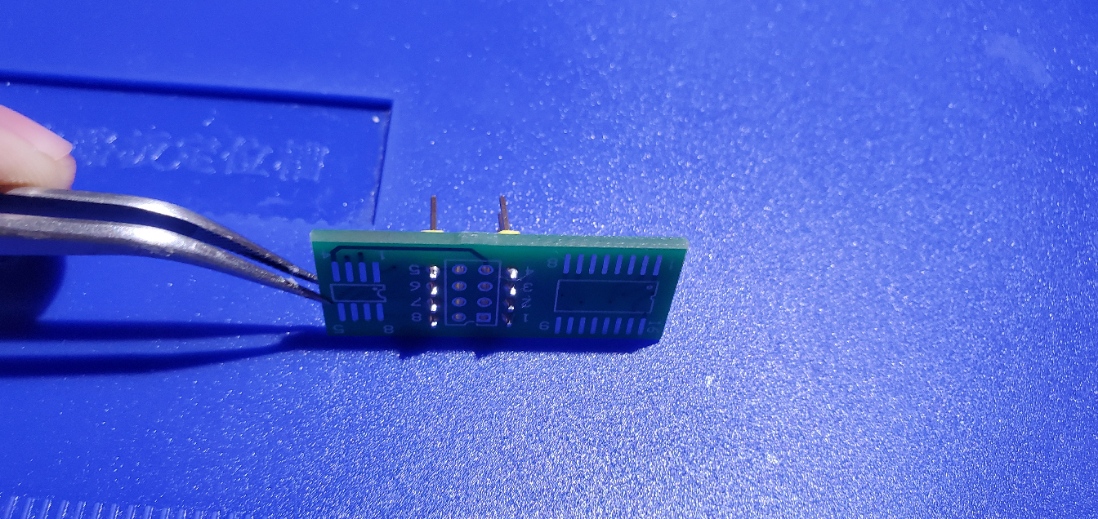
From there, take the NOR chip off the PS4 and mount it onto the adapter board. Note the Dot on the adapter board as a guide for mounting the NOR chip.
Sticking the Adapter Board into the CH341a was oriented backwards to what I would expect. This orientation would make it show up on my PC. (This stumped me for almost an hour as I didn't want to fry the NOR).
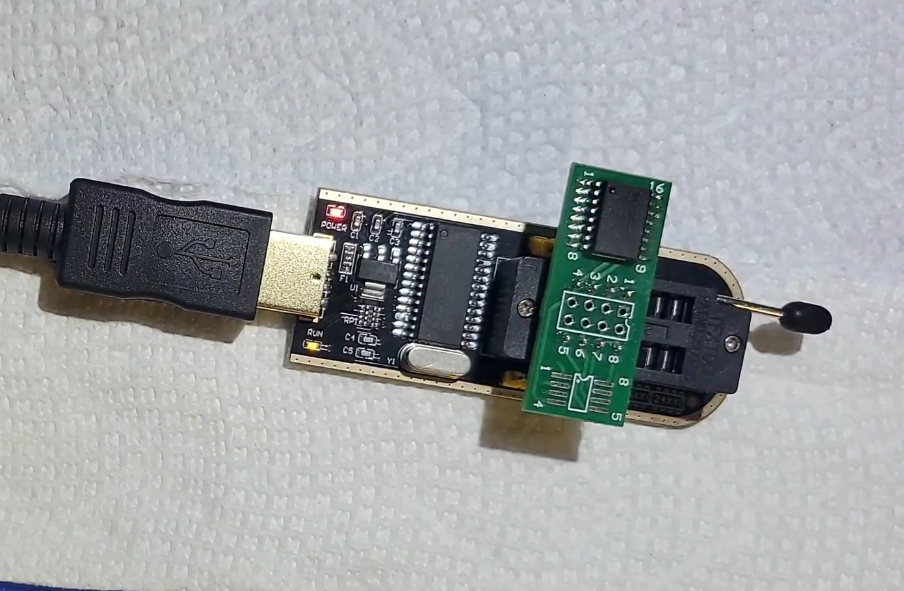
Plugging the CH341a into my computer, it appeared as an "other" device (When I first set up the drivers, I didn't have the NOR chip adapter on).


No drivers were installed, so it makes sense.
AsProgrammer, the programming software that I chose to use comes with drivers for the CH341a.
ASProgrammer is free to download, And no, you do not need Buzzpirat, whatever that is for.
The drivers that worked for me were in the drivers folder > CH34X > CH341PAR.exe
After that, the CH341a showed up in my Device Manager as an Interface device.

It is ready to go.
User sautzer on psx-palce.com has a pretty helpful guide with big arrows.
Open the program's .exe, and you need to set two things:
- Under "Hardware", set the CH341a if it isn't already
- Under IC, select search, and type out the string of characters on the NOR chip (in this case, MX25L2565E)

Select that IC, and it should change the information on the left-hand side of the program.

Now, time to take the first NOR Dump. Click "Read IC" and let it run.

After it is done, do it again. This is recommended by the repair.wiki guide as a means of comparison in case something is wrong with the NOR chip.
Place both dumps in a folder.
This program is also free, but there is a paid tier for things we don't need.
The most recent releases will not have the .exe you will need. You have to grab an older release. For me, this was V0.9.5
The repair.wiki has an amazing step-by-step guide on how to compare the NOR dump and enable the UART flag. I would highly recommend reading over there, but for posterity, I will include it here.

Once it is done, reinstall the NOR back onto your PS4
You can read the UART with the CH341a and PS4 WEE TOOLS, repair.wiki for that guide.
I tried reading the UART before I had the CH341a, and all I had at my disposal was a Raspberry Pi Pico. (The URAT spat out nothing since the flag wasn't enabled at the time. It was worth a shot.
Got two 30AWG wires soldered to the motherboard at two points: UART0 TX and GND. Shoutout to this video for the image.

The ground wire connected to the Raspberry Pi Pico at Pin 3
The TX wire is connected at Pin 2.
Download and install CircuitPython onto the Pico (Holding the button on the pico, plugging it into the computer, and dropping the .uf2 file onto it), and change the code.py file to
Download puTTy, and open "putty.exe". The download adds a bunch of different programs.
In Device Manager, you'll need to find the COM port for the Pico
Select the Pico’s USB serial port at 115 200 baud, 8 data bits, no parity, 1 stop bit, no flow control.

Select open.
Partially assemble the PS4, and power it up.

And for me, I have a RAM or APU issue. Cool.
I recently enabled and read the UART on the NOR of my PS4 with Blue Light of Death, so I wanted to make a guide so others would not have to suffer piecing together several different guides, forums, and videos like I had to.
This is not a comprehensive guide. This is one PS4, one NOR chip, and one Programmer.
This guide also assumes knowledge of and the tool to solder and remove chips via hot air.
The PS4 I was working on was a PS4 "FAT" with Motherboard SAA-001.
The NOR Chip on this board was an MXIC MX25L2565E 16-Pin chip.
(Not the same NOR chip, but a similar NOR chip. A good photo of one)
Located here on my motherboard:
The Programmer was a CH341a Programmer from Aliexpress.
Let's get started.
1. Physically Prepping the Programmer.
So the first thing I needed to tackle was converting the CH341a programmer from 5V to 3.3V; The Repair.wiki guide stresses this. I found another page that walks through the steps of converting the Programmer from 5V to 3.3V, but what was strange about my programmer was that it read 3.3V at the test points of the aforementioned guide.Sooooooooooooooooooo I didn't need to do any modifications. Neat.
What I did have to prepare was soldering together the adapter board for the 16-pin chip. Nothing crazy, just soldering those 4-pin connectors to the outer group of pins. I don't think it REALLY matters, but I'll follow what this person did on YouTube since it worked for them.
From there, take the NOR chip off the PS4 and mount it onto the adapter board. Note the Dot on the adapter board as a guide for mounting the NOR chip.
Sticking the Adapter Board into the CH341a was oriented backwards to what I would expect. This orientation would make it show up on my PC. (This stumped me for almost an hour as I didn't want to fry the NOR).
2. Software Prepping the Programmer.
Plugging the CH341a into my computer, it appeared as an "other" device (When I first set up the drivers, I didn't have the NOR chip adapter on).
No drivers were installed, so it makes sense.
AsProgrammer, the programming software that I chose to use comes with drivers for the CH341a.
ASProgrammer is free to download, And no, you do not need Buzzpirat, whatever that is for.
The drivers that worked for me were in the drivers folder > CH34X > CH341PAR.exe
After that, the CH341a showed up in my Device Manager as an Interface device.
It is ready to go.
3. NOR dumping with AsProgrammer
Having downloaded AsProgrammer for the drivers, have the CH241a and NOR chip plugged into the PC if it isn't already.User sautzer on psx-palce.com has a pretty helpful guide with big arrows.
Open the program's .exe, and you need to set two things:
- Under "Hardware", set the CH341a if it isn't already
- Under IC, select search, and type out the string of characters on the NOR chip (in this case, MX25L2565E)
Select that IC, and it should change the information on the left-hand side of the program.
Now, time to take the first NOR Dump. Click "Read IC" and let it run.
After it is done, do it again. This is recommended by the repair.wiki guide as a means of comparison in case something is wrong with the NOR chip.
Place both dumps in a folder.
4. UART Flag enabling with PS4 Wee Tools
Reading the NOR Chip and verifying the dumps are done with the PS4 wee Tools.This program is also free, but there is a paid tier for things we don't need.
The most recent releases will not have the .exe you will need. You have to grab an older release. For me, this was V0.9.5
The repair.wiki has an amazing step-by-step guide on how to compare the NOR dump and enable the UART flag. I would highly recommend reading over there, but for posterity, I will include it here.
Read the NOR chip using a programmer of your choice at least 2 times and compare your dumps between each other to see if you're getting a consistent read.
Comparing dumps with PS4 Wee Tools:
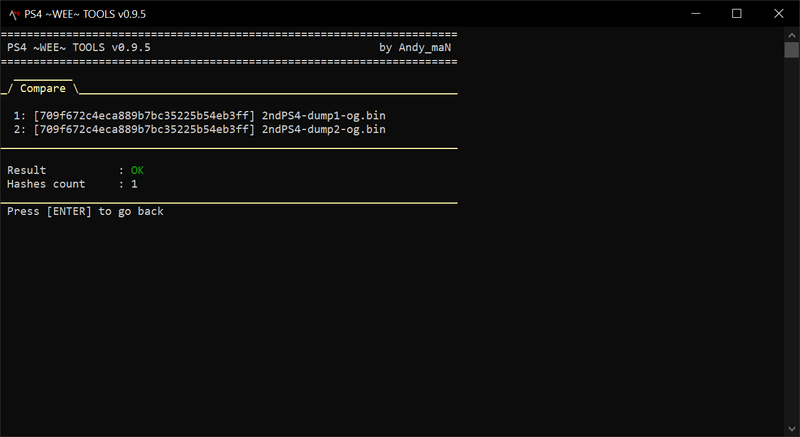
This will verify whether both files are matching each other, if so you're good to go. If the check fails, go back, check your connections and read the chip again. This is especially important as the NOR chip contains per console information, if you lose that your console will be broken forever.
Be sure to name the dumps in a way where you will know which console they came from and what they have inside - for instance "2ndPS4-dump1-og.bin". As all the changes inside PS4 Wee Tools will apply immediately to the file it's good to keep a copy of the original dumps in a different place just in case.
Playstation 4 Pro NOR validated with PS4 Wee Tools.
It's also a good practice to verify the integrity of the NOR before going further, this can uncover issues with the console without getting into UART reading.
You can do that inside PS4 Wee Tools by following these steps:

Now we will patch the dump of the NOR chip to enable the UART flag.

Comparing dumps with PS4 Wee Tools:
- Put the dumps in a folder and place that folder at the same location as the PS4 Wee Tools executable
- Run the program and select option "1: File Browser"
- Select your folder from the list
- Use the "c: Compare files in current folder" option
This will verify whether both files are matching each other, if so you're good to go. If the check fails, go back, check your connections and read the chip again. This is especially important as the NOR chip contains per console information, if you lose that your console will be broken forever.
Be sure to name the dumps in a way where you will know which console they came from and what they have inside - for instance "2ndPS4-dump1-og.bin". As all the changes inside PS4 Wee Tools will apply immediately to the file it's good to keep a copy of the original dumps in a different place just in case.
Playstation 4 Pro NOR validated with PS4 Wee Tools.
It's also a good practice to verify the integrity of the NOR before going further, this can uncover issues with the console without getting into UART reading.
You can do that inside PS4 Wee Tools by following these steps:
- Copy one of the good dumps to the same folder as the PS4 Wee Tools executable
- Run the program and select option "1: File Browser"
- Select the dump you've just copied
- Select "8: Additional Tools" from the actions menu
- Select "6: Base validation and entropy stats"
Patch the NOR chip dump
NOR dump with UART enabled in PS4 Wee Tools.Now we will patch the dump of the NOR chip to enable the UART flag.
- Copy one of the good dumps to the same folder as the PS4 Wee Tools executable
- Run the program and select option "1: File Browser"
- Select the dump you've just copied
- Verify that the program successfully read information from the dump in the NOR info section (if so you have a good dump)
- Select "1: Flags" option from the Action menu
- Enable the UART flag by selecting option "1", you should see "UART was set to [On]"
- Get back to previous menu using "0: Go Back" and then to the file browser using "s - Select Another File"
- Select your dump again and verify that the UART says ON on the NOR info section
- Close the program and rename your dump to indicate that it has the UART enabled - for instance "2ndPS4-dump1-UART.bin"
4. Writing modified NOR dump back to the NOR using AsProgrammer
Go back to AsProgrammer, with the CH341a and NOR chip still plugged in, open up your modified NOR bin with the UART flag enabled, and select "Program IC".Once it is done, reinstall the NOR back onto your PS4
Optional: Raspberry Pi Pico to read the UART.
Got to give Bing AI credit for this one. There is no way I would have figured this out.You can read the UART with the CH341a and PS4 WEE TOOLS, repair.wiki for that guide.
I tried reading the UART before I had the CH341a, and all I had at my disposal was a Raspberry Pi Pico. (The URAT spat out nothing since the flag wasn't enabled at the time. It was worth a shot.
Got two 30AWG wires soldered to the motherboard at two points: UART0 TX and GND. Shoutout to this video for the image.
The ground wire connected to the Raspberry Pi Pico at Pin 3
The TX wire is connected at Pin 2.
Download and install CircuitPython onto the Pico (Holding the button on the pico, plugging it into the computer, and dropping the .uf2 file onto it), and change the code.py file to
Code:
import board
import busio
import usb_cdc

# Set up UART0: GP0 = Pico TX (unused), GP1 = Pico RX (reads PS4 TX)
uart = busio.UART(board.GP0, board.GP1, baudrate=115200)
console = usb_cdc.console

while True:
    data = uart.read(32)     # read up to 32 bytes
    if data:
        console.write(data)  # forward to USB serial
Download puTTy, and open "putty.exe". The download adds a bunch of different programs.
In Device Manager, you'll need to find the COM port for the Pico
Select the Pico’s USB serial port at 115 200 baud, 8 data bits, no parity, 1 stop bit, no flow control.
Select open.
Partially assemble the PS4, and power it up.
And for me, I have a RAM or APU issue. Cool.
Last edited by KIlly728,