Hello All,
Wanted to share something I had discovered. Apologies if this is already documented somewhere else. But It is possible to sort your games on your Mig using an ExFat Card if that is something you would like to attempt. Normally the order is FIFO (first in first out) in the order added to the SD Card, but it can be organized alphabetically (allowing you to rename the folders if you have a specific order you want). This process was done using WSL (Windows Subsystem for Linux), but Linux is the key here, so it can be done on linux OS's. Basically use Fatsort to sort the directory entries on the sdcard filesystem.
Before
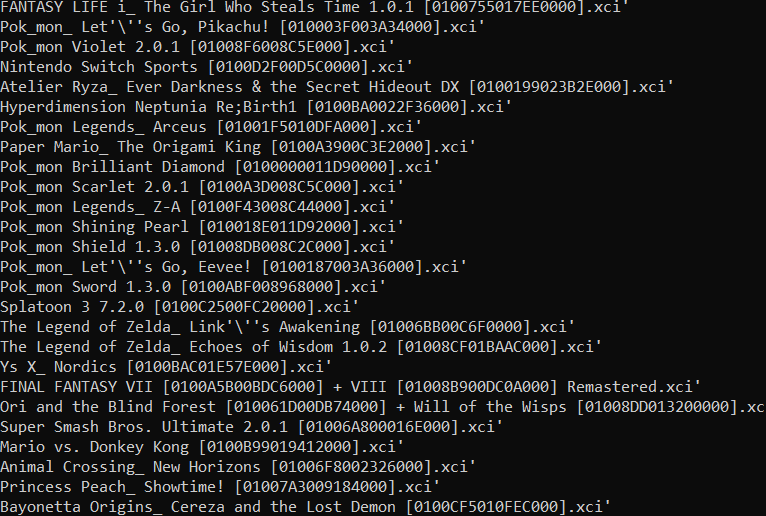
After

FATSORT - SD CARD ALPHABETICAL SORTING
=======================================
PREREQUISITES SETUP (one time only)
-------------------------------------
1. Install Ubuntu on WSL
(in PowerShell as Administrator)
wsl --install -d Ubuntu
- Follow prompts to create a username and password
- Set Ubuntu as the default WSL distribution:
wsl --set-default Ubuntu
2. Install usbipd on Windows
(in PowerShell as Administrator)
winget install usbipd
3. Find your SD card hardware ID
(in PowerShell as Administrator)
usbipd list
- Look for "USB Mass Storage Device" and note the VID: PID value
- Example: 14cd:125d <-- yours may differ, note it down
4. Install fatsort and exfat support in Ubuntu
(in Ubuntu WSL)
sudo apt update
sudo apt install exfat-fuse exfatprogs fatsort
5. Create the mountpoint directory
(in Ubuntu WSL)
sudo mkdir /mnt/sdcard
---
STEPS (each time)
------------------
1. Plug in SD card
2. Open PowerShell as Administrator and find your SD card hardware ID:
usbipd list
- Look for "USB Mass Storage Device" and note the VID: PID (e.g. 14cd:125d)
3. Attach to WSL:
usbipd attach --wsl --hardware-id <VID: PID>
(replace <VID: PID> with value from step 2, e.g. 14cd:125d)
4. Open Ubuntu WSL and find your SD card device:
lsblk
- Look for a disk matching your SD card size, note the partition name
- Example: sdf1 <-- yours may differ
5. Mount the card:
sudo umount /dev/<partition>
sudo fuser -k /dev/<partition>
sudo mount.exfat-fuse /dev/<partition> /mnt/sdcard
(replace <partition> with value from step 4, e.g. sdf1)
6. Verify order BEFORE sorting:
ls -Uf /mnt/sdcard
7. Unmount and run fatsort:
sudo umount /dev/<partition>
sudo fatsort -n /dev/<partition>
8. Verify order AFTER sorting:
sudo mount.exfat-fuse /dev/<partition> /mnt/sdcard
ls -Uf /mnt/sdcard
9. Clean up:
(in Ubuntu WSL)
sudo umount /dev/<partition>
(in PowerShell)
usbipd detach --hardware-id <VID: PID>
10. Unplug SD card
---
NOTES
-----
- Always verify your SD card device name with lsblk and hardware ID with
usbipd list each time, as they can change depending on what else is plugged in
- fatsort may show an error on "System Volume Information" - this is a
Windows system folder and can be ignored
- ls -Uf shows files in raw directory entry (FIFO) order, not alphabetical,
so if it looks alphabetical after fatsort it worked correctly
- macOS ls -U does NOT show true FIFO order (it uses BSD tools, not GNU),
so always verify in Ubuntu WSL
Wanted to share something I had discovered. Apologies if this is already documented somewhere else. But It is possible to sort your games on your Mig using an ExFat Card if that is something you would like to attempt. Normally the order is FIFO (first in first out) in the order added to the SD Card, but it can be organized alphabetically (allowing you to rename the folders if you have a specific order you want). This process was done using WSL (Windows Subsystem for Linux), but Linux is the key here, so it can be done on linux OS's. Basically use Fatsort to sort the directory entries on the sdcard filesystem.
Before
After
FATSORT - SD CARD ALPHABETICAL SORTING
=======================================
PREREQUISITES SETUP (one time only)
-------------------------------------
1. Install Ubuntu on WSL
(in PowerShell as Administrator)
wsl --install -d Ubuntu
- Follow prompts to create a username and password
- Set Ubuntu as the default WSL distribution:
wsl --set-default Ubuntu
2. Install usbipd on Windows
(in PowerShell as Administrator)
winget install usbipd
3. Find your SD card hardware ID
(in PowerShell as Administrator)
usbipd list
- Look for "USB Mass Storage Device" and note the VID: PID value
- Example: 14cd:125d <-- yours may differ, note it down
4. Install fatsort and exfat support in Ubuntu
(in Ubuntu WSL)
sudo apt update
sudo apt install exfat-fuse exfatprogs fatsort
5. Create the mountpoint directory
(in Ubuntu WSL)
sudo mkdir /mnt/sdcard
---
STEPS (each time)
------------------
1. Plug in SD card
2. Open PowerShell as Administrator and find your SD card hardware ID:
usbipd list
- Look for "USB Mass Storage Device" and note the VID: PID (e.g. 14cd:125d)
3. Attach to WSL:
usbipd attach --wsl --hardware-id <VID: PID>
(replace <VID: PID> with value from step 2, e.g. 14cd:125d)
4. Open Ubuntu WSL and find your SD card device:
lsblk
- Look for a disk matching your SD card size, note the partition name
- Example: sdf1 <-- yours may differ
5. Mount the card:
sudo umount /dev/<partition>
sudo fuser -k /dev/<partition>
sudo mount.exfat-fuse /dev/<partition> /mnt/sdcard
(replace <partition> with value from step 4, e.g. sdf1)
6. Verify order BEFORE sorting:
ls -Uf /mnt/sdcard
7. Unmount and run fatsort:
sudo umount /dev/<partition>
sudo fatsort -n /dev/<partition>
8. Verify order AFTER sorting:
sudo mount.exfat-fuse /dev/<partition> /mnt/sdcard
ls -Uf /mnt/sdcard
9. Clean up:
(in Ubuntu WSL)
sudo umount /dev/<partition>
(in PowerShell)
usbipd detach --hardware-id <VID: PID>
10. Unplug SD card
---
NOTES
-----
- Always verify your SD card device name with lsblk and hardware ID with
usbipd list each time, as they can change depending on what else is plugged in
- fatsort may show an error on "System Volume Information" - this is a
Windows system folder and can be ignored
- ls -Uf shows files in raw directory entry (FIFO) order, not alphabetical,
so if it looks alphabetical after fatsort it worked correctly
- macOS ls -U does NOT show true FIFO order (it uses BSD tools, not GNU),
so always verify in Ubuntu WSL