Tutorial
Updated
A Comprehensive Look at the Wii U's File Formats and How to Convert Between Them
Introduction
In this thread I wanted to provide a single easy to follow resource for explaining and understanding the different file formats for Wii U software and the uses cases they can have, either on original hardware or on the CEMU emulator. This is also the result of a few months of experimentation on my end and I wanted to document and share these results as well.
What file formats are we dealing with?
We have 4 main file formats to work with here, of which only one properly works on original hardware, though CEMU can use all of these file formats depending on what is most convenient for you. Here's a list of these formats:
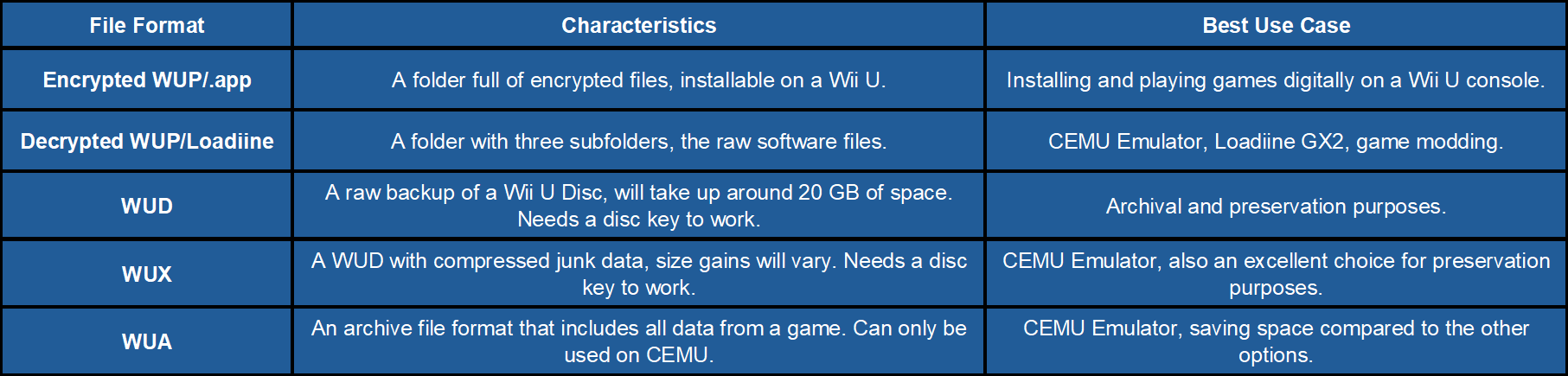
In summary, Encrypted WUP/.app is the best choice if you plan to mainly play on an actual Wii U, while WUX and WUA are the better options if using the CEMU emulator. With WUA offering the most streamlined solution possible for CEMU users.
How can we convert between these files formats?
Now that we know about the file formats and how/where to use them, how can we get our games to the format we want? There's a few possible conversion paths we can use, but do note some conversion paths are not possible. You can see what conversions paths we can or can't use in the table below.

With this in mind, here's a list of the conversions we can do:
In this thread I wanted to provide a single easy to follow resource for explaining and understanding the different file formats for Wii U software and the uses cases they can have, either on original hardware or on the CEMU emulator. This is also the result of a few months of experimentation on my end and I wanted to document and share these results as well.
What file formats are we dealing with?
We have 4 main file formats to work with here, of which only one properly works on original hardware, though CEMU can use all of these file formats depending on what is most convenient for you. Here's a list of these formats:
- WUP: The Wii U Package format can be best compared to the Wii's WAD format, meaning it's completely installable on original hardware using tools such as WUP Installer GX2. Unlike WAD files however, a WUP is not a single file, but rather a folder containing multiple files. These can come in two flavors: encrypted (also known as .app) and decrypted (also known as Loadiine). Encrypted WUPs are what you need for installing them on an actual Wii U, being mostly .app files (hence the .app name). Decrypted WUPs are what you need for use with the CEMU emulator or the old Loadiine GX2 app (hence the Loadiine format name), these come as three folders: code (where the app's main executable is located), content (where the app's complementary data is located), and meta (where the app's metadata is located, including splash screens, the app icon, and even the app name strings). WUP is also the only format available for any digital only titles, such as eShop only games and any updates/DLC content.
- WUD: The Wii U Disc format is a 1:1, raw copy of the contents of a physical Wii U disc, being the same as a ISO file for other systems like the Wii and GameCube. These are the best option for preservation of physical games for this reason. The main downside of using WUD files is that they always take up roughly 20 GB of space (matching the capacity of a Wii U Disc), which can add up quickly if you have multiple WUD files. Much like Wii discs, Wii U discs can contain multiple data partitions. Though unlike the Wii, you mostly see one or two partitions on most discs: a "Game" partition and a "Update" partition. Another wrinkle with these files comes in the form of a disc key. Since the contents of the disc are encrypted, a key is required to decrypt these contents to actually make them usable, and each disc has its own key for this purpose. This means a WUD file is basically useless if you don't have its disc key alongside it. CEMU requires users to manually store these disc keys in a file called "keys.txt" for every disc game you might want to play.
- WUX: The Wii U Compressed format is exactly what the name implies, a compressed WUD file. To keep the Wii comparisons going, this is most similar to the WBFS format. In order to save space compared to a WUD file, any junk/dummy data the disc has is compressed, leaving the actual useful data intact for the game to work correctly. On a disc this junk data is necessary so the whole disc space is utilized, even when the game itself doesn't come close to filling it up. For a digital file, however, it only creates unnecessary wasted space. Because of this, the size gains will depend on how much junk data the disc had. Some games might see a significant reduction in size, while others could barely change at all. Also note that since the actual game data is left untouched, it is still encrypted, so you still require the disc key for a WUX file to be functional.
- WUA: The Wii U Archive format is a CEMU exclusive solution that has a few advantages over the previous formats. Think of it like a playable zip file. A WUA file can contain the game data, game updates, and any DLC in a single plug-and-play file, and since it stores the decrypted contents only, no disc keys are required. It also can efficiently compress the data, allowing for some storage savings as well. The main downside with these files is that these files won't work outside of the CEMU Emulator.
In summary, Encrypted WUP/.app is the best choice if you plan to mainly play on an actual Wii U, while WUX and WUA are the better options if using the CEMU emulator. With WUA offering the most streamlined solution possible for CEMU users.
How can we convert between these files formats?
Now that we know about the file formats and how/where to use them, how can we get our games to the format we want? There's a few possible conversion paths we can use, but do note some conversion paths are not possible. You can see what conversions paths we can or can't use in the table below.
With this in mind, here's a list of the conversions we can do:
The most logical place to start is by making a digital copy of a game disc, which we can thankfully do pretty easily thanks to a Homebrew app called WUDD (Wii U Disc Dumper). To use this we need a hacked Wii U console running either Aroma or Tiramisu alongside a working disc drive.
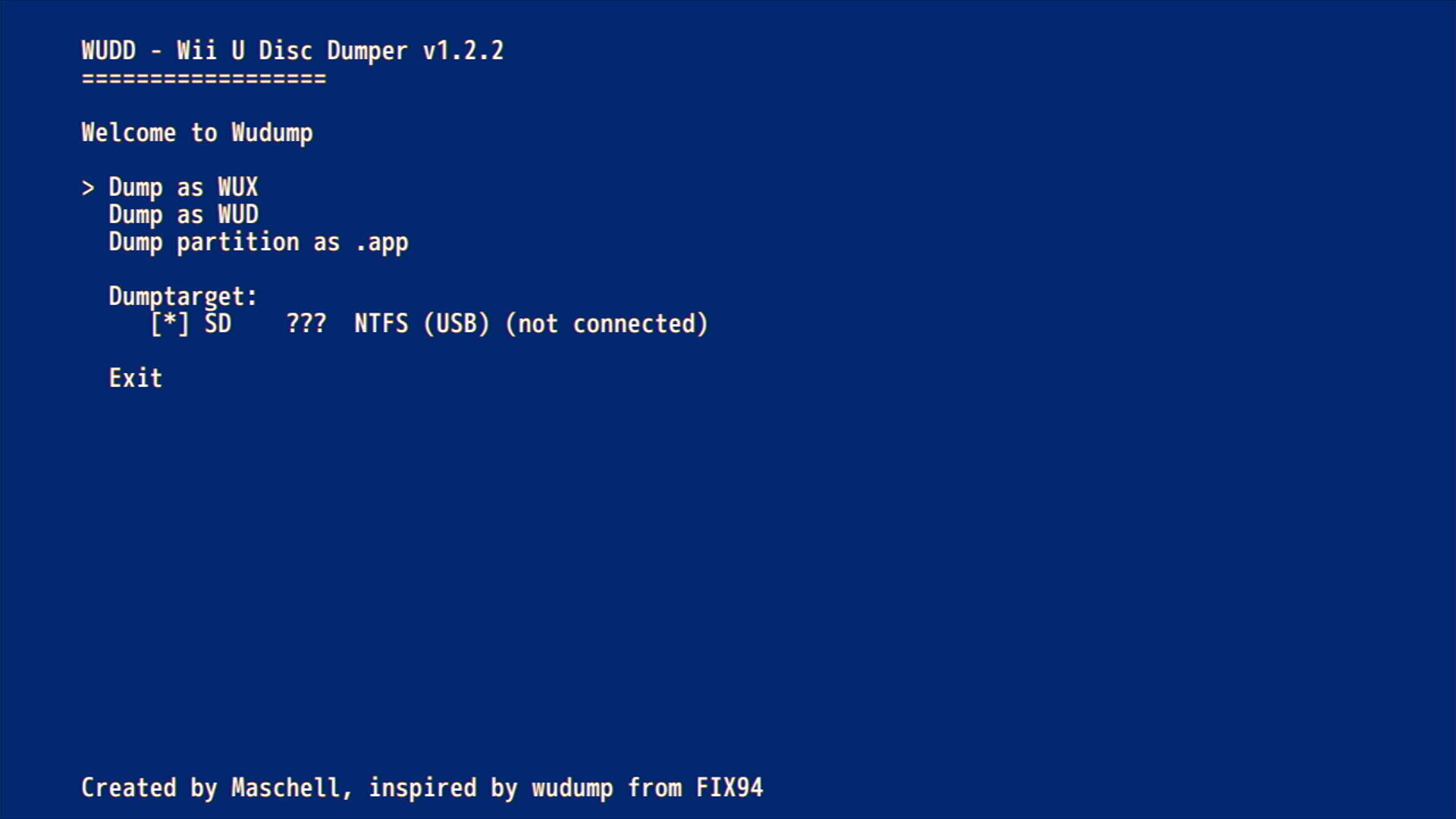
Simply open the app and insert a disc to get started, you can dump the game as a WUD/WUX file, or WUP (.app) folder and save it to either the SD Card or a NTFS USB Hard Drive. A Wii U Formatted Hard Drive will not work. You will see the final dump in a folder called "wudump" on the root of the storage drive used, inside that folder you should see a subfolder roughly called "WUP-P-XXXX" with the Xs being a game specific ID.

If you dumped a WUD/WUX file, you will also have a file called 'game.key' which as you could guess, is the disc's key. If you want to use this key with CEMU, you'll have to open it with a Hex editor (on Windows, I recommend HxD for the job) and copy the key from here and paste it in the 'keys.txt' file without any spaces (the Fs here are just an example):


If you dumped the WUD/WUX file to an SD card, you might notice these are split in multiple files. You can combine these into a single file by moving them to your computer and using a command prompt/terminal, though the exact command will depend on your operating system (if using WUD files, use wud instead of wux in these commands):
Windows Command:
Linux/macOS Command:


If you decided to dump a WUP folder, you will have to choose the partition you want to dump. Make sure to choose the "Game" partition. This will then leave you with the WUP folder inside the "WUP-P-XXXX" folder, which can then be installed using WUP Installer GX2.

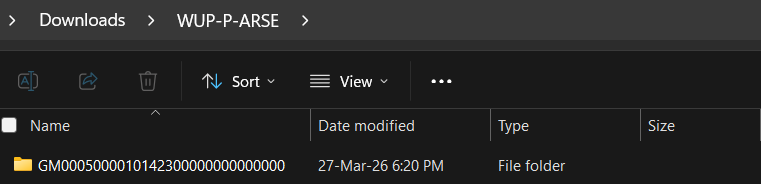
Simply open the app and insert a disc to get started, you can dump the game as a WUD/WUX file, or WUP (.app) folder and save it to either the SD Card or a NTFS USB Hard Drive. A Wii U Formatted Hard Drive will not work. You will see the final dump in a folder called "wudump" on the root of the storage drive used, inside that folder you should see a subfolder roughly called "WUP-P-XXXX" with the Xs being a game specific ID.
If you dumped a WUD/WUX file, you will also have a file called 'game.key' which as you could guess, is the disc's key. If you want to use this key with CEMU, you'll have to open it with a Hex editor (on Windows, I recommend HxD for the job) and copy the key from here and paste it in the 'keys.txt' file without any spaces (the Fs here are just an example):
If you dumped the WUD/WUX file to an SD card, you might notice these are split in multiple files. You can combine these into a single file by moving them to your computer and using a command prompt/terminal, though the exact command will depend on your operating system (if using WUD files, use wud instead of wux in these commands):
Windows Command:
copy /b game.wux.part? game.wuxLinux/macOS Command:
cat `ls game.wux.part? | sort` > game.wuxIf you decided to dump a WUP folder, you will have to choose the partition you want to dump. Make sure to choose the "Game" partition. This will then leave you with the WUP folder inside the "WUP-P-XXXX" folder, which can then be installed using WUP Installer GX2.
If you previously dumped the game as a WUD/WUX file for use with CEMU but now want to make a digital copy for your Wii U, you will need to convert your WUD/WUX file to a WUP folder. There's two tools we can use to accomplish this: JWUDTool and Nkit 2.0.
JWUDTool is Java tool by Maschell for manipulating WUD/WUX files that we can use for these conversions. You will need to have Java installed on your computer first, and you will also need the Wii U Common Key which can be extracted from an 'otp.bin' file from your console (or you can obtain the key from other means, which is up to you to figure out). Once you have the common key string, create a file called 'common.key' and open it with a Hex editor (on Windows I recommend HxD). You can then paste the common key string into this file and save it (it won't be all Fs like you see in this image, so just use your imagination):

With that file ready we can start the process:
Inside this "game" folder you should see a WUP folder for each partition of the disc, you want to use the folder that starts with '00050000' since that will always be the game partition. For discs with only one partition, that should be the only folder you have anyway.
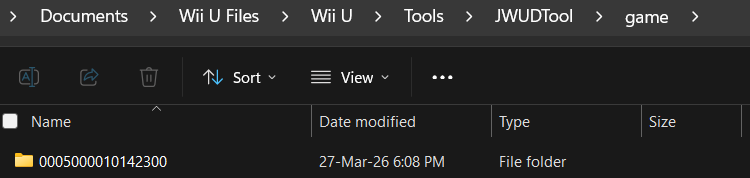
Congratulations! You can now install this folder on your Wii U with WUP Installer GX2.
With that file ready we can start the process:
- Download JWUDTool from here (you want the .jar file): https://github.com/Maschell/JWUDTool/releases/latest
- Move the jar file, the WUD/WUX file to convert, the common key, and the disc key to the same folder. If you don't have the disc key file but do have the string, you can manually create this file using similar steps for the 'common.key' file. Make sure the file is called 'game.key' (WUDD dumps the key with this name already), the folder should look like this:
- Open a command prompt/terminal and go to this folder:
- Type this command and run it (if using a WUD file, use wud instead of wux):
java -jar JWUDTool.jar -in "game.wux" -out "game" -extract all
Inside this "game" folder you should see a WUP folder for each partition of the disc, you want to use the folder that starts with '00050000' since that will always be the game partition. For discs with only one partition, that should be the only folder you have anyway.
Congratulations! You can now install this folder on your Wii U with WUP Installer GX2.
Not to be confused with the old Nkit app for GameCube/Wii, this new version can handle multiple systems including the Wii U. Beyond some useful verification tools, Nkit can also do some conversions as well.
The main downsides with this app is that it's currently closed source (with future plans to open source the project, but only time will tell when it happens), and that you can only download this app from the Nkit Discord server.
If those are dealbreakers for you, consider using JWUDTool instead. If you are interested in using NKit, you can find the Discord invite link on the Nkit GitHub's README, there's two app versions to download: a pure command line version and a UI version. For ease of use, I'll only cover the UI version.
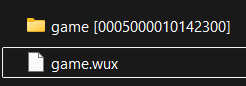
The main downsides with this app is that it's currently closed source (with future plans to open source the project, but only time will tell when it happens), and that you can only download this app from the Nkit Discord server.
If those are dealbreakers for you, consider using JWUDTool instead. If you are interested in using NKit, you can find the Discord invite link on the Nkit GitHub's README, there's two app versions to download: a pure command line version and a UI version. For ease of use, I'll only cover the UI version.
- Create a zip file with all the disc keys for your games (the ones generated from WUDD), and move it to Nkit's "keys/wiiu" folder:
- Open the Nkit app, select the Wii U system, and choose the Convert option:
- On the Settings, set the format single to "APP" and add your WUD/WUX file.
- Click on Process and wait for the conversion to finish. You can open the console to see how the conversion is going:
If you dumped a WUD file but want to compress it to save some space, this is the section for you. We can use one of these tools for the job: JWUDTool and Nkit 2.0.
JWUDTool is Java tool by Maschell for manipulating WUD/WUX files that we can use for these conversions. You will need to have Java installed on your computer first.

- Download JWUDTool from here (you want the .jar file): https://github.com/Maschell/JWUDTool/releases/latest
- Move the jar file and the WUD file to compress to the same folder, the folder should look like this:
- Open a command prompt/terminal and go to this folder:
- Type this command and run it:
java -jar JWUDTool.jar -in "game.wud" -compress
Not to be confused with the old Nkit app for GameCube/Wii, this new version can handle multiple systems including the Wii U. Beyond some useful verification tools, Nkit can also do some conversions as well.
The main downsides with this app is that it's currently closed source (with future plans to open source the project, but only time will tell when it happens), and that you can only download this app from the Nkit Discord server.
If those are dealbreakers for you, consider using JWUDTool instead. If you are interested in using NKit, you can find the Discord invite link on the Nkit GitHub's README, there's two app versions to download: a pure command line version and a UI version. For ease of use, I'll only cover the UI version.
The main downsides with this app is that it's currently closed source (with future plans to open source the project, but only time will tell when it happens), and that you can only download this app from the Nkit Discord server.
If those are dealbreakers for you, consider using JWUDTool instead. If you are interested in using NKit, you can find the Discord invite link on the Nkit GitHub's README, there's two app versions to download: a pure command line version and a UI version. For ease of use, I'll only cover the UI version.
- Open the Nkit app, select the Wii U system, and choose the Convert option:
- On the Settings, set the format single to "WUX" and add your wud file.
- Click on Process and wait for the conversion to finish. You can open the console to see how the conversion is going:
If you want to revert a WUX file to a WUD file for archival purposes, this section will cover how to accomplish this. You can use one of these tools for this: JWUDTool or Nkit 2.0.
JWUDTool is Java tool by Maschell for manipulating WUD/WUX files that we can use for these conversions. You will need to have Java installed on your computer first.

- Download JWUDTool from here (you want the .jar file): https://github.com/Maschell/JWUDTool/releases/latest
- Move the jar file and the WUX file to convert to the same folder, the folder should look like this:
- Open a command prompt/terminal and go to this folder:
- Type this command and run it:
java -jar JWUDTool.jar -in "game.wux" -decompress
Not to be confused with the old Nkit app for GameCube/Wii, this new version can handle multiple systems including the Wii U. Beyond some useful verification tools, Nkit can also do some conversions as well.
The main downsides with this app is that it's currently closed source (with future plans to open source the project, but only time will tell when it happens), and that you can only download this app from the Nkit Discord server.
If those are dealbreakers for you, consider using JWUDTool instead. If you are interested in using NKit, you can find the Discord invite link on the Nkit GitHub's README, there's two app versions to download: a pure command line version and a UI version. For ease of use, I'll only cover the UI version.
The main downsides with this app is that it's currently closed source (with future plans to open source the project, but only time will tell when it happens), and that you can only download this app from the Nkit Discord server.
If those are dealbreakers for you, consider using JWUDTool instead. If you are interested in using NKit, you can find the Discord invite link on the Nkit GitHub's README, there's two app versions to download: a pure command line version and a UI version. For ease of use, I'll only cover the UI version.
- Open the Nkit app, select the Wii U system, and choose the Convert option:
- On the Settings, set the format single to "ISO (WUD)" and add your wux file.
- Click on Process and wait for the conversion to finish. You can open the console to see how the conversion is going:
If you have an encrypted WUP folder and need to decrypt it (either for using it with CEMU/Loadiine, or if you are interested in the files themselves) we can use a tool called CDecrypt on a Windows computer (VMs will work too). Do note that this process is irreversible, as there's currently no way to restore the original encrypted WUP once you decrypt it.
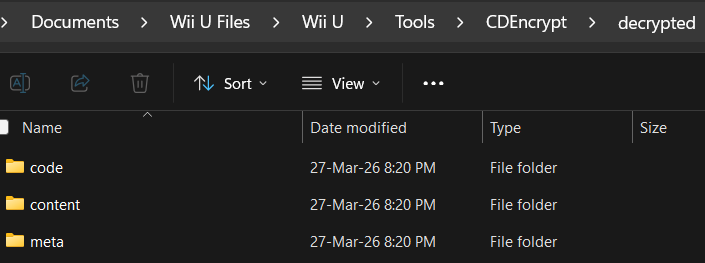
- Download CDecrypt from here (you want the zip file): https://github.com/VitaSmith/cdecrypt/releases/latest
- Extract the zip file to a folder, and move the WUP folder you want to decrypt to this folder. It should look like this:
- Open a command prompt inside this folder:
- Run this command to decrypt the WUP folder (where "encrypted" is the WUP folder to decrypt):
cdecrypt encrypted decrypted
If you want to dump a decrypted WUP folder without needing to decrypt a WUP first, we can dump it directly from our Wii U console using Dumpling. Or if you have the games on a Wii U Formatted Hard Drive, you can also use DumpsterU on a Windows/Linux computer and dump it from the hard drive directly. This is also the only way to dump digital only titles from a Wii U (eShop games, updates, and DLC).
The CEMU guide has a section dedicated to Dumpling if you are interested in using it. The method covered in the guide requires the console to not be running any CFW, so if you are currently using Aroma, either make sure you aren't autobooting into it or hold R while booting the console. Here's the link to the guide: https://cemu.cfw.guide/using-dumpling.html
Keep in mind that since DumpsterU predates the USB Partition Stroopwafel plugin, it only works with a completely formatted Hard Drive and not a partition. On top of this, Wii U HDDs are encrypted so that they can only work on the console that originally formatted the drive, meaning you require your console's 'otp.bin' and 'seeprom.bin' files, which you can get using a NAND dumper.
An alternative to DumpsterU that can work with a partition is wfs-tools, which are command line tools for manipulating the proprietary WFS filesystem used by the Wii U. For similar reasons as DumpsterU, you still require the 'otp.bin' and 'seeprom.bin' files from your console. Since I find DumpsterU simple to use, I will only explain how to use wfs-tools under Linux. While this could work on Windows, I haven't found a way to properly mount a Wii U formatted partition (a Linux VM will work and is what I used for this tutorial).

The CEMU guide has a section dedicated to Dumpling if you are interested in using it. The method covered in the guide requires the console to not be running any CFW, so if you are currently using Aroma, either make sure you aren't autobooting into it or hold R while booting the console. Here's the link to the guide: https://cemu.cfw.guide/using-dumpling.html
Keep in mind that since DumpsterU predates the USB Partition Stroopwafel plugin, it only works with a completely formatted Hard Drive and not a partition. On top of this, Wii U HDDs are encrypted so that they can only work on the console that originally formatted the drive, meaning you require your console's 'otp.bin' and 'seeprom.bin' files, which you can get using a NAND dumper.
An alternative to DumpsterU that can work with a partition is wfs-tools, which are command line tools for manipulating the proprietary WFS filesystem used by the Wii U. For similar reasons as DumpsterU, you still require the 'otp.bin' and 'seeprom.bin' files from your console. Since I find DumpsterU simple to use, I will only explain how to use wfs-tools under Linux. While this could work on Windows, I haven't found a way to properly mount a Wii U formatted partition (a Linux VM will work and is what I used for this tutorial).
- Download wfs-tools from here (get the Linux zip file): https://github.com/koolkdev/wfs-tools/releases/latest
- Extract the zip to a folder, and move your console's 'otp.bin' and 'seeprom.bin' files to this folder. It should look like this:
- Plug in your Wii U HDD to the computer, open a terminal, and use this command to see the disk/partition mount point:
lsblk. In my case since I'm using a partitioned hard drive, my mount point is "/dev/sda2/", keep a note of this:
- You'll need to find the title ID of the Game/Update/DLC you want to dump, you can use this page from WiiUBrew to see what ID to use: https://wiiubrew.org/wiki/Title_database. For this example, I'm going to dump the North American version of New Super Luigi U (which has an ID of "00050000-10142300").
- Open a terminal and navigate to your wfs-tools folder:
- Use this command to dump your game:
sudo ./wfs-extract --input /dev/sda2 --dump-path "usr/title/00050000/10142300" --output dump_dir --otp otp.bin --seeprom seeprom.bin, depending on the title ID you found, the "00050000" and "10142300" parts will change to whatever the ID was, the mount point of "dev/sda2" will also change depending on whatlsblkshowed:
If you want to streamline your CEMU library and save space as much as possible, you can turn your games into a single WUA file for easy storage and management. All you need beyond the latest version of CEMU is for the game to be recognized by CEMU's Title Manager, as well as having any updates and DLC for the game installed. Installed WUP folders and WUD/WUX files with their appropriate keys added to 'keys.txt' will work.
- Open the CEMU emulator:
- Under "Tools", open the "Title Manager":
- Right click on the game you want to convert, and select the "Convert to compressed Wii U archive (.wua)" option:
- Verify that everything you have installed of the game is being detected, in this case the game has no updates and DLC, so we can proceed:
- Press "OK" and select where to save the WUA file:
- Wait for the conversion to be finished:
Let's say you want to revert a WUA file to the decrypted WUP folders it was created from, either to analyze the files for modding purposes or to encrypt them so you can use it on a Wii U. To do this, it helps to know a bit more about what a WUA file is. I compared it to a playable zip file earlier, but to be more technical it's actually a ZArchive file.
ZArchive is an archive format developed by Exzap (a known contributor to the CEMU emulator) that allows for random access reads while using the ZSTD compression algorithm (this is what Dolphin's RVZ files use by default for their compression). This is what makes these files playable on CEMU while also being able to save space compared to a WUD/WUX file or a WUP folder. So how do we extract the WUP folders from a WUA file? Here are the steps to do so:

ZArchive is an archive format developed by Exzap (a known contributor to the CEMU emulator) that allows for random access reads while using the ZSTD compression algorithm (this is what Dolphin's RVZ files use by default for their compression). This is what makes these files playable on CEMU while also being able to save space compared to a WUD/WUX file or a WUP folder. So how do we extract the WUP folders from a WUA file? Here are the steps to do so:
- Download ZArchive from here (Windows only): https://github.com/Exzap/ZArchive/releases/latest. While ZArchive does have a Linux version, no pre-built binaries are available so you need to compile it from the source code. I'll only cover the Windows version.
- Move 'zarchive.exe' and the wua file to extract to a folder, it should look like this:
- Open a command prompt inside this folder:
- Run this command:
zarchive game.wua
While I mentioned that a decrypted WUP cannot be reverted back to the original encrypted WUP in this guide, we can at least convert it back to an installable app. Though this has a few caveats to consider:
- This newly encrypted WUP will have some size discrepancies compared to the original WUP folder, usually being smaller than the original. This is completely normal.
- Although this new WUP folder will be installable, the installed software will not boot unless your console has a CFW running with Signature Patches (SigPatches for short). Although old CFWs like Haxchi have SigPatches bundled in, modern solutions like Aroma or Tiramisu do not. This means you have to set up the SigPatches if you are currently using Aroma or Tiramisu. SigPatches are not required when installing WUP folders that have been extracted from either a disc or a WUD/WUX file. This guide will not cover how to set up SigPatches, so you'll have to figure that out on your own. A note for ISFShax/StroopwafelCFW users: StroopwafelCFW already includes SigPatches, so you don't have to set them up in this case.
- If you have already installed an app/game and then decide to make a new encrypted WUP folder and install it, it will overwrite the version you originally installed. This can cause the app/game to crash when booting it if you first didn't uninstall the older version. But this will also make the newly installed version unusable if you don't have SigPatches. To avoid these issues, do not make a new WUP folder for a program you already have installed.
- You don't need to do this process for any updates, as those can still be downloaded from Nintendo's servers even today. If you are using Pretendo via the Inkay Aroma plugin, you'll have to briefly disconnect from those servers to download the update. Once that's done you can reenable Pretendo.
- Download NUSPacker and move the file to a folder.
- Create a file called "encryptKeyWith" and open it with a text editor, then paste the Wii U Common Key here. You can extract the common key from your console's "otp.bin" file, which can be obtained from a NAND backup (You can get it from other methods, but that's up to you to figure out). After pasting the common key here, you can then save the file (it won't be all Fs like you see here, so just use your imagination):
- Move your decrypted WUP folder to the same folder where the "NUSPacker.jar" and "encryptKeyWith" files are located, it should look like this:
- Run this command:
java -jar NUSPacker.jar -in "decrypted" -out "encrypted"(Where "decrypted" is your WUP folder)
Last edited by GABO1423,