

How to enable MSAA in most Unity games on Switch
This guide will show you how to enable MSAA on most Unity game on Switch through game file editing. MSAA is generally considered the best type of anti-aliasing with the least amount of artifacts with a good improvement to image quality.
MSAA is only supported by forward rendering however it seems like most Unity games on Switch use this rendering type.
Tools needed:
UABEA: lets you view what is in unity files
Ill2CppDumper: to make dll files for UABEA to decrypt files
DBI or NXDumpTool: allows you to dump the needed files from the game
1. Ensure that all these following files are dumped from the installed update of the game* (Some older Unity games have a different file structure with data.unity3d containing globalgamemanagers)
"main" found in the ExeFS
globalgamemanagers found in romfs/Data
globalgamemanagers.assets found in romfs/Data
global-metadata.dat found in romfs/Data/Managed/Metadata

2. Run "Il2CppDumper.exe" and when prompted select "main" and "global-metadata.dat" folders as dumped previously. This will generated the required Dlls.
3. Create a folder named Managed in the same directory as the files you dumped. Copy the dll files over from the 'DummyDll" folder.
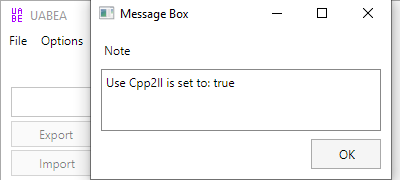
4. Open UABEA -> Click Options 'Enable/Disable Cpp2ll' - ensure Use Cpp2ll is set to: true
5. Open the globalgamemanagers file - find "QualitySettings" Edit the same m_CurrentQuality in the array that the integer value matches. In the example below it is 0 from the array so 0 is used. Ensure that "antiAliasing" is set to 2 or higher. Make sure you click OK so the changes persist before saving.

5. Scroll down in "QualitySettings" and find "customRenderPipeline". Note down the PathID.

6. Find the MonoBehaviour with the same PathID that you noted down before. Open it and edit m_MSAA to 2, 4 or 8. This enables MSAA and indicates its quality. Make sure you click OK so the changes persist before saving.

7. Save the file. We will now use LayeredFS to run the mod.
8. Make a file structure that matches below and copy "globalgamemangers" and "globalgamemanagers.assets". The TitleID of the game can be found using DBI, NXDumpTool, Edizon, etc.
"atmosphere/contents/TIDofGame/romfs/Data"
9. Copy the atmosphere folder to your SD card and boot the game. Enjoy your MSAA! Share any mods you make!
MSAA is only supported by forward rendering however it seems like most Unity games on Switch use this rendering type.
Tools needed:
UABEA: lets you view what is in unity files
Ill2CppDumper: to make dll files for UABEA to decrypt files
DBI or NXDumpTool: allows you to dump the needed files from the game
1. Ensure that all these following files are dumped from the installed update of the game* (Some older Unity games have a different file structure with data.unity3d containing globalgamemanagers)
"main" found in the ExeFS
globalgamemanagers found in romfs/Data
globalgamemanagers.assets found in romfs/Data
global-metadata.dat found in romfs/Data/Managed/Metadata
2. Run "Il2CppDumper.exe" and when prompted select "main" and "global-metadata.dat" folders as dumped previously. This will generated the required Dlls.
3. Create a folder named Managed in the same directory as the files you dumped. Copy the dll files over from the 'DummyDll" folder.
4. Open UABEA -> Click Options 'Enable/Disable Cpp2ll' - ensure Use Cpp2ll is set to: true
5. Open the globalgamemanagers file - find "QualitySettings" Edit the same m_CurrentQuality in the array that the integer value matches. In the example below it is 0 from the array so 0 is used. Ensure that "antiAliasing" is set to 2 or higher. Make sure you click OK so the changes persist before saving.
5. Scroll down in "QualitySettings" and find "customRenderPipeline". Note down the PathID.
6. Find the MonoBehaviour with the same PathID that you noted down before. Open it and edit m_MSAA to 2, 4 or 8. This enables MSAA and indicates its quality. Make sure you click OK so the changes persist before saving.
7. Save the file. We will now use LayeredFS to run the mod.
8. Make a file structure that matches below and copy "globalgamemangers" and "globalgamemanagers.assets". The TitleID of the game can be found using DBI, NXDumpTool, Edizon, etc.
"atmosphere/contents/TIDofGame/romfs/Data"
9. Copy the atmosphere folder to your SD card and boot the game. Enjoy your MSAA! Share any mods you make!
No AA:


MSAA 4x on:


MSAA 4x on:






 not going to be able to do it myself but still very nice!


