
- Joined
- May 1, 2023
- Messages
- 231
- Reaction score
- 493
- Trophies
- 0
- Location
- CA
- Website
- github.com
- XP
- 1,564
- Country

Ultrahand Overlay (HOS 16.0.0+)







Ultrahand Overlay is a fully scriptable overlay menu ecosystem for the Nintendo Switch. Accessible instantly via hotkey from any game or application, it provides a powerful custom command language for managing files, configurations, and system settings.
Built on libultrahand (an enhanced fork of libtesla), Ultrahand is a full drop-in replacement for Tesla Menu. Every existing Tesla overlay (.ovl) works without modification.
A growing ecosystem of libultrahand-based overlays is available, all launchable and manageable directly from Ultrahand:
For the full list see Ultrahand Overlays.
See the Wiki for full documentation.
See libultrahand for full documentation.
If a package does not appear in the menu, try running Fix Bit Archive in Hekate.
For available community packages, see Ultrahand Packages.
Per-overlay and per-package launch combos can be assigned independently via the overlay/package settings menu (Y).
For complete documentation on the package format, all available commands, placeholder variables, and command modes, see the Wiki:
For real-world examples, see the examples/ directory.
The Makefile auto-detects available CPU cores and sets -j automatically, so you don't need to pass it manually. Targets C++26 and ARMv8-A. Output is ovlmenu.ovl.
This requires ovlmenu.ovl to already exist in the repo root from the previous make step. The resulting sdout.zip can be extracted directly to the root of your SD card.


Copyright © 2023–2026 ppkantorski
I'm sure users will create some really cool things with the configurable .ini in time. I've created a number of example packages on the GitHub you can try out. Be sure to check the commands before running to make sure that they make sense to you.
Ultrahand Overlay is a fully scriptable overlay menu ecosystem for the Nintendo Switch. Accessible instantly via hotkey from any game or application, it provides a powerful custom command language for managing files, configurations, and system settings.
Built on libultrahand (an enhanced fork of libtesla), Ultrahand is a full drop-in replacement for Tesla Menu. Every existing Tesla overlay (.ovl) works without modification.
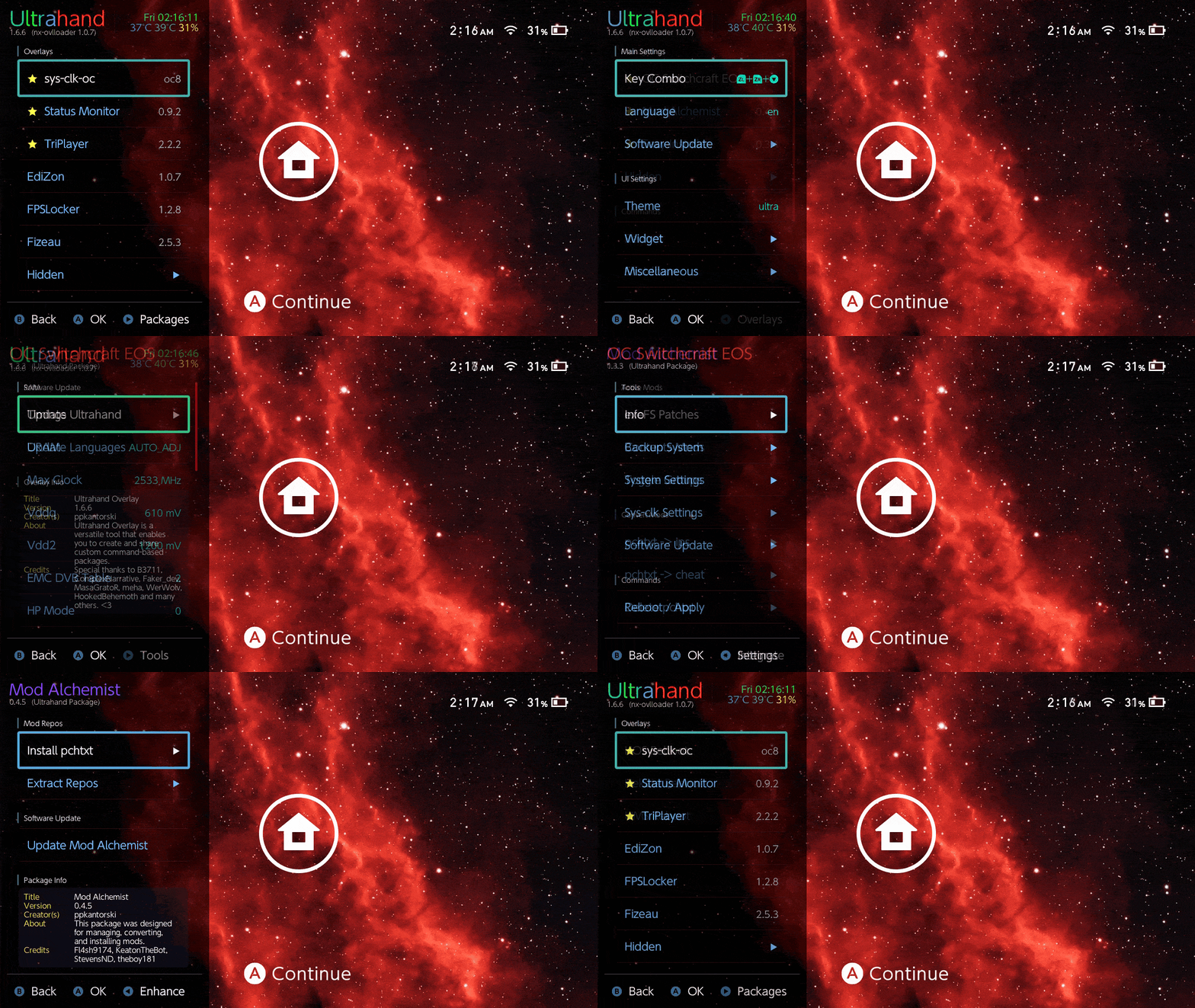
Screenshots
Features
For Users
- Instantly accessible from any game via hotkey or swipe gesture — no game suspension required
- Launch and manage overlays and packages with assignable per-item key combos
- Install and run community packages from Ultrahand Packages
- Control volume (up to 150% via bundled audio patch), backlight, and system settings on the fly
- Real-time progress feedback for downloads, copies, and installs
- Full touch support — scrolling, tapping, long-tap, and swipe gestures work throughout the entire UI
- Customizable themes, wallpapers, sound packs, and UI layout
- Browser-based Wallpaper Designer — crop, adjust, and export ready-to-drop .rgba wallpapers (448×720)
- Toast notification system — packages and external sysmodules/apps can push notifications to the overlay via JSON .notify files
A growing ecosystem of libultrahand-based overlays is available, all launchable and manageable directly from Ultrahand:
- UltraGB — Game Boy / GBC emulator running on top of any game (@ppkantorski)
- Tetris — Fully playable Tetris running as an overlay (@ppkantorski)
- sys-tune — Background music player (@HookedBehemoth)
- Status Monitor — Real-time CPU/GPU/RAM, temps, battery, and frequency stats (@masagrator)
- FPSLocker — Custom FPS targets and display refresh rates for retail games (@masagrator)
- sys-clk — Per-game CPU/GPU/memory overclocking and underclocking (@retronx-team)
- ovl-sysmodules — Toggle system modules and monitor memory usage on the fly (@WerWolv)
- QuickNTP — One-tap NTP time sync (@WerWolv & @nedex)
- Fizeau — Color temperature, saturation, gamma, and contrast adjustment (@averne)
- NX-FanControl — Custom fan curve control (@Zathawo)
For the full list see Ultrahand Overlays.
For Package Devs
A rich INI-based GUI scripting environment with:- Launch integration — assignable hotkey combos per package, hide/star state, and boot/exit package hooks (boot_package.ini / exit_package.ini)
- Overlay control — launch overlays, execute package sections, navigate back, exit to menu
- Dynamic UI — toggles, sliders, dropdowns, tables (drawn directly or loaded from a text file), rich toast notifications (title, duration, alignment, icon), set-footer, and page/theme/wallpaper refresh
- Status bar widget — opt-in clock, temperature, and battery overlay widget
- Language translations — package UI strings are automatically translated at render time based on the active system language
- Notifications — notify / notify-now commands push inline toast messages from scripts; dropping a .notify JSON file to /config/ultrahand/notifications/ queues a persistent API notification that displays until dismissed
- Placeholders — INI, JSON, hex, list, file, and timestamp sources; hardware info ({ams_version}, {hos_version}, {title_id}, {build_id}, {ram_vendor}, {local_ip}, {volume}, {backlight}, fuse data, and more); math and string transforms
- Conditional logic — try: blocks, path_exists, erista:/mariko: hardware guards, version comparisons
- File operations — copy, move, delete, rename, mkdir, touch, mirror, compare, flag, dot-clean
- Download & extraction — download with retry, unzip; performs a one-time NTP sync to pool.ntp.org on first download to prevent SSL handshake failures
- INI editing — get/set values and keys, add/rename/remove sections and keys, pattern-matched bulk edits
- JSON editing — get/set values and keys
- Hex editing — edit by offset, swap, string, decimal, reversed decimal, custom pattern offset, and hex pattern replacement
- Mod conversion — .pchtxt to .ips or Atmosphere cheat format
- System control — reboot (Hekate boot/ini/UMS/payload targets), shutdown, volume, backlight, region
See the Wiki for full documentation.
For Overlay Devs
Overlays built on libultrahand get access to the full libultra utility suite plus first-class Ultrahand integration:- Tesla compatibility — full drop-in replacement for libtesla; existing overlays work without modification
- Improved rendering — enhanced rendering performance and expanded shape primitives compared to libtesla
- Bug fixes — title ID change foreground bug, underscan bug, and screenshot transparency bug all resolved versus stock libtesla
- Full touch support — complete touch input handling with proper scrolling, tap, long-tap, and swipe gesture support (a significant improvement over libtesla's limited touch implementation)
- Launch integration — assignable combos, hide/star state, and boot/exit package hooks
- Per-overlay themes — independent theme overrides scoped to your overlay
- Per-overlay wallpapers — custom wallpaper support with automatic heap-aware fallback
- Status bar widget — opt-in clock, temperature, and battery overlay widget
- Language translations — automatic string translation at render time based on the active language
- Notifications — call tsl::notification->show() or tsl::notification->showNow() to push toast messages from overlay code, with configurable text, font size, priority, duration, alignment, and icon
- File & path utilities — copy, move, delete, mkdir, wildcard matching, and directory traversal
- Download & extraction — curl-based file downloads and zip extraction; performs a one-time NTP sync to pool.ntp.org on first download to prevent SSL handshake failures
- INI, JSON & hex utilities — full read/write access to INI files, JSON files, and binary hex data
- Mod conversion — .pchtxt to .ips or Atmosphere cheat format
- String utilities — trim, split, format, version parsing, placeholder resolution
- Audio & haptics — WAV sound playback with volume control and rumble feedback
See libultrahand for full documentation.
Installation
Quick Install (Recommended)
Download the latest sdout.zip and extract it to the root of your SD card. It includes everything needed: nx-ovlloader, ovlmenu.ovl, language files, themes, sound packs, and the required folder structure.Manual Install
- Download and install the latest nx-ovlloader.
- Place ovlmenu.ovl at
/switch/.overlays/ovlmenu.ovl.- Warning: This will replace Tesla Menu if it is installed.
- Launch Ultrahand with the default hotkey (ZL+ZR+DDOWN) or any Tesla-compatible combo.
- On first launch, Ultrahand creates
/config/ultrahand/and generates a starterpackage.iniat/switch/.packages/.
If a package does not appear in the menu, try running Fix Bit Archive in Hekate.
For available community packages, see Ultrahand Packages.
Navigation
- A — Execute the selected command
- MINUS — View and run individual command lines (Script Overlay); tap to dismiss the frontmost notification
- Hold MINUS (~4s) — Toggle API Notifications on/off (when API Toggle Hotkey is enabled in Notification Settings)
- Long-tap (touch) — Open command line view or overlay/package settings
- X — Star/favorite an overlay or package
- Y — Open overlay/package settings
- PLUS — Open Ultrahand Settings from the main menu
- L / R — Jump to top / bottom of the current list
- ZL / ZR — Page up / down (hold for rapid scrolling)
- R during command — Abort the running operation
- B during command — Dismiss the overlay without canceling
- Swipe inward from edge — Open Ultrahand (alternative to key combo)
- Tap notification (touch) — Dismiss that notification directly
Settings Overview
Access the Settings menu by pressing PLUS from the main screen.- Key Combo — Configure the hotkey used to open Ultrahand
- Language — Select UI language (loaded from /config/ultrahand/lang/)
- Notifications— Toast behavior and API notification settings
- Silence notifications, set max slots, toggle startup notification
- External sysmodules/apps can push notifications via .notify JSON files in /config/ultrahand/notifications/; per-app filtering and 50×50 RGBA icons supported
- API Toggle Hotkey — hold MINUS ~4s to enable/disable API notifications on the fly
- System — View device info and adjust overlay memory heap size (4 / 6 / 8 MB)
- Software Update — Check for and install updates from within the overlay
- Theme — Select a theme from /config/ultrahand/themes/
- Sounds — Select a sound-effect pack from /config/ultrahand/.sounds/
- Wallpaper — Set a background wallpaper (requires 6 MB+ heap; .rgba format, 448×720 px)
- Widget— Toggle individual status bar elements:
- Clock, SOC temperature, PCB temperature, battery
- Backdrop, extended backdrop, border
- Miscellaneous— Granular toggles including:
- Swipe-to-open, haptic feedback, auto NTP sync
- Page recall, launch recall
- Packages menu, user guide, show/hide delete, show/hide unsupported overlays
- Overlay and package version display
Per-overlay and per-package launch combos can be assigned independently via the overlay/package settings menu (Y).
Writing Packages
Packages live in/switch/.packages/<YOUR_PACKAGE_NAME>/ and are configured with a package.ini file. A minimal example:
INI:
;title='My Package'
;version=1.0.0
;creator=YourName

[Copy Config]
copy /switch/.packages/package.ini /config/mypackage/

[Reboot to Hekate]
;hold=true
reboot hekate
For complete documentation on the package format, all available commands, placeholder variables, and command modes, see the Wiki:
- Package Reference — Package structure, headers, pages, boot/exit hooks, and configuration
- Command Reference — All commands, modes, source functions, and placeholder variables
For real-world examples, see the examples/ directory.
File Layout
Code:
sdmc:/
├── atmosphere/
│   ├── contents/
│   │   ├── 420000000007E51A/           ← nx-ovlloader sysmodule
│   │   │   ├── exefs.nsp
│   │   │   ├── toolbox.json
│   │   │   └── flags/
│   │   │       └── boot2.flag
│   │   └── 420000000007E51B/           ← nx-ovlreloader sysmodule (for on-demand reloads)
│   │       └── exefs.nsp
│   └── exefs_patches/
│       └── audio_mastervolume/         ← system audio master volume patches
├── switch/
│   ├── .overlays/
│   │   └── ovlmenu.ovl                 ← Ultrahand Overlay binary
│   ├── .packages/
│   │   ├── package.ini                 ← root/starter package (auto-generated on first launch)
│   │   ├── config.ini                  ← root package runtime state
│   │   ├── boot_package.ini            ← optional: commands run on every overlay boot
│   │   ├── exit_package.ini            ← optional: commands run on overlay close
│   │   └── <YOUR_PACKAGE>/             ← user-installed packages (one folder each)
│   │       ├── package.ini
│   │       ├── boot_package.ini        ← optional
│   │       └── exit_package.ini        ← optional
│   ├── Ultrahand-Reload/
│   │   └── Ultrahand-Reload.nro        ← respawn nx-ovlloader on-demand from the hbmenu
│   └── appstore/
│       └── .get/packages/
│           └── UltrahandOverlay/
│               └── info.json           ← HB App Store package metadata (if installed via store)
└── config/
    ├── nx-ovlloader/
    │   ├── heap_size.bin               ← active overlay heap size setting (4 / 6 / 8 MB)
    │   └── exit_flag.bin               ← runtime exit signal (transient; deleted after use)
    ├── tesla/
    │   └── config.ini                  ← Tesla-compatible key combo mirror
    └── ultrahand/
        ├── config.ini                  ← global settings (key combo, language, widget, etc.)
        ├── overlays.ini                ← overlay registry (auto-managed; combos, hide state, priority)
        ├── packages.ini                ← package registry (auto-managed; combos, hide state)
        ├── theme.ini                   ← active theme (copied from themes/ on selection)
        ├── wallpaper.rgba              ← active wallpaper (copied from wallpapers/ on selection; 448×720 px)
        ├── fuse.ini                    ← cached hardware fuse data (auto-deleted on reload)
        ├── RELEASE.ini                 ← cached latest release info (fetched on update check)
        ├── assets/
        │   ├── ppkantorski-1.rgba      ← UI artwork assets
        │   ├── ppkantorski-2.rgba
        │   └── notifications/          ← notification icon assets
        ├── downloads/                  ← temporary staging area for in-progress downloads
        ├── flags/
        │   ├── NOTIFICATIONS.flag      ← notifications enabled/active flag
        │   ├── RELOADING.flag          ← set during intentional overlay reload (transient)
        │   ├── NTP_SYNC_PENDING.flag   ← triggers NTP sync on next applicable download
        │   └── notifications/          ← per-notification dismissed-state flags
        ├── lang/
        │   ├── en.json                 ← English (and other bundled languages)
        │   └── *.json                  ← additional user-provided language files
        ├── notifications/
        │   └── *.notify                ← pending toast notification payloads (transient)
        ├── payloads/
        │   └── ultrahand_updater.bin   ← payload reboot target used for AMS updates
        ├── sounds/                     ← active extracted sound pack (WAV files loaded at runtime)
        │   └── *.wav
        ├── .sounds/                    ← available sound packs to select from
        │   ├── default.zip             ← bundled default sound pack
        │   └── *.zip                   ← additional user-provided sound packs
        ├── themes/
        │   ├── ultra.ini               ← bundled Ultra theme
        │   ├── ultra-blue.ini          ← bundled Ultra Blue theme
        │   └── *.ini                   ← additional user-provided themes
        └── wallpapers/
            └── *.rgba                  ← user-provided wallpapers (448×720 px)
Building from Source
Prerequisites
- devkitPro with devkitA64 and libnx
- switch-curl, switch-zlib, switch-minizip, switch-mbedtls
- Python 3.6+ with the requests library (pip install requests) — for building sdout.zip
1. Clone
libultrahand is bundled as a submodule, so use --recurse-submodules:
Bash:
git clone --recurse-submodules https://github.com/ppkantorski/Ultrahand-Overlay
cd Ultrahand-Overlay
2. Build
Bash:
export DEVKITPRO=/opt/devkitpro
make3. Package (optional)
To build a complete, SD-card-ready sdout.zip (includes ovlmenu.ovl, nx-ovlloader, themes, sounds, lang files, and the full folder structure):
Bash:
python3 sdout.pyContributing
Contributions are welcome! Please open an issue or submit a pull request. You can also reach out right here on GBATemp. License
Licensed under GPLv2 with a custom library under CC-BY-4.0.Copyright © 2023–2026 ppkantorski
I'm sure users will create some really cool things with the configurable .ini in time. I've created a number of example packages on the GitHub you can try out. Be sure to check the commands before running to make sure that they make sense to you.
Last edited by ppkantorski,





 for example packages check out