


- Joined
- Mar 1, 2013
- Messages
- 768
- Reaction score
- 1,135
- Trophies
- 2
- Location
- In heart of Windows XP, 7. I ❤ 👠! 🥰
- Website
- www.startpage.com
- XP
- 5,359
- Country

The PS5 Edge controller is now fully customizable on PCs
https://www.pcworld.com/article/243...ller-just-got-a-lot-better-for-pc-gamers.html
https://www.tweaktown.com/news/1001...-edge-controller-thanks-to-new-app/index.html
By Michael Crider
Staff Writer, PCWorld Aug 27, 2024 7:44 am PDT
https://x.com/PlayStation/status/1828357344100524421
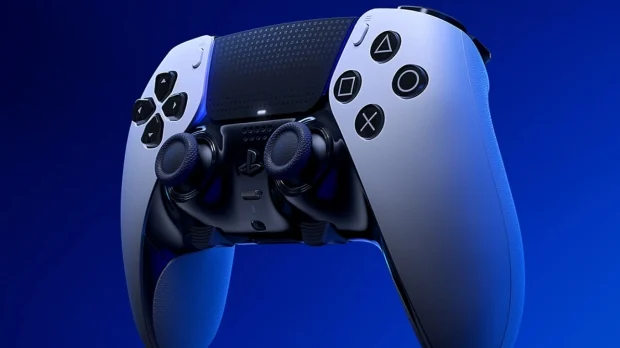
Good news for PC gamers: Sony's new desktop app can fully customize the DualSense Edge controller now.
Microsoft’s Xbox controller (and its souped-up Xbox Elite variant) is considered the de facto standard for PC gaming. But after nearly 30 years, it’s not surprising that some prefer the PlayStation pad.
And for those that do, here’s some good news: the newest version of the PlayStation Accessories app offers far better support for the DualSense Edge, Sony’s $200 “pro” controller for the PlayStation 5. You can download the new app here.
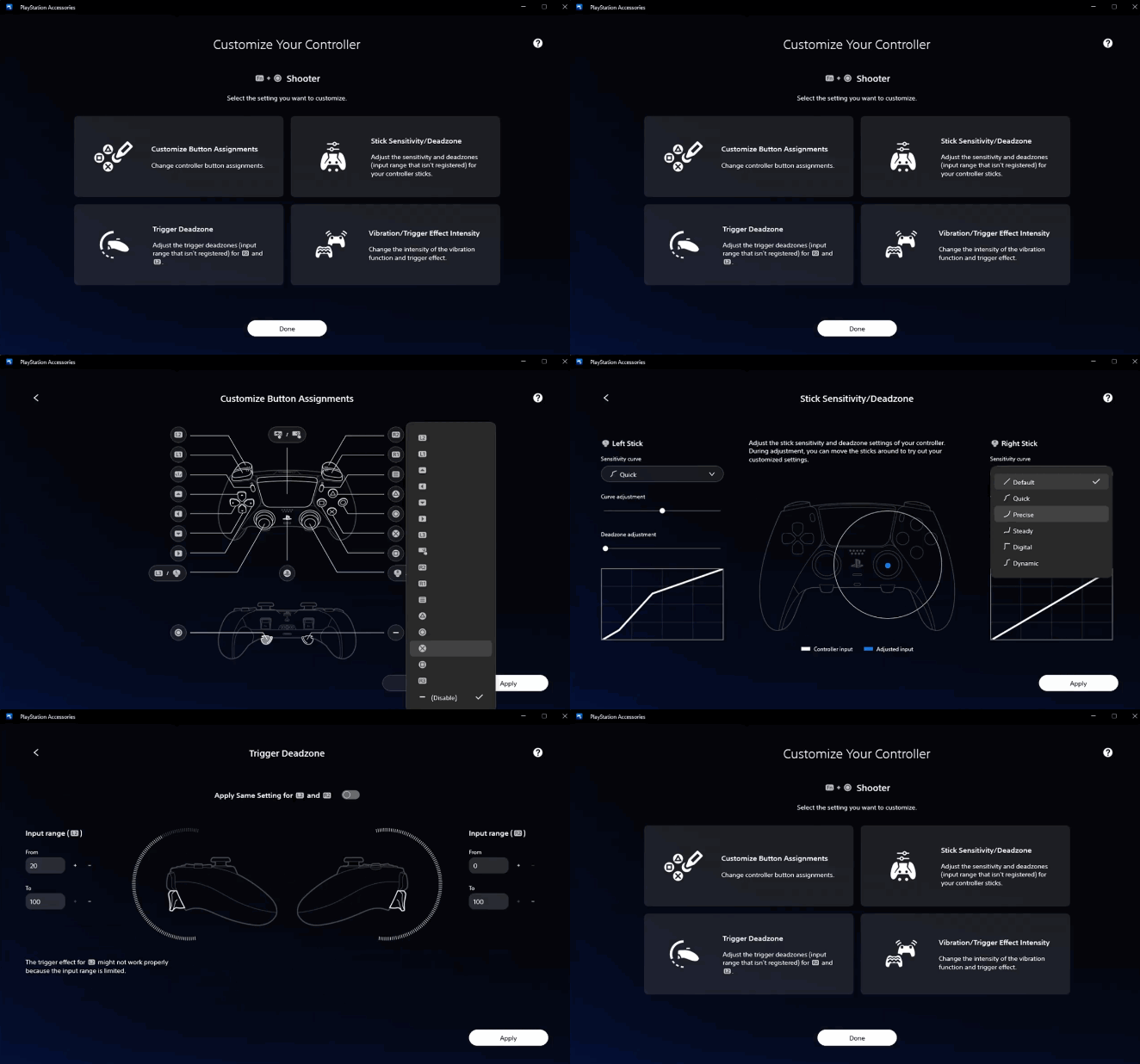
The app was previously called “Firmware updater for DualSense wireless controller” and was limited to that function — and if you’re using a standard DualSense PS5 controller, it’s still limited to regular firmware updates. But if you’re using the upgraded Edge controller, the app now offers all the usual customization options you’d expect.
These customization options include fully remapping all buttons, adjusting analog stick sensitivity and the neutral “dead zone,” ditto for the analog triggers, and adjusting the intensity of the controller’s vibration and haptic trigger feedback. (All of these options are already customizable when the controller is connected to a PlayStation 5.)
If you’re upset that the standard DualSense doesn’t get any of these options — it’s pretty pricey itself at $70 retail — then maybe you should dig into Steam’s controller settings. It’s probably the fastest way to customize controller inputs in any supported game, and it has pre-set settings and a customized user interface for the DualSense.
Sony has been pushing hard to make itself a presence on the PC for the last couple of years, porting some of the biggest PS4 and PS5 exclusive games (with a couple of notable exceptions) and even releasing a few titles on both platforms at the same time.
Its latest party-based shooter Concord is a bit of a flop, but there’s no denying that the company is trying to expand into more spaces — and PC gaming offers the largest potential market right now.
PlayStation Accessories
https://controller.dl.playstation.net/controller/lang/en/2100004.html
Elevate the performance of your DualSense and DualSense Edge wireless controller on your Windows PC. Update the controller’s firmware and fully customize the DualSense Edge wireless controller from your PC.
App update information
Version: 2.0.0.13
"PlayStation Accessories" is the new name for "Firmware updater for DualSense wireless controller".
With your DualSense Edge wireless controller, you can now create, edit, and switch between custom profiles on PC.
We've made significant improvements to the overall design and user experience.
SIE strongly recommends always installing the latest update for your app and controller as soon as possible after the update is released. Failure to do so might expose your controller to security risks and/or might compromise the proper functioning of your controller.
App system requirements
You need a Windows PC that meets the following system requirements.
To connect your controller, you need to use a USB cable or Bluetooth®. You also need a Windows PC with a USB port, or one that has Bluetooth® capability.
You can use a commercially available Bluetooth® USB adapter. Not all adapters are supported.
Supported controllers
The app supports the following controllers. Here's what you can do with each type of controller:
For details on customizing, see Customize your DualSense Edge wireless controller.
Connect your controller
For locations of ports and buttons, check the controller part names. DualSense wireless controller part names DualSense Edge wireless controller part names
Use a wired connection
Use a USB cable to connect.
Insert the USB cable into your controller's USB Type-C® port. Check to make sure that your Windows PC has ports that are compatible with the USB cable.
If the USB cable is removed, your controller disconnects and then turns off.
Use a wireless connection
If you're using a USB cable, disconnect it before taking the following actions.
1. Make sure the player indicator on your controller is off.
If the player indicator is on, press and hold the PS button until it turns off.
2. While pressing and holding the (create) button, press and hold the PS button until the light bar blinks.
3. Enable Bluetooth® on your Windows PC, and then select the option to add Bluetooth® devices.
Your PC detects nearby Bluetooth® devices.
4. Select your controller from the list of found Bluetooth devices.
When pairing is completed, the light bar blinks, and then the player indicator lights up.
If you press and hold the PS button on your controller until the player indicator turns off, your controller turns off, and then disconnects.
The next time you press the PS button, your controller turns on and connects to the PC it was last paired with.
Your controller can be paired with only one device at a time. Each time you change devices, you must pair your controller with the new device.
What's on the screen
After launching PlayStation Accessories
 , your controller connects, and a screen like the following appears. This is the screen that appears when connecting the DualSense wireless controller.
Use your mouse or keyboard to operate the app.
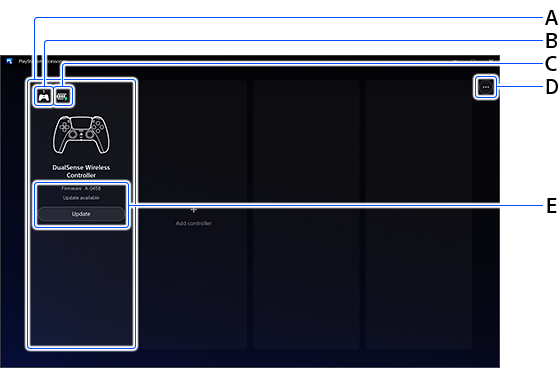
A ) Connected controllers
You can connect up to four controllers at the same time.
B ) Controller number
Controller numbers are assigned to users in the order that they connect. You can also check the player indicator for the controller number. DualSense wireless controller part names
C ) Controller battery level
D ) App-related information
Check information about the version of your app, manage data collection settings, and more.
Select Help to go to this website.
E ) Firmware for your controller
Check your current firmware version. When a new version is available, Update appears.
Do not turn off your Windows PC or disconnect your controller during the update for your controller. If you're updating multiple controllers, you need to update one controller at a time.
You can check your controller's connection method by selecting Add Controller.
If you connect a DualSense Edge wireless controller, other settings for customization also appear on the screen. For details, see Customize your DualSense Edge wireless controller.
Direct Download PlayStation Accessories Installer for Windows 10, Windows 11 from PlayStation server:
https://fwupdater.dl.playstation.net/fwupdater/PlayStationAccessoriesInstaller.exe
********************
That's great news for all PC gamers who love to use PlayStation 5 controllers with Windows 10, 11, etc to play any PC games! Hooray!
Happy gaming on PC with PS5 controllers for many years to coming!
https://www.pcworld.com/article/243...ller-just-got-a-lot-better-for-pc-gamers.html
https://www.tweaktown.com/news/1001...-edge-controller-thanks-to-new-app/index.html
By Michael Crider
Staff Writer, PCWorld Aug 27, 2024 7:44 am PDT
https://x.com/PlayStation/status/1828357344100524421
Good news for PC gamers: Sony's new desktop app can fully customize the DualSense Edge controller now.
Microsoft’s Xbox controller (and its souped-up Xbox Elite variant) is considered the de facto standard for PC gaming. But after nearly 30 years, it’s not surprising that some prefer the PlayStation pad.
And for those that do, here’s some good news: the newest version of the PlayStation Accessories app offers far better support for the DualSense Edge, Sony’s $200 “pro” controller for the PlayStation 5. You can download the new app here.
The app was previously called “Firmware updater for DualSense wireless controller” and was limited to that function — and if you’re using a standard DualSense PS5 controller, it’s still limited to regular firmware updates. But if you’re using the upgraded Edge controller, the app now offers all the usual customization options you’d expect.
These customization options include fully remapping all buttons, adjusting analog stick sensitivity and the neutral “dead zone,” ditto for the analog triggers, and adjusting the intensity of the controller’s vibration and haptic trigger feedback. (All of these options are already customizable when the controller is connected to a PlayStation 5.)
If you’re upset that the standard DualSense doesn’t get any of these options — it’s pretty pricey itself at $70 retail — then maybe you should dig into Steam’s controller settings. It’s probably the fastest way to customize controller inputs in any supported game, and it has pre-set settings and a customized user interface for the DualSense.
Sony has been pushing hard to make itself a presence on the PC for the last couple of years, porting some of the biggest PS4 and PS5 exclusive games (with a couple of notable exceptions) and even releasing a few titles on both platforms at the same time.
Its latest party-based shooter Concord is a bit of a flop, but there’s no denying that the company is trying to expand into more spaces — and PC gaming offers the largest potential market right now.
PlayStation Accessories
https://controller.dl.playstation.net/controller/lang/en/2100004.html
Elevate the performance of your DualSense and DualSense Edge wireless controller on your Windows PC. Update the controller’s firmware and fully customize the DualSense Edge wireless controller from your PC.
App update information
Version: 2.0.0.13
"PlayStation Accessories" is the new name for "Firmware updater for DualSense wireless controller".
With your DualSense Edge wireless controller, you can now create, edit, and switch between custom profiles on PC.
We've made significant improvements to the overall design and user experience.
SIE strongly recommends always installing the latest update for your app and controller as soon as possible after the update is released. Failure to do so might expose your controller to security risks and/or might compromise the proper functioning of your controller.
App system requirements
You need a Windows PC that meets the following system requirements.
| OS | Windows 10 (64 bit) or Windows 11 |
|---|---|
| Storage space | 250 MB or more |
| Display resolution | 1280 x 800 or higher |
To connect your controller, you need to use a USB cable or Bluetooth®. You also need a Windows PC with a USB port, or one that has Bluetooth® capability.
You can use a commercially available Bluetooth® USB adapter. Not all adapters are supported.
Supported controllers
The app supports the following controllers. Here's what you can do with each type of controller:
| Controller types | Firmware update | Customize |
|---|---|---|
| DualSense® wireless controller | ✓ | - |
| DualSense Edge™ wireless controller | ✓ | ✓ |
For details on customizing, see Customize your DualSense Edge wireless controller.
Connect your controller
For locations of ports and buttons, check the controller part names. DualSense wireless controller part names DualSense Edge wireless controller part names
Use a wired connection
Use a USB cable to connect.
Insert the USB cable into your controller's USB Type-C® port. Check to make sure that your Windows PC has ports that are compatible with the USB cable.
If the USB cable is removed, your controller disconnects and then turns off.
Use a wireless connection
If you're using a USB cable, disconnect it before taking the following actions.
1. Make sure the player indicator on your controller is off.
If the player indicator is on, press and hold the PS button until it turns off.
2. While pressing and holding the (create) button, press and hold the PS button until the light bar blinks.
3. Enable Bluetooth® on your Windows PC, and then select the option to add Bluetooth® devices.
Your PC detects nearby Bluetooth® devices.
4. Select your controller from the list of found Bluetooth devices.
When pairing is completed, the light bar blinks, and then the player indicator lights up.
If you press and hold the PS button on your controller until the player indicator turns off, your controller turns off, and then disconnects.
The next time you press the PS button, your controller turns on and connects to the PC it was last paired with.
Your controller can be paired with only one device at a time. Each time you change devices, you must pair your controller with the new device.
What's on the screen
After launching PlayStation Accessories
Use your mouse or keyboard to operate the app.
A ) Connected controllers
You can connect up to four controllers at the same time.
B ) Controller number
Controller numbers are assigned to users in the order that they connect. You can also check the player indicator for the controller number. DualSense wireless controller part names
C ) Controller battery level
D ) App-related information
Check information about the version of your app, manage data collection settings, and more.
Select Help to go to this website.
E ) Firmware for your controller
Check your current firmware version. When a new version is available, Update appears.
Do not turn off your Windows PC or disconnect your controller during the update for your controller. If you're updating multiple controllers, you need to update one controller at a time.
You can check your controller's connection method by selecting Add Controller.
If you connect a DualSense Edge wireless controller, other settings for customization also appear on the screen. For details, see Customize your DualSense Edge wireless controller.
Direct Download PlayStation Accessories Installer for Windows 10, Windows 11 from PlayStation server:
https://fwupdater.dl.playstation.net/fwupdater/PlayStationAccessoriesInstaller.exe
********************
That's great news for all PC gamers who love to use PlayStation 5 controllers with Windows 10, 11, etc to play any PC games! Hooray!
Happy gaming on PC with PS5 controllers for many years to coming!
Attachments

Last edited by console,


