

Thanks to @SodaSoba for testing the tool and for creating over 2500+ custom icons on his Icon Repository; otherwise this tool would have been empty at release time
After creating the Horizontal and Vertical Themes, I started working on a tool that simplifies the method of creating and transferring custom icons
All details are posted on the GitHub page, so please follow the links below:
GitHub Page | Download Link | Tutorial by SodaSoba
Note: Sys-Tweak is required in order for custom game icons to work
Download Link for FW 14.1.0/AMS1.3.2
Archived Sys Tweak download link


/r/NXThemes Post
1.3.0 Patch Notes:
1.2.0 Patch Notes:
After creating the Horizontal and Vertical Themes, I started working on a tool that simplifies the method of creating and transferring custom icons
All details are posted on the GitHub page, so please follow the links below:
GitHub Page | Download Link | Tutorial by SodaSoba
Note: Sys-Tweak is required in order for custom game icons to work
Download Link for FW 14.1.0/AMS1.3.2
Archived Sys Tweak download link
/r/NXThemes Post
1.4.0 Patch Notes:
- SteamGridDB
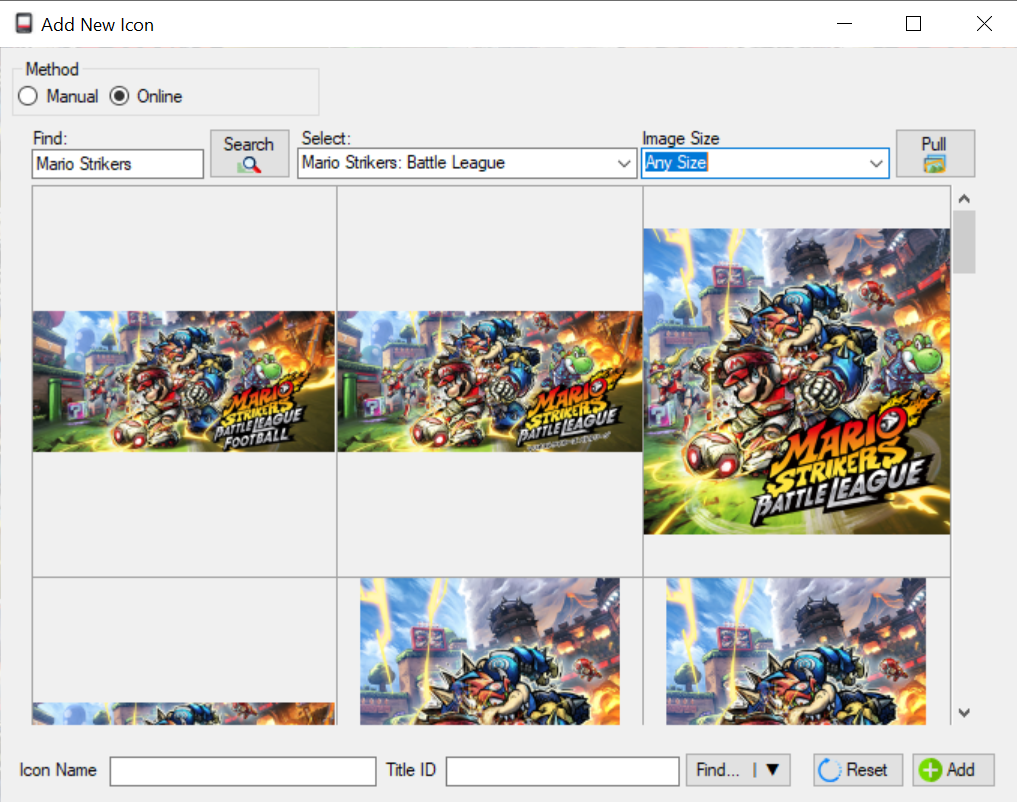
- [Add New] section now has option to search new icons Online
- SteamGridDB requires API key to be added under NX-GIC Settings
- API key can be generated at SteamGridDB API Page
- SteamGridDB works as following:
- User searches for a game > Select game from search results (max 10 results) > Select image style/size > Pull
- Double Click to select icon of choice > Enter Title ID > Add
- [Settings]
- FTP Username and Password can now set
- SteamGridDB API Key field added to be used for searching icons online
- [Add New]
- Title ID lookup button split into 2 functions;
- CSV - Uses the Titles.CSV from your switch to match with installed games
- JSON - Uses the entire database online to find a matching result
- Vertical Theme preview replaced with 2:3 icon ratio
- Title ID lookup button split into 2 functions;
- Menu bar [File] > [Work Offline]
- Text renamed to 'Skip Icon Repo Check (Work Offline)
- Menu bar [Title IDs] > [Refresh Titles.CSV (FTP)]
- Retrieves the latest titles.csv file from your switch via FTP
- Menu bar [Title IDs] > [Install NX Titles List Dumper (NRO)]
- Download link updated to 1.0.2 version
1.3.0 Patch Notes:
- Main Screen
- Main Folder selection removed; now default folder
- Scan status text updates in progress bar
- New button added: Auto GIC
- Auto GIC
- Feature that matches icons with titles on your switch
- RECOMMENDED for 1st time running this; click Title IDs from menu bar then click Install Title List Dumper
- Ability to skip any title, add random icon for any select title or Add all matched results to output for transfer
- Output View (Queue)
- Custom Title / Author / Version added; This will generate a config.ini to change the metadata of games on your switch
- Users can view or delete icons from here
- Output header renamed to Icon Name (which is the file name for the icon)
- Note: Output folder is cleared when NX GIC
- File > Settings
- Installed Titles List (CSV) path (delete only option)
- File > Title IDs (New)
- Show Icons for Installed Games only; displays icons for games loaded via titles.csv
- Show List of Installed Games (CSV); pops a separate window to view what games are loaded via titles.csv
- Install NX Titles List Dumper(NRO); downloads app > copies it to Switch > then copies game list .csv back to NX GIC
- Help
- Tutorial Link added; created by SodaSoba
- About page updated with name / tag of individuals involved in this project
- Bug Fixes:
- Adding a new icon via https (URL) protocol does not cause SSL/TLS error anymore
- Output folder cleared
1.2.0 Patch Notes:
- Main display for icons updated to show multiple icons in a row
- Scan button now displays a progress indicator in the status bar
- Note: Icon Repo now pulls 2000+ icons, therefore it takes 30-45 seconds to load if repo's are updated
- Output view now includes the Title ID and a button to remove from queue
- Title ID can now be edited in the Output view
- Offline Mode added under Menu: File
- This mode disables the following features:
- Check for Software Update
- Auto-download / Extract Icon Repositories specified under Settings
- Lookup Title ID from specified JSON under settings
- For instructions on how to work offline with icon and title database, please see Wiki - Working Offline
Last edited by HoTsHoTz79,



 and thanks