

TranslateNX

-------------------------------------------------------------------------------------------------------------------------------------------
TranslateNX is a revolutionary real-time translation overlay for the Nintendo Switch. It seamlessly reads text directly from your games and translates it on-the-fly, breaking language barriers without needing any game-specific patches or mods.
-------------------------------------------------------------------------------------------------------------------------------------------
-------------------------------------------------------------------------------------------------------------------------------------------
TranslateNX is a revolutionary real-time translation overlay for the Nintendo Switch. It seamlessly reads text directly from your games and translates it on-the-fly, breaking language barriers without needing any game-specific patches or mods.
-------------------------------------------------------------------------------------------------------------------------------------------
Setup and Usage Guide
 Features
FeaturesReal-time Translation: Translate on-screen game text instantly.
OCR Technology: Directly reads text from the screen, no game mods required.
Wide Language Support: Support for 104 different languages.
Practical Use: Translate quickly without leaving the game using the UltraHand Overlay menu.
Multiple Service Options: Supports Google Cloud Vision, OCR.space, DeepL, Google Cloud Translate, and MyMemory.

-------------------------------------------------------------------------------------------------------------------------------------------
OCR Technology: Directly reads text from the screen, no game mods required.
Wide Language Support: Support for 104 different languages.
Practical Use: Translate quickly without leaving the game using the UltraHand Overlay menu.
Multiple Service Options: Supports Google Cloud Vision, OCR.space, DeepL, Google Cloud Translate, and MyMemory.
-------------------------------------------------------------------------------------------------------------------------------------------
 Step 1: Critical Prep (Required)
Step 1: Critical Prep (Required)To prevent your console from crashing, you must increase the UltraHand memory limit:
Open the UltraHand menu.
Press + to open settings, then go to System.
Change Overlay Memory from 4MB to 8MB.
Open the UltraHand menu.
Press + to open settings, then go to System.
Change Overlay Memory from 4MB to 8MB.
 Step 2: Installation
Step 2: InstallationRequirements: You MUST have nx-ovlloader and Ultrahand-Overlay installed for this app to work!
Method 1: Homebrew App Store (Automatic Installation) You can download and install the application directly on your Switch via the HB App Store. (SOON!!!)

HB Store Download Link
Method 2: GitHub (Manual Installation) You can install the application by downloading it on your computer and transferring it to your SD card.
Download the latest release .zip file. Extract it and drag all the contents directly to the root of your SD card. The files are already placed in their correct folder paths.

GitHub Download Link
-------------------------------------------------------------------------------------------------------------------------------------------
Method 1: Homebrew App Store (Automatic Installation) You can download and install the application directly on your Switch via the HB App Store. (SOON!!!)
HB Store Download Link
Method 2: GitHub (Manual Installation) You can install the application by downloading it on your computer and transferring it to your SD card.
Download the latest release .zip file. Extract it and drag all the contents directly to the root of your SD card. The files are already placed in their correct folder paths.
GitHub Download Link
-------------------------------------------------------------------------------------------------------------------------------------------
 Step 3: Getting API Keys
Step 3: Getting API KeysTranslateNX needs services to read (OCR) and translate text. For the best performance, we highly recommend using Google Cloud Vision for OCR and DeepL for Translation.
 OCR API Options
OCR API Options
1. Google Cloud Vision (1000 Uses/Month) —  RECOMMENDED
Go to Google Cloud Vision and click "Try Vision AI Free" to complete registration.
On the Cloud Vision API page, click the "Enable" button.
Go to the Credentials tab on the left menu. Select Create Credentials > API Key from the top.
Name your API. In the Select API restrictions section, choose Cloud Vision API, click OK, and then Create. Your API key will appear in seconds.
2. OCR.space (500 Uses/Day) — Alternative
Register at OCR.space Free Key.
Click the confirmation link sent to your email. You will receive a second email with your API key seconds after confirming.
RECOMMENDEDGo to Google Cloud Vision and click "Try Vision AI Free" to complete registration.
On the Cloud Vision API page, click the "Enable" button.
Go to the Credentials tab on the left menu. Select Create Credentials > API Key from the top.
Name your API. In the Select API restrictions section, choose Cloud Vision API, click OK, and then Create. Your API key will appear in seconds.
2. OCR.space (500 Uses/Day) — Alternative
Register at OCR.space Free Key.
Click the confirmation link sent to your email. You will receive a second email with your API key seconds after confirming.
 Translation API Options
Translation API Options1. DeepL (1,000,000 Characters Once) — RECOMMENDED (Note: 1 million characters will last a very long time. You can create a new free account when it runs out).
Sign up at DeepL. Click your profile icon at the top right, then Account.
Go to API Plans in the bottom left corner and subscribe to the free plan (it may ask for details but will not charge).
Go to the API Keys & Limits tab and click Create Key.
Name your API, select "All access", and click Create Key.
2. Google Cloud Translate (500,000 Characters/Month) — Alternative (Note: It may ask for card details and put a small hold during signup, but it is free as long as you stay within the quota).
Go to Google Cloud Translate and register.
Enable the Cloud Translation API.
Go to Credentials > Create Credentials > API Key.
Name your API, select Cloud Translation API from restrictions, and click Create.
3. MyMemory (5,000 Characters/Day) — This is built-in. No API key is required. Simply select it from the app settings if you need a quick fallback.
RECOMMENDED (Note: 1 million characters will last a very long time. You can create a new free account when it runs out).Sign up at DeepL. Click your profile icon at the top right, then Account.
Go to API Plans in the bottom left corner and subscribe to the free plan (it may ask for details but will not charge).
Go to the API Keys & Limits tab and click Create Key.
Name your API, select "All access", and click Create Key.
2. Google Cloud Translate (500,000 Characters/Month) — Alternative (Note: It may ask for card details and put a small hold during signup, but it is free as long as you stay within the quota).
Go to Google Cloud Translate and register.
Enable the Cloud Translation API.
Go to Credentials > Create Credentials > API Key.
Name your API, select Cloud Translation API from restrictions, and click Create.
3. MyMemory (5,000 Characters/Day) — This is built-in. No API key is required. Simply select it from the app settings if you need a quick fallback.
 AI API Options
AI API Options1. Puter AI — RECOMMENDED
Go to Puter.com and create a free account.
Once logged in, open the developer dashboard to generate your API key.
Puter AI offers generous limits for executing AI-based translations, providing context-aware and natural-sounding results.
2. Google Gemini AI — Alternative
Go to Google AI Studio and sign in with your Google account.
Click on "Get API key" from the left menu and create a new key.
Gemini provides extremely fast and smart context-based translations for complex game scenarios.
-------------------------------------------------------------------------------------------------------------------------------------------
RECOMMENDEDGo to Puter.com and create a free account.
Once logged in, open the developer dashboard to generate your API key.
Puter AI offers generous limits for executing AI-based translations, providing context-aware and natural-sounding results.
2. Google Gemini AI — Alternative
Go to Google AI Studio and sign in with your Google account.
Click on "Get API key" from the left menu and create a new key.
Gemini provides extremely fast and smart context-based translations for complex game scenarios.
-------------------------------------------------------------------------------------------------------------------------------------------
 Step 4: Entering API Keys
Step 4: Entering API KeysYou can enter your API keys into the app using one of two methods:
Method 1 (Via Switch): Open the TranslateNX app from the Hbmenu and type your API keys directly into the app interface.
Method 2 (Via PC - Easier): Connect your Switch to your PC. Open the SD:/config/translate/config.ini file. Paste your API keys next to the respective fields, save, and put the file back on your Switch.
Method 1 (Via Switch): Open the TranslateNX app from the Hbmenu and type your API keys directly into the app interface.
Method 2 (Via PC - Easier): Connect your Switch to your PC. Open the SD:/config/translate/config.ini file. Paste your API keys next to the respective fields, save, and put the file back on your Switch.
 Step 5: How to Use
Step 5: How to UseOpen UltraHand: While in-game, swipe your finger from the left edge of the screen to the right, or press L + R + D-Pad Down + Right Stick.
Launch TranslateNX: Select TranslateNX from the list. (Tip: You can press Y while hovering over it to set it as a shortcut).
Configure Settings: Go to Settings. Select the OCR and Translation APIs you acquired.
Set Languages
Source: The original language of the game.
Target: Your language.
Start Translating: When there is text on the screen, open the TranslateNX menu and press "Start Translating". (Note: The first translation might take a bit longer. Speed depends on the API and your internet connection).
 Contact
All Links: My Linktree
-------------------------------------------------------------------------------------------------------------------------------------------
by SertAy
Launch TranslateNX: Select TranslateNX from the list. (Tip: You can press Y while hovering over it to set it as a shortcut).
Configure Settings: Go to Settings. Select the OCR and Translation APIs you acquired.
Set Languages
Source: The original language of the game.
Target: Your language.
Start Translating: When there is text on the screen, open the TranslateNX menu and press "Start Translating". (Note: The first translation might take a bit longer. Speed depends on the API and your internet connection).
ContactAll Links: My Linktree
-------------------------------------------------------------------------------------------------------------------------------------------
by SertAy
Last edited by SertAy,












 Introducing the new version of my TranslateNX project, which completely revolutionizes the real-time in-game translation experience on the Nintendo Switch! With this application, you can instantly translate on-screen game text into your own language. Moreover, this release brings brand new, lifesaver features!
 Key Features
 Easy API Management via PC and Phone (Web Server): You no longer need to type your API keys one by one using the Switch keyboard or plug your SD card into a computer to edit the config.ini file! Thanks to the embedded Local Web Server feature, you can easily save all your API keys in seconds via copy-paste by accessing the address (or scanning the QR code) provided by the app from your mobile phone or PC on the same Wi-Fi network!
 Overlay Control via NRO App: Configuring Overlay settings used to be quite tedious. Now, thanks to the TranslateNX (.nro) application accessible from the HB menu, you can easily configure the app modes, API services, target languages, and interface options through a sleek menu. The settings you apply are instantly reflected in the Overlay running in the background.
 Bug Fixes and Stability

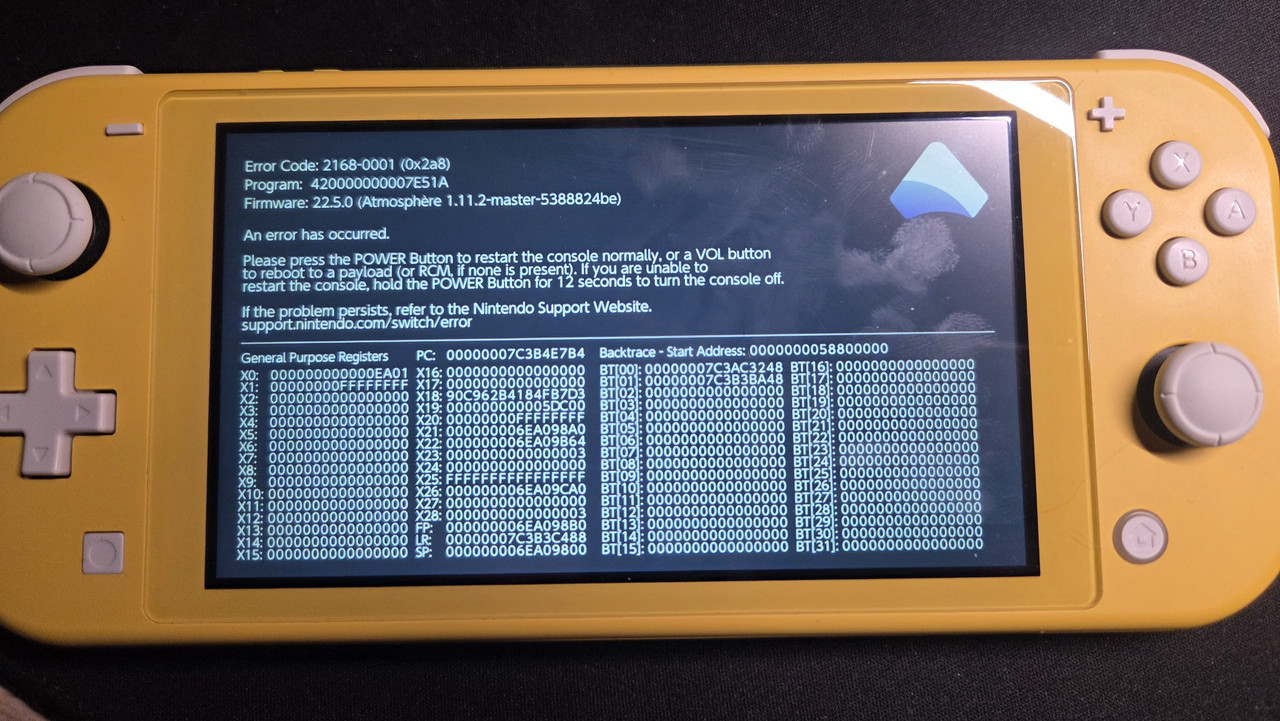




 did so many stuff for troubleshooting but all i had to do apparently was delete overlays i don’t use to free up space TT (try that out if anyone else is having trouble!)
 but for now this really helps a looot!