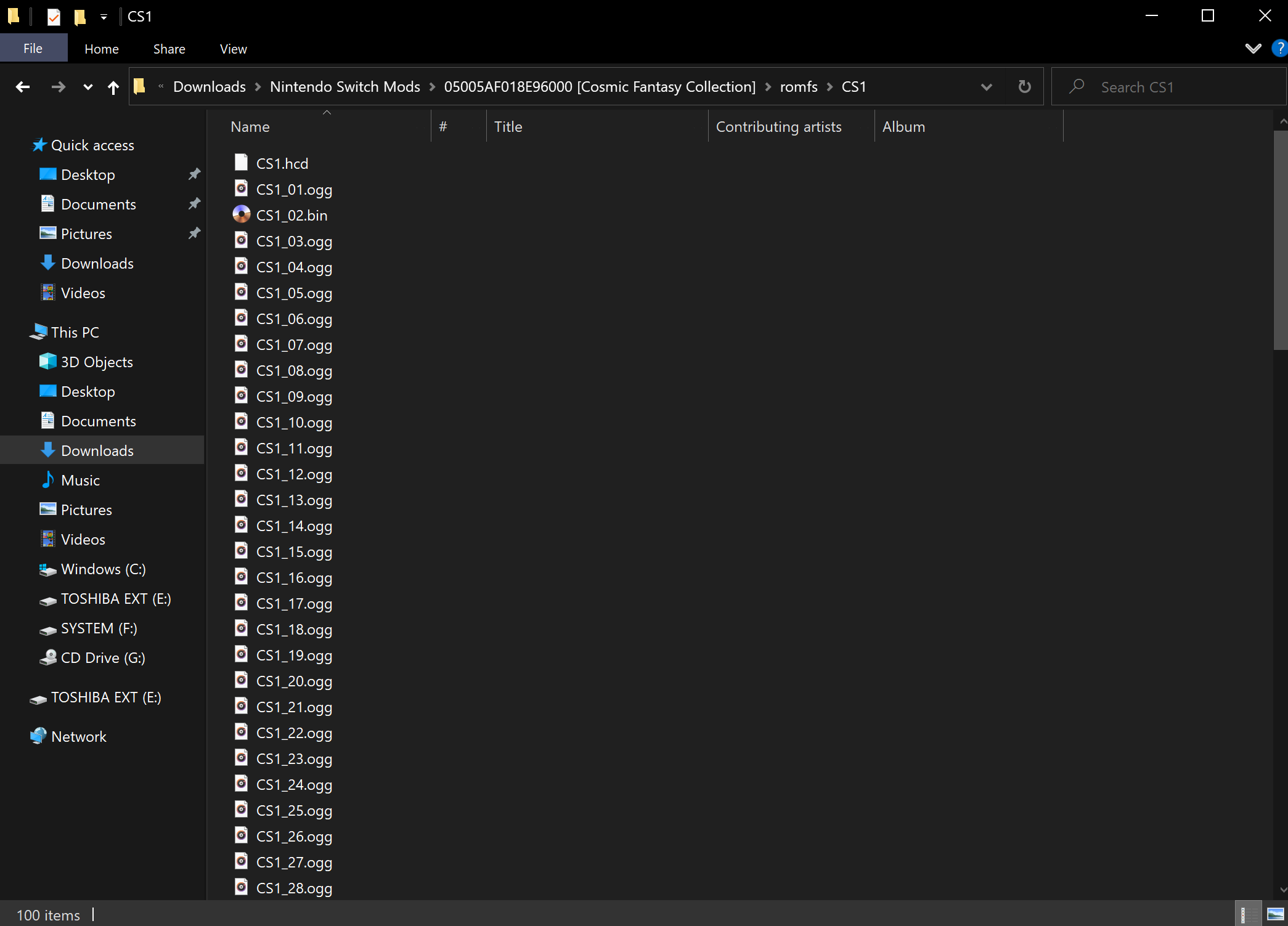
The AI answers all:
To convert a standard .cue / .bin PC Engine CD game into the split .hcd format, you need to break the single image file back into separate components: distinct .iso data tracks and compressed audio tracks (usually .ogg or .wav), tied together by a newly generated .hcd text index.
The most reliable community workflow relies on the legacy command-line tool bincuesplit.exe. [1]
Prerequisites
Before you start, gather these required tools into a single folder on your desktop:
- bincuesplit.exe: A specialized command-line utility used by retro modders to create HCD structures.
- oggenc.exe: The command-line Ogg Vorbis audio encoder (required if you want compressed audio for mini-consoles or older emulators).
- CDmage (Optional): Useful if your game dump consists of multiple .bin tracks and you need to merge them into a single, clean .bin/.cue layout first. [1, 2, 3]
Step-by-Step Conversion Process
1. Consolidate your BIN files (If needed)
If your game backup is already a single .bin file paired with one .cue file, skip to Step 2. If it is split into dozens of track01.bin, track02.bin files, merge them:
- Open CDmage, go to File > Open, and select your game's .cue file.
- Go to File > Save As, choose a new filename, and select Binary Image (.bin) as the type. This outputs one unified .bin and .cue file. [3, 5, 6]
2. Run the HCD Splitting Tool
Place your finalized .cue and .bin files inside the exact same folder where bincuesplit.exe and oggenc.exe are located.
- Open your operating system's terminal or Command Prompt (cmd) and use the cd command to navigate to that specific directory.
- Execute the following command string:
bincuesplit.exe -i "yourgame.cue" -o "output_folder" -hcd
(Make sure to replace "yourgame.cue" with the precise file name of your game index file). [7, 8, 9]
3. What the Tool Generates
Once bincuesplit finishes parsing the disc image data tracks, it will output a brand-new batch of isolated tracks inside your designated output folder:
- game.hcd: Your new proprietary Table of Contents index file.
- track01.iso, track03.iso, etc.: The uncompressed data tracks containing actual game code.
- track02.ogg, track04.ogg, etc.: The audio tracks automatically compressed to the efficient .ogg format using the companion encoder executable. [1, 3, 10]
Modifying the Output for PSP Injections
If you are converting this game to inject it into a Sony PSP/Vita custom PC Engine framework, the official Sony engine reads raw uncompressed audio wave data inside its code container rather than .ogg. You will need to make a quick manual correction: [1]
- Right-click your newly generated .hcd file and open it using a plain text editor like Notepad.
- Find any lines reading file=trackXX.ogg.
- Manually change the extension string from .ogg to .wav or .raw depending on your target injector script's specifications.
- Delete the generated .ogg tracks, extract raw .wav data copies from your original source disc image tracks using CDmage, and place them alongside the .iso and .hcd assets. [1, 3]
Are you converting this specific .hcd format to pack a custom game onto a TurboGrafx-16 Mini or to perform a PSP custom injection? Let me know so I can provide the exact folder naming structure you need!
[1]
https://psp-archive.github.io
[2]
https://pyra-handheld.com
[3]
https://psp-archive.github.io
[4]
https://cloud.wikis.utexas.edu
[5]
https://news.ycombinator.com
[6]
https://sinisterspatula.github.io
[7]
https://github.com
[8]
https://www.pemicro.com
[9]
https://www.inospin.com
[10]
https://www.reddit.com
-------
Converting a split .hcd game layout back into a standardized .cue / .bin package requires reassembling the independent data (.iso) and audio (.ogg or .wav) tracks into a single, cohesive disc image. [1, 2, 3]
Because .hcd is a niche format, there is no automated "one-click" software to reverse it. However, you can easily rebuild a .cue/.bin bundle using standard retro emulation tools.
Prerequisites
Download and place these tools in a single working folder: [4]
- CDmage (version 1.02.1 B5): The ultimate utility for importing, sector-scanning, and converting sector-based disc images.
- Audacity or Foobar2000 (If your audio tracks are currently in .ogg format): You must convert compressed audio back to uncompressed .wav before building a standard .cue sheet. [5, 6]
Step 1: Convert .OGG Audio Tracks to .WAV
Standard .cue/.bin sheets do not support compressed .ogg audio files. If your .hcd game package contains .ogg files:
- Open your audio converter (like Foobar2000 or Audacity).
- Batch-convert all trackXX.ogg files into Uncompressed 16-bit PCM WAV format (Stereo, 44,100 Hz).
- Save the new .wav files in the exact same folder as your game's .iso fragments. [7, 8]
Step 2: Manually Reconstruct the .CUE Sheet
You can easily turn the .hcd file text layout into a standard .cue layout using any basic text editor (like Notepad).
- Open your .hcd file in Notepad.
- Open a brand-new blank Notepad file next to it.
- Translate the track formatting using the standard .cue parameters.
How to map the text layout:
- Every time the .hcd lists a DATA track (file=track01.iso), map it in your .cue as a BINARY file with a MODE1/2352 or MODE1/2048 track entry.
- Every time it lists an AUDIO track (file=track02.wav), map it in your .cue as a WAVE file with an AUDIO track entry. [1, 9, 10, 11, 12]
 Structural Example:
=== YOUR OLD HCD FILE === === YOUR NEW CUE FILE ===
[TRACK] FILE "track01.iso" BINARY
type=DATA TRACK 01 MODE1/2048
file=track01.iso INDEX 01 00:00:00
[TRACK] FILE "track02.wav" WAVE
type=AUDIO TRACK 02 AUDIO
file=track02.ogg INDEX 01 00:00:00
[TRACK] FILE "track03.iso" BINARY
type=DATA TRACK 03 MODE1/2048
file=track03.iso INDEX 01 00:00:00
- Click File > Save As in your new document. Name it exactly what your game is called, and type .cue at the very end of the file name (e.g., Ys_Book_I_II.cue). [13]
Step 3: Consolidate the Loose Tracks into One Clean .BIN
At this point, your new .cue file will launch the game, but your directory will still be cluttered with dozens of separate track files. To merge them into one unified .bin image: [14]
- Launch CDmage.exe.
- Click File > Open and select your newly built .cue file.
- If everything was typed correctly, CDmage will successfully parse the separate files into an emulation-ready disc layout.
- Click File > Save As.
- Change the "Save as type" dropdown selection to Binary Image (*.bin).
- Click Save. [1, 6, 15]
CDmage will output one perfectly consolidated .bin data image accompanied by an updated, optimized .cue file. You can now safely throw away the old .hcd, .iso, and .wav/.ogg fragments. [6, 16, 17]
[1]
https://psp-archive.github.io
[2]
https://www.tate.org.uk
[3]
https://racketboy.com
[4]
https://github.com
[5]
https://cue.tools
[6]
https://misterfpga.org
[7]
https://manual.audacityteam.org
[8]
https://multitrackstudio.com
[9]
https://sourceforge.net
[10]
https://forums.gentoo.org
[11]
https://campuspress.yale.edu
[12]
https://forum.level1techs.com
[13]
https://www.reddit.com
[14]
https://www.reddit.com
[15]
https://wiki.recalbox.com
[16]
https://www.reddit.com
[17]
https://www.reddit.com