ROM Hack [Smash 3DS] Complete ROM Hacking guide (Textures, music, SFX/voice clips)

  • Thread starter Thread starter cimmanonroll
  • Start date Start date
  • Views Views 483,160
  • Replies Replies 2,966
  • Likes Likes 29
Status
Not open for further replies.
100% incontrovertible proof of normal maps in Smash 3ds! Nano himself agreed!
As a person who only makes textures, shaders, and materials in brawl you have no idea how happy this makes me. I can't wait until we get a real editor!
Persistence pays off.
V633W6E.png
What's this all about? Brawl didn't have normal maps?
 
What's this all about? Brawl didn't have normal maps?
Yeah, Brawl didn't have normal maps and there was a bit of a debate as to if the 3ds used them. When I found this it was 100% confirmed.
It may allow us to give models way more depth and detail than before, it's really exciting!
 
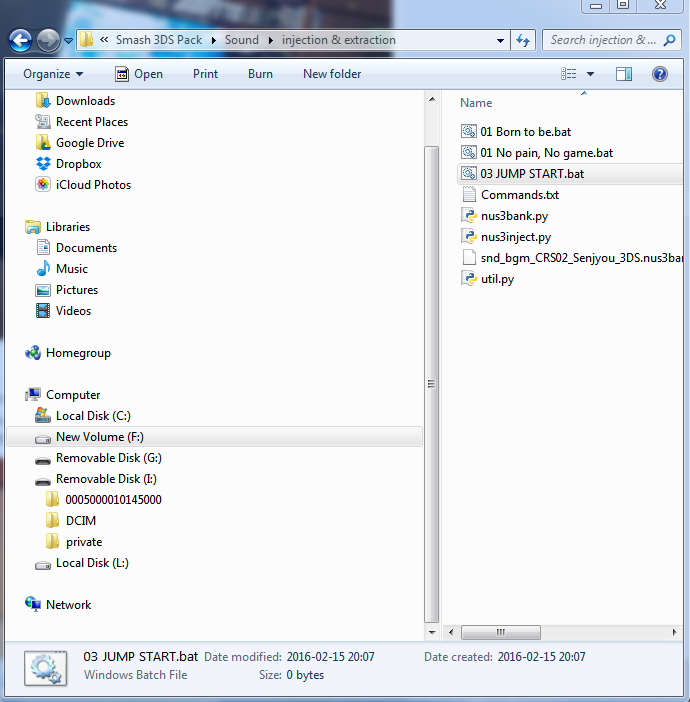
When I convert a .wav to a idsp, the output file is a .bat showing 0 bytes. Is that supposed to happen or did I do something wrong?

Which file was the .wav dragged into?

100% incontrovertible proof of normal maps in Smash 3ds! Nano himself agreed!
As a person who only makes textures, shaders, and materials in brawl you have no idea how happy this makes me. I can't wait until we get a real editor!
Persistence pays off.

V633W6E.png

Normal maps and spec maps together can make low poly models look beautiful. Normal maps alone can do the trick. With a proper editor, we may be able to do something in sm4sh with those and update this tutorial.
 
Last edited by ShadowLuigi~NG~,
Which file did you replace?


Normal maps and spec maps together can make low poly models look beautiful. Normal maps alone can do the trick. With a proper editor, we may be able to do something in sm4sh with those and update this tutorial.

I haven't replaced anything yet. I have a screenshot if that helps


a602440009f367982cf5fb03cae9017b.png
 
I haven't replaced anything yet. I have a screenshot if that helps


a602440009f367982cf5fb03cae9017b.png

I fixed my question, but you didn't see it. There should be a folder called Smash 4 idsp or Sm4sh idsp. Something along those lines. You have to drag the .wav file into the converter. There's only one command converter there that has the name Smash/Sm4sh.
 
I fixed my question, but you didn't see it. There should be a folder called Smash 4 idsp or Sm4sh idsp. Something along those lines. You have to drag the .wav file into the converter. There's only one command converter there that has the name Smash/Sm4sh.

Sorry about that. It was dragged into the smash4idspbuild.bat
 
I'm using Ohana3ds.
You need to open the .bch either here "dataMerged\stage\melee\XCrayon\model\S63_BG"(for models with more than 8 textures)

or here "dataMeged/ui/model/chara/chara_hand/normal.bch"(for models that have 8 textures or less).

Then open the .bch of your choice and go to the texture tab. You should be able to import now.
 
Is it of any importance that characters internal texture names (.bch) can be altered?
I didn't know if it would be helpful for anything.
 
Do we have to manually import these files? All of them are in png format.
Yes, I did it that way to avoid any and all possible legal issues that could ever arise. As I explained earlier, I have the worst luck imaginable so I'm playing it safe!
 
Yes, I did it that way to avoid any and all possible legal issues that could ever arise. As I explained earlier, I have the worst luck imaginable so I'm playing it safe!

Ah, well I have no idea on how to do so. I'll wait it out for a tutorial then.

Orange Yoshi is best yoshi.
 
I would appreciate it, yes please.

I'm probably going about it all wrong trying to import textures through Ohana.
Open Ohana 3ds.

Now you need to open the .bch either here "dataMerged\stage\melee\XCrayon\model\S63_BG"(for models with more than 8 textures)

or here "dataMeged/ui/model/chara/chara_hand/normal.bch"(for models that have 8 textures or less).

Then find a fighter "\1.1.2\dataMerged\model\fighter". Once you open the selected file folders "cXX" are low poly models and "hXX' are the high.
once you pick one of those folders inside you need to select "normal.bch" it cntain the textures.

Now, in Ohana 3ds click the texture tab and import/export as you wish!
NOTE: Always make a backup of the .bch from the fighter folder, on your desktop or somewhere.
NOTE: High and low poly models have different textures.

Cosmetics: Everything cosmetic is in "C:\Users\Tony Stark\Desktop\1.1.2\dataMerged\ui\replace\chr"
Download the .tex editor posted a few pages back. I labeled each folder to correspond correctly.
So, find the same name as one of my folders and open the Yoshi file you want to replace in the .tex editor. Then all you do is import my image into the file.
 
  • Like
Reactions: Baggy Scraggy
whenever i replace a texture for some the stages, when I view it in game the textures are there but they still use the original textures unedited when zooming in on characters and stuff, is this cause of lighting effects? And green hills zones textures crash ohana when trying to edit some of them.
 
Open Ohana 3ds.

Now you need to open the .bch either here "dataMerged\stage\melee\XCrayon\model\S63_BG"(for models with more than 8 textures)

or here "dataMeged/ui/model/chara/chara_hand/normal.bch"(for models that have 8 textures or less).

Then find a fighter "\1.1.2\dataMerged\model\fighter". Once you open the selected file folders "cXX" are low poly models and "hXX' are the high.
once you pick one of those folders inside you need to select "normal.bch" it cntain the textures.

Now, in Ohana 3ds click the texture tab and import/export as you wish!
NOTE: Always make a backup of the .bch from the fighter folder, on your desktop or somewhere.
NOTE: High and low poly models have different textures.

Cosmetics: Everything cosmetic is in "C:\Users\Tony Stark\Desktop\1.1.2\dataMerged\ui\replace\chr"
Download the .tex editor posted a few pages back. I labeled each folder to correspond correctly.
So, find the same name as one of my folders and open the Yoshi file you want to replace in the .tex editor. Then all you do is import my image into the file.

Whenever I try to export my own textures so I can make a custom fighter myself, the body PNG that comes out is always the high quality one, regardless of if I select the high quality (h0X) or the low quality (c0X)

Generally when I export I don't seem to do it correctly, but I was able to import your stuff correctly.

Any fix?
 
Last edited by Baggy Scraggy,
Whenever I try to export my own textures so I can make a custom fighter myself, the body PNG that comes out is always the high quality one, regardless of if I select the high quality (h0X) or the low quality (c0X)

Generally when I export I don't seem to do it correctly, but I was able to import your stuff correctly.

Any fix?
You mean clicking export while you have c0x and h0x always gives you the same size file? Make sure if you do it right in a row that you unselect then reselect the main body texture, as I have done a few personal hacks and had no problem getting the proper files in and out.
 
Does anyone know what offsets to change to make Giga Bowser and Mac selectable on the CSS or have a file already edited that I can have?
 
You mean clicking export while you have c0x and h0x always gives you the same size file? Make sure if you do it right in a row that you unselect then reselect the main body texture, as I have done a few personal hacks and had no problem getting the proper files in and out.

It gives me the same PNG, and it's always mirrored so it's doubled up.

Not sure what to do about it.
 
Status
Not open for further replies.

Site & Scene News

Popular threads in this forum