Tutorial  Updated

Creating Custom Themes for USB Loader GX (With V2 Support)

USB Loader GX Theme Creation Tutorial

Welcome! In this tutorial, I’ll walk you through how you can make themes for USB Loader GX. Hopefully this helps you understand how it works, how to find and edit assets, and how to start making your own.


  1. 🧰 What You’ll Need
    -
  2. 🛠 Setting Up the Theme Creator
    -
  3. 🧭 Exploring the Interface
    -
  4. ⚠️ Important Notes & Tips
    -
  5. 📂 Exploring the Default Theme
    -
  6. 🎨 Imagining a Theme
    -
  7. 🖼️ Image Editing Tips
    -
  8. 🖼️ Image Reference Guide (A–Z)
    -
  9. ⚙️ Performance and Memory Tips
    -
  10. 🔤 Fonts
    -
  11. 🔊 Adding Custom Audio
    -
  12. 🧩 V2 Theme Values and Buttons
    -
  13. 💾 Installing on the Wii
    -
  14. ✅ Wrapping Up


🧰 What You’ll Need

- USBLoaderGX Theme Creator (Windows only — requires Java)
- Default Theme - V2 (v4.0)

You can also find it on GitHub. You will need to know the names of these new buttons for V2 themes. They will be listed below in that section.
- Image Editing Software
Use Photoshop, GIMP, Photopea (a free browser-based alternative), or anything else.
- An Image Optimizer
Use tools like PNGGauntlet (Windows) or ImageOptim (Mac) to optimize .PNGs
- Free Icons
Try Google Icons, Icons8, any icon site or icon packs. You can also create your own or edit others if possible.
- Optional: Fonts
Google Fonts or any free font site will do.
- Optional: Audacity
For custom sounds. We’ll cover that later.


🛠 Setting Up the Theme Creator

1. Download and extract the Theme Creator to any folder (Desktop works fine).
2. Inside the folder, you’ll find:

- ThemeCreator_USBloaderGX.jar (the main app)
- /Export – stores screenshots and theme ZIPs
- /Themes – where you place your theme folders and .them files
3. Download and extract the default theme into the Themes folder.
You should now have:
- a folder called default
- a .them file outside of it


🧭 Exploring the Interface

When you open the app:
- You may be presented with a theme selection screen. Choose one.
- The left panel is where you edit values
- The preview window is on the right:
- Hover to see element names
- Right-click + drag to move icons
- Explore all theme menus and screens!

Note: Not everything can be previewed in the Creator.

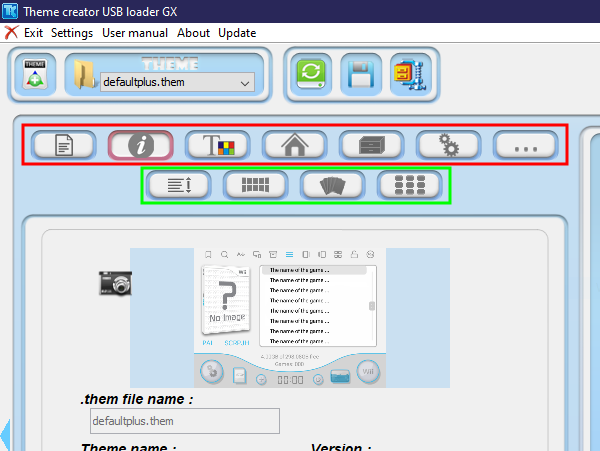
- Red Tabs: General values
- Green Tabs: Specific view types (e.g., list, grid)
creator1.png

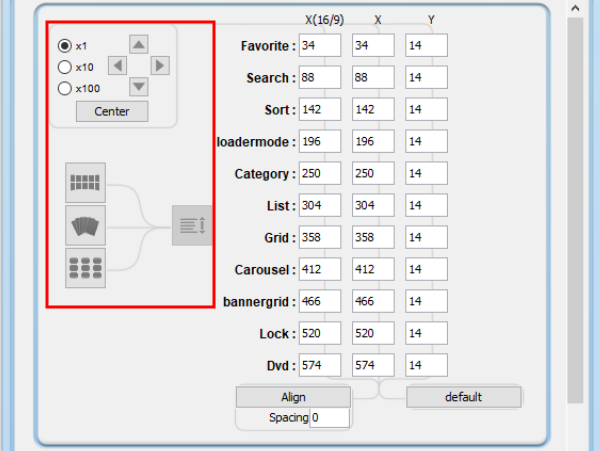
At the top you'll see:
- Arrows: Move all values on the right simultaneously
- Buttons: Copy values between view types
creator2.png

Hover over any interface button to get a tooltip.


⚠️ Important Notes & Tips

SAVE OFTEN!
Save of your `.them` before making changes.

DO NOT open V2 themes in the Creator directly!
It will remove update-specific values. Once you’re done editing, copy the .them somewhere else (like a separate export folder) and manually add those values. We will do this later.

After this new Loader update, many elements seem to align differently vs the Creator!
You will have you rely on screenshots from the Wii itself and use a ruler and math to position your assets correctly.

- You cannot change the border for channels — it’s a solid overlay. Design around it.
- Some values (like "numpad text color") are not shown in the Creator. Edit the `.them` manually.
- After typing values inside the Creator, press Enter to apply.
- The Creator and Loader will look different. Use real Loader screenshots for alignment.
In the Loader: Use a Nunchuk, press C + Z to take a screenshot. These are stored in the root usbloader_gx folder.
- Some text colors cannot be changed — plan your theme around them.
- If you change the font, save and reload the theme to preview it in the Creator.
- If you save the '.them' with a new name, save as a new folder. Trust me.


📂
Exploring the Default Theme


- Examine how images are named and sized
- Every image must be named exactly as in the default
- All images are .PNG, most with transparency
- You don’t need to include every asset — any missing file will default to the original theme’s version


🎨
Imagining a Theme


This is all up to you!

Ask yourself:
- What kind of interface do you want?
- Should it be inspired by a game, OS, movie?
- Simple and clean?
- Completely original?

I usually:
- Search around for inspiration
- Ask for suggestions
- Experiment just to see what I can make

Some ideas won't work out — that’s okay. Take breaks, don’t burn out.


🖼 Image Editing Tips

You can use any editor. I use Photopea.

Recommended tools: shapes, selection, direct select and anchors, brush/pencil, eraser, ruler, eyedropper, layers. I also suggest using hex codes for easy copy and paste when designing. The Creator uses RGB values though.

- Save files as .PSD or similar for later edits
- Keep a 13–15px safe border for TVs with overscan
- Use .SVGs for scalable icons — rasterize them before editing
- Flat icons or assets can be recolored easily using color overlays (on rasterized images)
- Saturation and hue will be helpful for recoloring as well. It's much more difficult to get close to your desired result.
- .PNG transparency matters! Export without palettes to avoid image breakage
- Keep canvas size if you want to preserve clickable areas. Change the size of the icon or image instead.
- Use rulers — always align your elements


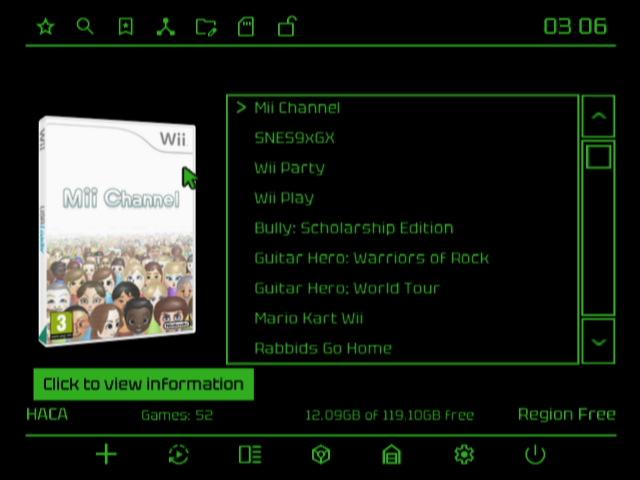
Alright, so look at this image of my theme Proto on the Wii compared to how it looks in the Creator:
Wii:
proto1.png


Creator:
proto.png


Do you see the differences?

- The scrollbar is completely out of alignment in the creator. One pixel can't be aligned for example — I made the bottom scrollbar arrow's bottom border in a way that mirrors the top. Download and explore the .PNGs if you would like to see how things are affected and can be designed around
- This is the theme V1 that is supported by the Creator. This is how it will look before you modify your .them
- The text is rendered completely different!
- The little chevron arrow next to the game name is aligned wrong as well
- And much more...


🖼️ Image Reference Guide (A–Z)

Here’s a breakdown of the image files you’ll see in USB Loader GX themes that may be confusing and what each one controls:

- add = Adding a category (category window)
- battery = Battery charge level (home menu)
- bg_browser = File explorer window (paths, etc)
- bg_options_entry = Game/settings selection bar
- button_dialogue_box = This is the general menu button (buttons on the power off menu
- closebutton = Home Menu close button (appears when you press the Home button)
- channel_btn = Homebrew apps menu button (found in Homebrew Browser)
- checkBoxSelection = This is the selection bar found on the category window
- dialogue_box = Most pop-up windows you’ll see (example: power off menu)
- exit_buttons (Top and Bottom) = Panels on the Home Menu screen
- exit_button = Homebrew and Wii menu buttons on the Home screen
- gameinfo = Game information pop-up window
- gxlogo = Screensaver icon
- icon_folder = Folder icon on the explorer window (paths, etc)
- little_star = Rotating star icon in the credits screen
- one = Rename a category
- oneButtonScroll = Hold B on a list to see this appear (like a mouse wheel click)
- remove = Removing a category (category window)
- theme_box = General theme pop-up window
- theme_preview = Theme icon shown in theme_box
- wifi_button = Reinitialize Wi-Fi (Homebrew launcher)
- wiimote = Wii Remote image on the Home Menu

If there’s anything that could be explained better, let me know and I’ll update the guide!


⚙️ Performance and Memory Tips

The Wii only has around 88MB of RAM, and USB Loader GX uses that memory to load theme assets, covers, music, fonts, and interface data. If you overload it with large or unoptimized files, you may run into:

- Long loading times
- Freezing or crashing
- Broken or missing UI elements

To avoid that, keep your assets optimized and lightweight:

Images
- Use tools like PNGGauntlet (Windows) or ImageOptim (Mac) to optimize .PNGs
- Be cautious: sometimes it might convert transparent images (RGBA) to RGB or paletted .PNGs — which removes transparency.

Fonts
- Stick with small '.ttf' fonts from sources like Google Fonts.

Audio
- Keep background music short (under 2 minutes if possible) and loopable.
- Export music as '.ogg' with 44.1kHz or 48kHz sample rate.

Keeping your theme lightweight will make it faster and more stable!


🔤 Fonts

Two font files:

- font.ttf – general UI font
- clock.ttf – used for the clock

To change them:
1. Download a font you like
2. Rename it to font.ttf or clock.ttf
3. Place it in your theme folder

Fonts can be hit or miss. Some look great in the Creator but not in Loader. Always test! (and some will be sized completely different for another language)


🔊 Adding Custom Audio

Use Audacity.

1. Find free music, royalty-free music, etc., or make your own if you know how.
2. Open it in Audacity
3. Trim it down to a good loop (e.g., 1:30)

- Cut a short segment from the end and paste it on a new track drag it to the beginning
- Highlight both tracks together, the length of the new short segment
- Go to Effects > Fading > Crossfade Tracks. Click okay.
- Export as .ogg with 44.1kHz or 48kHz sample rate

Short sounds can cause audio popping or play twice
To reduce this:
- Add 0.250s to 0.500s of silence at the end
- Export at 32kHz or 44.1kHz
File names:
- button_click and button_click2: used on A/B inputs
- button_over: plays when hovering over a button


🧩 V2 Theme Values and Buttons

Get ready for a bit of manual work! These are the new values you’ll need to manually add to your finished .them file.

These are only needed if you are using layout version 2 (v2 themes). The Theme Creator does not support these yet, so they must be added yourself after exporting.

Again! DO NOT open V2 themes in the Creator directly!
It will remove update-specific values. Once you’re done editing, copy the .them somewhere else (like a separate export folder) and manually add these values.


menu_button.png
menu_button_custom.png
menu_button_custom_over.png
menu_button_emunand.png
menu_button_emunand_over.png
menu_button_gc.png
menu_button_gc_over.png
menu_button_nand.png
menu_button_nand_over.png
menu_button_over.png

# -- Theme Version Toggle

"Theme-Layout: 2\n"

# -- Settings (not very important)

msgid "200 - settings option text max width"
msgstr ""

msgid "100 - settings option value max width"
msgstr ""

msgid "240 - settings option value pos x"
msgstr ""

# -- List Layout

msgid "349 - list layout hbc btn pos x widescreen"
msgstr ""

msgid "359 - list layout hbc btn pos x"
msgstr "442"

msgid "367 - list layout hbc btn pos y"
msgstr "377"

msgid "376 - list layout install btn pos x widescreen"
msgstr ""

msgid "393 - list layout install btn pos x"
msgstr ""

msgid "367 - list layout install btn pos y"
msgstr ""

# -- Grid Layout

msgid "202 - game list layout pos x widescreen"
msgstr ""

msgid "349 - grid layout hbc btn pos x widescreen"
msgstr ""

msgid "359 - grid layout hbc btn pos x"
msgstr ""

msgid "367 - grid layout hbc btn pos y"
msgstr ""

msgid "376 - grid layout install btn pos x widescreen"
msgstr ""

msgid "393 - grid layout install btn pos x"
msgstr ""

msgid "367 - grid layout install btn pos y"
msgstr ""

# -- Carousel Layout

msgid "349 - carousel layout hbc btn pos x widescreen"
msgstr ""

msgid "359 - carousel layout hbc btn pos x"
msgstr ""

msgid "367 - carousel layout hbc btn pos y"
msgstr ""

msgid "376 - carousel layout install btn pos x widescreen"
msgstr ""

msgid "393 - carousel layout install btn pos x"
msgstr ""

msgid "367 - carousel layout install btn pos y"
msgstr ""

# -- Banner Grid Layout

msgid "349 - bannergrid layout hbc btn pos x widescreen"
msgstr ""

msgid "359 - bannergrid layout hbc btn pos x"
msgstr ""

msgid "367 - bannergrid layout hbc btn pos y"
msgstr ""

msgid "376 - bannergrid layout install btn pos x widescreen"
msgstr ""

msgid "393 - bannergrid layout install btn pos x"
msgstr ""

msgid "367 - bannergrid layout install btn pos y"
msgstr ""

# -- ID and Region on List view

msgid "52 - gameID btn pos x widescreen"
msgstr ""

msgid "52 - region info text pos x widescreen"
msgstr ""

What to Do:

1. Visit the official `.them` file on GitHub and locate where these values exist.
2. Copy and paste them into your custom `.them` in the same section.
3. Use screenshots from the Loader and do some basic math to determine accurate coordinates.
4. Remember:

msgid = default value name
msgstr = your theme’s value

Example:

msgid "359
- bannergrid layout hbc btn pos x"
msgstr "-250"


💾 Installing on the Wii

Once your theme is ready to test, here’s how to install it:
  1. Insert your SD card or USB drive into your computer
  2. Navigate to: /apps/usbloader_gx/theme/ (Create the theme folder if it doesn’t exist.)
  3. Copy your theme folder and .them into this directory
  4. Eject the SD/USB and put it back in your Wii
  5. Launch USB Loader GX -> Settings -> Theme Menu
  6. Select your theme and press Apply
  7. If something looks off, take a screenshot on the Wii (C+Z on Nunchuk) and open the screenshot in your editor, measure, and adjust your assets or values


✅ Wrapping Up

I’ll keep updating this tutorial as I go more needs to be added, but it does take a while. If you have any suggestions for edits, let me know.

Feel free to ask questions in this thread or send me a message. I’ll reply when I can.

Your first theme might take a couple weeks — that’s normal. With time, you’ll be making themes within just one week! Probably!

Keep practicing and have fun!
 
Last edited by nully,
First of all, I just want to give you a massive thank you for the comprehensive and detailed guide.

Second, I took the opportunity and just finished making my first theme (I ended up not using the theme creator as I wanted to use the updated latest theme and it was a bit confusing without support for it), for the editing I used GIMP.

It's not much, just a recolor with a reddish color and more saturated pointers, alongside the theme I'm also sharing a screenshot and a comparison of the saturated pointers.

Thank you! ^_^
Post automatically merged:

Was having a bit of trouble sending the theme
 

Attachments

  • Screenshot_20250829-014900.png
    Screenshot_20250829-014900.png
    270 KB · Views: 68
  • pointer.png
    pointer.png
    2.9 KB · Views: 75
  • Screenshot_20250829-014949.png
    Screenshot_20250829-014949.png
    187 KB · Views: 67
  • Screenshot_20250829-014943.png
    Screenshot_20250829-014943.png
    56.6 KB · Views: 61
  • pointer_saturated.png
    pointer_saturated.png
    2.9 KB · Views: 66
  • reddish.zip
    reddish.zip
    1.6 MB · Views: 34
  • Like
Reactions: XFlak and nully
First of all, I just want to give you a massive thank you for the comprehensive and detailed guide.

Second, I took the opportunity and just finished making my first theme (I ended up not using the theme creator as I wanted to use the updated latest theme and it was a bit confusing without support for it), for the editing I used GIMP.

It's not much, just a recolor with a reddish color and more saturated pointers, alongside the theme I'm also sharing a screenshot and a comparison of the saturated pointers.

Thank you! ^_^
Post automatically merged:

Was having a bit of trouble sending the theme
Thank you!

Sure, it's not much (you said so :D), but it's a great start! It turned out well. Keep going man; I'm ready to see what's next!

If you want further help let me know and I will try my best to assist you.


I'm ready to see what you all make and share!
 
  • Like
Reactions: XFlak and Abaw245
Thank you!

Sure, it's not much (you said so :D), but it's a great start! It turned out well. Keep going man; I'm ready to see what's next!

If you want further help let me know and I will try my best to assist you.


I'm ready to see what you all make and share!
I was wondering how to change the look of the "settings" and "start" buttons, alongside the outline for when a channel is highlighted, I couldn't find them in the theme files. Do you have any knowledge about that?
 
I was wondering how to change the look of the "settings" and "start" buttons, alongside the outline for when a channel is highlighted, I couldn't find them in the theme files. Do you have any knowledge about that?
I'm assuming you mean the "Settings" and "Start" button found on the actual game channel when you click on it. These buttons are a part of the Loader, but they are stored inside the .dol I believe. So you won't be able to edit these this includes the text color and overlay.. (Someone will have to confirm this)

The channel highlight color value is found on line 32 in the v2 themes. "banner icon highlite color"

I suggest you explore the Theme Creator because almost all values can be found there and edited easily. So then, creating a v1 theme and then making it into a v2 theme is the easiest way to learn and create. This of course lets you get an easy visual idea of your theme and allows you to make 99% of it before you do all the manual .them editing.
 
Last edited by nully,
Hi Nully (I don't know how to tag :P).
Congratulations on the excellent work you did on USB Loader GX version 4.0. I've been wanting to talk to you since it's hard to find someone passionate about the world of GUIs in Homebrew these days (especially on the Wii, which has been one of the most neglected in that regard lately).
In a few hours, I plan to start uploading some WADs, in case you're interested, and I'll also try decorating the main menu, haha. Cheers :)
 
  • Like
Reactions: nully
I have updated the tutorial:

- Uploaded the updated Default Theme Assets for your convenience (link at the top)
- Small edits in some places
- Added a table of contents
- Added an example of how the alignment is different (Image Editing Tips)
- Added a 'Performance and Memory Tips' section
- Added an 'Installing on the Wii' section
- Consulted with the theme gods


Is there anything you would like to know more about and have added to the tutorial?

Eventually I will probably add a section that describes certain images or names that may be confusing.
 
Last edited by nully,
This tutorial is fantastic! I'm working on a theme for my Wii but I wanted to ask you a question about the fonts, is there any way for me to change the letter spacing or font size? I can't seem to figure anything out and I thought since you're one of the most active members of this scene that I would ask.
 
This tutorial is fantastic! I'm working on a theme for my Wii but I wanted to ask you a question about the fonts, is there any way for me to change the letter spacing or font size? I can't seem to figure anything out and I thought since you're one of the most active members of this scene that I would ask.
Well.. as far I understand that, you would need to manually adjust the alphabet with a font editor such as Fontforge and I haven't messed with that. I would assume you just need to pad the letter.

Anyone want to chime in?
 
is there any way to remove the clock numbers shadows?? i hate that effect hahah
Post automatically merged:

is there any way to remove the clock numbers shadows?? i hate that effect hahah
 
I wanted to reach out here and ask. Is there any way to remove some of the tabbing buttons on the bottom right? I love the “displaying Wii and GameCube games” button tabs, but really don’t want to have the “nand, emunand, custom” buttons. I tried to remove the pngs from an edited default theme and just reinstall but it falls back on the normal default theme with those buttons still intact.

Thank you in advance!
 

Attachments

  • IMG_8005.jpeg
    IMG_8005.jpeg
    6.4 MB · Views: 36
  • IMG_8006.jpeg
    IMG_8006.jpeg
    8.1 MB · Views: 36
USB Loader GX Theme Creation Tutorial

Welcome! In this tutorial, I’ll walk you through how you can make themes for USB Loader GX. Hopefully this helps you understand how it works, how to find and edit assets, and how to start making your own.


  1. 🧰 What You’ll Need
    -
  2. 🛠 Setting Up the Theme Creator
    -
  3. 🧭 Exploring the Interface
    -
  4. ⚠️ Important Notes & Tips
    -
  5. 📂 Exploring the Default Theme
    -
  6. 🎨 Imagining a Theme
    -
  7. 🖼️ Image Editing Tips
    -
  8. 🖼️ Image Reference Guide (A–Z)
    -
  9. ⚙️ Performance and Memory Tips
    -
  10. 🔤 Fonts
    -
  11. 🔊 Adding Custom Audio
    -
  12. 🧩 V2 Theme Values and Buttons
    -
  13. 💾 Installing on the Wii
    -
  14. ✅ Wrapping Up


🧰 What You’ll Need

- USBLoaderGX Theme Creator (Windows only — requires Java)
- Default Theme - V2 (v4.0)

You can also find it on GitHub. You will need to know the names of these new buttons for V2 themes. They will be listed below in that section.
- Image Editing Software
Use Photoshop, GIMP, Photopea (a free browser-based alternative), or anything else.
- An Image Optimizer
Use tools like PNGGauntlet (Windows) or ImageOptim (Mac) to optimize .PNGs
- Free Icons
Try Google Icons, Icons8, any icon site or icon packs. You can also create your own or edit others if possible.
- Optional: Fonts
Google Fonts or any free font site will do.
- Optional: Audacity
For custom sounds. We’ll cover that later.


🛠 Setting Up the Theme Creator

1. Download and extract the Theme Creator to any folder (Desktop works fine).
2. Inside the folder, you’ll find:

- ThemeCreator_USBloaderGX.jar (the main app)
- /Export – stores screenshots and theme ZIPs
- /Themes – where you place your theme folders and .them files
3. Download and extract the default theme into the Themes folder.
You should now have:
- a folder called default
- a .them file outside of it


🧭 Exploring the Interface

When you open the app:
- You may be presented with a theme selection screen. Choose one.
- The left panel is where you edit values
- The preview window is on the right:
- Hover to see element names
- Right-click + drag to move icons
- Explore all theme menus and screens!

Note: Not everything can be previewed in the Creator.

- Red Tabs: General values
- Green Tabs: Specific view types (e.g., list, grid)
View attachment 524823

At the top you'll see:
- Arrows: Move all values on the right simultaneously
- Buttons: Copy values between view types
View attachment 524824

Hover over any interface button to get a tooltip.


⚠️ Important Notes & Tips

SAVE OFTEN!
Save of your `.them` before making changes.

DO NOT open V2 themes in the Creator directly!
It will remove update-specific values. Once you’re done editing, copy the .them somewhere else (like a separate export folder) and manually add those values. We will do this later.

After this new Loader update, many elements seem to align differently vs the Creator!
You will have you rely on screenshots from the Wii itself and use a ruler and math to position your assets correctly.

- You cannot change the border for channels — it’s a solid overlay. Design around it.
- Some values (like "numpad text color") are not shown in the Creator. Edit the `.them` manually.
- After typing values inside the Creator, press Enter to apply.
- The Creator and Loader will look different. Use real Loader screenshots for alignment.
In the Loader: Use a Nunchuk, press C + Z to take a screenshot. These are stored in the root usbloader_gx folder.
- Some text colors cannot be changed — plan your theme around them.
- If you change the font, save and reload the theme to preview it in the Creator.
- If you save the '.them' with a new name, save as a new folder. Trust me.


📂
Exploring the Default Theme


- Examine how images are named and sized
- Every image must be named exactly as in the default
- All images are .PNG, most with transparency
- You don’t need to include every asset — any missing file will default to the original theme’s version


🎨
Imagining a Theme


This is all up to you!

Ask yourself:
- What kind of interface do you want?
- Should it be inspired by a game, OS, movie?
- Simple and clean?
- Completely original?

I usually:
- Search around for inspiration
- Ask for suggestions
- Experiment just to see what I can make

Some ideas won't work out — that’s okay. Take breaks, don’t burn out.


🖼 Image Editing Tips

You can use any editor. I use Photopea.

Recommended tools: shapes, selection, direct select and anchors, brush/pencil, eraser, ruler, eyedropper, layers. I also suggest using hex codes for easy copy and paste when designing. The Creator uses RGB values though.

- Save files as .PSD or similar for later edits
- Keep a 13–15px safe border for TVs with overscan
- Use .SVGs for scalable icons — rasterize them before editing
- Flat icons or assets can be recolored easily using color overlays (on rasterized images)
- Saturation and hue will be helpful for recoloring as well. It's much more difficult to get close to your desired result.
- .PNG transparency matters! Export without palettes to avoid image breakage
- Keep canvas size if you want to preserve clickable areas. Change the size of the icon or image instead.
- Use rulers — always align your elements


Alright, so look at this image of my theme Proto on the Wii compared to how it looks in the Creator:
Wii:

View attachment 526137

Creator:
View attachment 526136

Do you see the differences?

- The scrollbar is completely out of alignment in the creator. One pixel can't be aligned for example — I made the bottom scrollbar arrow's bottom border in a way that mirrors the top. Download and explore the .PNGs if you would like to see how things are affected and can be designed around
- This is the theme V1 that is supported by the Creator. This is how it will look before you modify your .them
- The text is rendered completely different!
- The little chevron arrow next to the game name is aligned wrong as well
- And much more...


🖼️ Image Reference Guide (A–Z)

Here’s a breakdown of the image files you’ll see in USB Loader GX themes that may be confusing and what each one controls:

- add = Adding a category (category window)
- battery = Battery charge level (home menu)
- bg_browser = File explorer window (paths, etc)
- bg_options_entry = Game/settings selection bar
- button_dialogue_box = This is the general menu button (buttons on the power off menu
- closebutton = Home Menu close button (appears when you press the Home button)
- channel_btn = Homebrew apps menu button (found in Homebrew Browser)
- checkBoxSelection = This is the selection bar found on the category window
- dialogue_box = Most pop-up windows you’ll see (example: power off menu)
- exit_buttons (Top and Bottom) = Panels on the Home Menu screen
- exit_button = Homebrew and Wii menu buttons on the Home screen
- gameinfo = Game information pop-up window
- gxlogo = Screensaver icon
- icon_folder = Folder icon on the explorer window (paths, etc)
- little_star = Rotating star icon in the credits screen
- one = Rename a category
- oneButtonScroll = Hold B on a list to see this appear (like a mouse wheel click)
- remove = Removing a category (category window)
- theme_box = General theme pop-up window
- theme_preview = Theme icon shown in theme_box
- wifi_button = Reinitialize Wi-Fi (Homebrew launcher)
- wiimote = Wii Remote image on the Home Menu

If there’s anything that could be explained better, let me know and I’ll update the guide!


⚙️ Performance and Memory Tips

The Wii only has around 88MB of RAM, and USB Loader GX uses that memory to load theme assets, covers, music, fonts, and interface data. If you overload it with large or unoptimized files, you may run into:

- Long loading times
- Freezing or crashing
- Broken or missing UI elements

To avoid that, keep your assets optimized and lightweight:

Images
- Use tools like PNGGauntlet (Windows) or ImageOptim (Mac) to optimize .PNGs
- Be cautious: sometimes it might convert transparent images (RGBA) to RGB or paletted .PNGs — which removes transparency.

Fonts
- Stick with small '.ttf' fonts from sources like Google Fonts.

Audio
- Keep background music short (under 2 minutes if possible) and loopable.
- Export music as '.ogg' with 44.1kHz or 48kHz sample rate.

Keeping your theme lightweight will make it faster and more stable!


🔤 Fonts

Two font files:

- font.ttf – general UI font
- clock.ttf – used for the clock

To change them:
1. Download a font you like
2. Rename it to font.ttf or clock.ttf
3. Place it in your theme folder

Fonts can be hit or miss. Some look great in the Creator but not in Loader. Always test! (and some will be sized completely different for another language)


🔊 Adding Custom Audio

Use Audacity.

1. Find free music, royalty-free music, etc., or make your own if you know how.
2. Open it in Audacity
3. Trim it down to a good loop (e.g., 1:30)

- Cut a short segment from the end and paste it on a new track drag it to the beginning
- Highlight both tracks together, the length of the new short segment
- Go to Effects > Fading > Crossfade Tracks. Click okay.
- Export as .ogg with 44.1kHz or 48kHz sample rate

Short sounds can cause audio popping or play twice
To reduce this:
- Add 0.250s to 0.500s of silence at the end
- Export at 32kHz or 44.1kHz
File names:
- button_click and button_click2: used on A/B inputs
- button_over: plays when hovering over a button


🧩 V2 Theme Values and Buttons

Get ready for a bit of manual work! These are the new values you’ll need to manually add to your finished .them file.

These are only needed if you are using layout version 2 (v2 themes). The Theme Creator does not support these yet, so they must be added yourself after exporting.

Again! DO NOT open V2 themes in the Creator directly!
It will remove update-specific values. Once you’re done editing, copy the .them somewhere else (like a separate export folder) and manually add these values.


menu_button.png
menu_button_custom.png
menu_button_custom_over.png
menu_button_emunand.png
menu_button_emunand_over.png
menu_button_gc.png
menu_button_gc_over.png
menu_button_nand.png
menu_button_nand_over.png
menu_button_over.png

# -- Theme Version Toggle

"Theme-Layout: 2\n"

# -- Settings (not very important)

msgid "200 - settings option text max width"
msgstr ""

msgid "100 - settings option value max width"
msgstr ""

msgid "240 - settings option value pos x"
msgstr ""

# -- List Layout

msgid "349 - list layout hbc btn pos x widescreen"
msgstr ""

msgid "359 - list layout hbc btn pos x"
msgstr "442"

msgid "367 - list layout hbc btn pos y"
msgstr "377"

msgid "376 - list layout install btn pos x widescreen"
msgstr ""

msgid "393 - list layout install btn pos x"
msgstr ""

msgid "367 - list layout install btn pos y"
msgstr ""

# -- Grid Layout

msgid "202 - game list layout pos x widescreen"
msgstr ""

msgid "349 - grid layout hbc btn pos x widescreen"
msgstr ""

msgid "359 - grid layout hbc btn pos x"
msgstr ""

msgid "367 - grid layout hbc btn pos y"
msgstr ""

msgid "376 - grid layout install btn pos x widescreen"
msgstr ""

msgid "393 - grid layout install btn pos x"
msgstr ""

msgid "367 - grid layout install btn pos y"
msgstr ""

# -- Carousel Layout

msgid "349 - carousel layout hbc btn pos x widescreen"
msgstr ""

msgid "359 - carousel layout hbc btn pos x"
msgstr ""

msgid "367 - carousel layout hbc btn pos y"
msgstr ""

msgid "376 - carousel layout install btn pos x widescreen"
msgstr ""

msgid "393 - carousel layout install btn pos x"
msgstr ""

msgid "367 - carousel layout install btn pos y"
msgstr ""

# -- Banner Grid Layout

msgid "349 - bannergrid layout hbc btn pos x widescreen"
msgstr ""

msgid "359 - bannergrid layout hbc btn pos x"
msgstr ""

msgid "367 - bannergrid layout hbc btn pos y"
msgstr ""

msgid "376 - bannergrid layout install btn pos x widescreen"
msgstr ""

msgid "393 - bannergrid layout install btn pos x"
msgstr ""

msgid "367 - bannergrid layout install btn pos y"
msgstr ""

# -- ID and Region on List view

msgid "52 - gameID btn pos x widescreen"
msgstr ""

msgid "52 - region info text pos x widescreen"
msgstr ""

What to Do:

1. Visit the official `.them` file on GitHub and locate where these values exist.
2. Copy and paste them into your custom `.them` in the same section.
3. Use screenshots from the Loader and do some basic math to determine accurate coordinates.
4. Remember:

msgid = default value name
msgstr = your theme’s value

Example:

msgid "359
- bannergrid layout hbc btn pos x"
msgstr "-250"


💾 Installing on the Wii

Once your theme is ready to test, here’s how to install it:
  1. Insert your SD card or USB drive into your computer
  2. Navigate to: /apps/usbloader_gx/theme/ (Create the theme folder if it doesn’t exist.)
  3. Copy your theme folder and .them into this directory
  4. Eject the SD/USB and put it back in your Wii
  5. Launch USB Loader GX -> Settings -> Theme Menu
  6. Select your theme and press Apply
  7. If something looks off, take a screenshot on the Wii (C+Z on Nunchuk) and open the screenshot in your editor, measure, and adjust your assets or values


✅ Wrapping Up

I’ll keep updating this tutorial as I go more needs to be added, but it does take a while. If you have any suggestions for edits, let me know.

Feel free to ask questions in this thread or send me a message. I’ll reply when I can.

Your first theme might take a couple weeks — that’s normal. With time, you’ll be making themes within just one week! Probably!

Keep practicing and have fun!
 
Thank you for uploading this tutorial. I have USBLoader GX v4.0-r1283 running on my Wii and I have used USB Loader GX Themes Creator before but with the new values I did not know how to work with it... Not until I came across this guide you've written. I have one or two Questions (depending how it's read) because I do not want to mess up the values from the beginning: Do I start a new theme from scratch in the Theme Creator and then change the values to set the ones in default.them v2? Or do I load default.them v2 into Theme Creator and then change the values to the default.them 2 to get it working correctly?
 
Thank you for uploading this tutorial. I have USBLoader GX v4.0-r1283 running on my Wii and I have used USB Loader GX Themes Creator before but with the new values I did not know how to work with it... Not until I came across this guide you've written. I have one or two Questions (depending how it's read) because I do not want to mess up the values from the beginning: Do I start a new theme from scratch in the Theme Creator and then change the values to set the ones in default.them v2? Or do I load default.them v2 into Theme Creator and then change the values to the default.them 2 to get it working correctly?
If you load the v2.them in the theme creator it will overwrite the document. It still uses existing values that it handles, but yes it removes anything else.

Good practice is to begin with a v1.them and when you're ready, add and adjust the values. :)
 
First, Thank you for your response, that helped confirm some things for me.
Good practice is to begin with a v1.them and when you're ready, add and adjust the values. :)
This is pretty much the approach I settled upon. I created a new theme from Theme creator with a copy of the images from v2 in the theme folder. First I edit the images, then I will add & change the values to match v2.

I will ask this question in advance before I get to the part where I add the values as a time saver: Do I add the Values in the left panel of Theme Creator? Or is there another place I should edit the values to match v2?
 
First, Thank you for your response, that helped confirm some things for me.

This is pretty much the approach I settled upon. I created a new theme from Theme creator with a copy of the images from v2 in the theme folder. First I edit the images, then I will add & change the values to match v2.

I will ask this question in advance before I get to the part where I add the values as a time saver: Do I add the Values in the left panel of Theme Creator? Or is there another place I should edit the values to match v2?
All v1 values can be edited freely in the Creator before updating to v2

You'll have to manually add the v2 values to the .them document after you've finished your v1 themes and then adjust coordinates by testing how they look on your Wii/TV.
 
You'll have to manually add the v2 values to the .them document after you've finished your v1 themes and then adjust coordinates by testing how they look on your Wii/TV.
I see. It seems I will have to update my v1 them file to v2 outside of Theme Creator. Will any text program such as Notepad, or Wordpad be able to update my them file to a v2 as I can Save As, select any file and add the .them extension? Or is there a specific program I'll need in order to do that? Your replies are most helpful and insightful.
 
I see. It seems I will have to update my v1 them file to v2 outside of Theme Creator. Will any text program such as Notepad, or Wordpad be able to update my them file to a v2 as I can Save As, select any file and add the .them extension? Or is there a specific program I'll need in order to do that? Your replies are most helpful and insightful.
Yes, you will have to update it outside of the Creator.

It doesn't matter which word editor you use, just make sure the extension is .them
 
It doesn't matter which word editor you use, just make sure the extension is .them
Thank you for your response. That was all the questions I had. I am confident I can pull off making some v2 themes. My first one is just experimental where I just slap on some images and see how it works then I can be more intentional about what I want to make.
 
  • Like
Reactions: XFlak and nully

Site & Scene News

Popular threads in this forum