Hacking Configurable USB Loader

  • Thread starter Thread starter oggzee
  • Start date Start date
  • Views Views 7,865,690
  • Replies Replies 18,482
  • Likes Likes 22
PNo4 said:
cu_shane said:
On the game load screen (the screen where it plays the banner sound) make use of all the available space by giving a summary of the game. This could be scraped from Amazon or somewhere.

I think that it's been said that when WiiTDB is fully implemented and so this is possible to do.

I think that a site like Amazon could be scraped, but I just looked at WiiTDB and I can see how that would be a much better approach. It looks like it has about 1900 titles listed right now. What is left for it to be implemented enough to make this possible?
 
oggzee said:
dlf said:
I have a FAT 32 partition on the drive along with 3 WBFS (all 3 are after the FAT) when I boot up the app it says a WBFS can not be found and wants to format one to be WBFS. Yet when I have 4 WBFS's it reads just fine. A while ago I had a FAT and ONE WBFS and it worked just fine, but with 3 and one FAT it doesn't. I am using (rev)45 of the loader.
It could be all your wbfs partitions are logical?
If that is so, then press A when asked to format, you will be given the partition selector and then you can select any of the wbfs partitions (without formatting). Let me know if this is the case and if the workaround works.
Can you make a snapshot of your partition selection screen and post it here so i can see what is the layout.
I think waninkoko ios249 only works with primary partitions, at least at the beginning it did, not sure what is the status now. are you using ios=222=mload in your config?


I don't think I should be using 222.
unsure.gif
Though when I did have this working (yesterday) it would ask for 222 mload (or 223) -- to play a game that is. And the WBFS are logical not primary like the FAT is.


dlf said:
I don't think I should be using 222.
unsure.gif
Though when I did have this working (yesterday) it would ask for 222 mload (or 223) -- to play a game that is. And the WBFS are logical not primary like the FAT is.


Ok as suspected all your wbfs partitions are logical (you can see they start with L# instead of P#)
I'm not sure if ios249 can play from a logical partition at all, but you can test that easily, just as said, select your first wbfs partition (WBFS1) in that menu - no need to reformat, just select with button A. and let me know if games on it work is using ios 249. Otherwise, you'll have to use IOS222. Oh and yes, you can create primary wbfs partitions.
IOS222 is required for multiple wbfs parition support, IOS249 can only use the first WBFS parition.
 
I tried selecting when they were logical none of them would load, even deleting and reformating to WBFS (without taking the drive back to the computer) wouldn't do anything. They should all be primary now. Oh well, lest I have patience to wait for the games to be reloaded back onto the drive.
 
dlf said:
I tried selecting when they were logical none of them would load, even deleting and reformating to WBFS (without taking the drive back to the computer) wouldn't do anything. They should all be primary now. Oh well, lest I have patience to wait for the games to be reloaded back onto the drive.
that's not entirely correct.
if you use IOS222, you can have all wbfs partitions logical, but you will still be asked to select/format when you start the loader, for the moment you can ignore that and just select the desired partition.
if you want to use multiple wbfs partitions, you will have to use IOS222 anyway.
IOS249 only recognizes the first wbfs primary partition.
You can set it up so that you have 1 primary wbfs partition, which will work with ios249.
and the rest of the wbfs partitions it doesn't matter they can be either primary or logical, but for those ios 222 will have to be used.

I think and hope i explained this thoroughly enough
wink.gif
 
I got all my boxart covers from http://wiitdb.com/Main/HomePage

All of them are the exact same size. They are all 160 X 224 in resolution. However, when trying them from Configurable USB Loader then only half of them are showing up. It's like every other one shows up as a blank image. What may I be doing wrong here?

I have the covers located at sd:/usb-loader/covers

Is a mix of 3D & regular covers allowed? I only downloaded the normal & not any 3D but curious about the 3D ones in how they work with a mix of regular front cover images. Thanks!
unsure.gif
 
tonybologna said:
I got all my boxart covers from http://wiitdb.com/Main/HomePage

All of them are the exact same size. They are all 160 X 224 in resolution. However, when trying them from Configurable USB Loader then only half of them are showing up. It's like every other one shows up as a blank image. What may I be doing wrong here?

I have the covers located at sd:/usb-loader/covers

Is a mix of 3D & regular covers allowed? I only downloaded the normal & not any 3D but curious about the 3D ones in how they work with a mix of regular front cover images. Thanks!
unsure.gif
If you set cover_style=3d, it uses a different directory (set by covers_path_3d, which defaults to sd:/usb-loader/covers/3d) to when you use cover_style = standard. However, if you are using a coverflow based gui_style, you also need the "full" covers (that have the art of the back of the box and spine included) as well.

The reason why only half of your games are showing up could be that you only downloaded the covers of one region (e.g., PAL or US) and your games are from a mix of regions. Check the 4th character of the ID of the games that don't work to determine if this is the case (the ID can be seen on the options screen).
 
QUOTE said:
coverflow based gui_style

What exactly do you mean by that?

What I downloaded was just the front covers for the games. How do you know if you're using standard or coverflow(whatever that means)?

QUOTEThe reason why only half of your games are showing up could be that you only downloaded the covers of one region (e.g., PAL or US) and your games are from a mix of regions.

I downloaded all my game covers in NTSC(I think) & all my games are also in NTSC as well. They all should match regions. I'm USA based so it's NTSC region only for me in games. I'll go back & double check the region I got for these few covers not showing. I know all my games are definitely NTSC so I know that's not an issue. Thanks!
unsure.gif


Edit: Just checked & all of my cover downloads are in USA format. The fourth character for the covers all are an "E". I do need to check all my games but I don't see the need for that because I know what region ALL my games are & that's NTSC. Any other clues as to why these few game covers aren't working? Obviously, I have something messed up somewhere. Thanks!
unsure.gif
 
Nevermind about the guide style question. I checked the config file on the sd card & see that it says "flow". I still don't know what that means though. Is this the particular version or revision of the guide that's downloaded for usage? Thanks!
unsure.gif
 
tonybologna said:
QUOTE said:
coverflow based gui_style

What exactly do you mean by that?

What I downloaded was just the front covers for the games. How do you know if you're using standard or coverflow(whatever that means)?

In the GUI mode (reachable by pressing B from the console mode), you can change between various styles with D-pad Up/Down. There are two types of gui style, the gridflow styles and the coverflow styles. The gridflow styles have a variable number of rows and display in a grid pattern. The coverflow styles only have one row, but make use of reflections, full covers (you can see spine and back) and other special effects.

I'm not sure why your images still aren't showing up. Try removing the images you don't need from the cover pack you downloaded ( I doubt that's the thing, though). It is also possible that WiiTDB doesn't have images for those games not displaying, so check at some of the other covers sites:

http://wiicover.gateflorida.com
http://boxart.rowdyruff.net
http://awiibit.com
http://www.muntrue.nl
 
QUOTE said:
In the GUI mode (reachable by pressing B from the console mode), you can change between various styles with D-pad Up/Down. There are two types of gui style, the gridflow styles and the coverflow styles. The gridflow styles have a variable number of rows and display in a grid pattern. The coverflow styles only have one row, but make use of reflections, full covers (you can see spine and back) and other special effects.

I'm not sure why your images still aren't showing up. Try removing the images you don't need from the cover pack you downloaded ( I doubt that's the thing, though). It is also possible that WiiTDB doesn't have images for those games not displaying, so check at some of the other covers sites:

First of ll, I appreciate your help in trying to get this figured out. I didn't download any pack for the game covers. I manually downloaded the covers to my PC because the Wii isn't connected directly to the internet. I then transferred the game covers to the sd card. WiiTDB did have the images for the game covers in question. I made sure by searching for the specific game covers & made sure the regions matched my games as well.

I did use a couple of these other sites & tried those game covers as well. They too didn't work. How can you check the game ID from the console GUI? I think this may be the problem here. My game ID isn't matching the game cover ID which is leading to the missing game covers.

My config file for the loader just says "flow" for style. Can you change it to whichever style you wanna use(grid or cover)? I know you said you can change it to whatever you want by pressing the d-pad up/down but what about from the configuration file itself? Does selecting either style type effect whether the game covers show up or not? I'm guessing not but want to make sure that's not an issue. Again, I think the problem lies in the game ID's not matching the game covers.

The problem is I don't know where this is going wrong. I have NTSC games & NTSC/USA game covers. I'm not sure here what's the problem but this is the most logical explanation. Thanks again!
wink2.gif
unsure.gif
BTW, I was able to add all .PNG files to uLoader 3.1 with no problems. The game covers showed up just fine with all my games in this program. I'm just testing out some loaders right now but definitely like both the configurable & USB Loader GX programs really well.
 
@tonybologna: If you're using flow, then that shouldn't need the full covers. You can change the style via config.txt as well (gui_style). Have a look at README-CFG.txt or the Configurator app in my sig to find out how to use it and the other options.

To check the IDs of games, just push 1 while you have a game selected. Also, push 1 again to see the global options and confirm that "CFG Base" is sd:/usb-loader (if not it would explain why this isn't working).

If you had the covers working perfectly in uLoader, try modifying config.txt (check the global options page to find where it is) to add "covers_path=sd:/" replacing with the directory that uLoader was using for the covers.
 
QUOTE said:
If you're using flow, then that shouldn't need the full covers. You can change the style via config.txt as well (gui_style). Have a look at README-CFG.txt or the Configurator app in my sig to find out how to use it and the other options.

I loaded up you configurator app last night & while it looks nice I sure was confused. I'll play around with it some more.

QUOTE said:
To check the IDs of games, just push 1 while you have a game selected. Also, push 1 again to see the global options and confirm that "CFG Base" is sd:/usb-loader (if not it would explain why this isn't working).

OK! Didn't know how to check the ID for games. This very well may be the problem but remember this is only affecting certain games. It's about every other game title that's not showing the cover.

QUOTE
If you had the covers working perfectly in uLoader, try modifying config.txt (check the global options page to find where it is) to add "covers_path=sd:/" replacing with the directory that uLoader was using for the covers.

The last time I checked the sd card from the PC I didn't see a config.txt file for the configurable loader. I know the game covers I used for uLoader 3.1 are located at sd:/images folder. I just manually moved to that location & selected each specific image cover for each game & they worked fine. This makes me think it's somewhere in the config files for Configurable USB Loader. Thanks for your response!
smile.gif
unsure.gif
 
tonybologna said:
The last time I checked the sd card from the PC I didn't see a config.txt file for the configurable loader. I know the game covers I used for uLoader 3.1 are located at sd:/images folder. I just manually moved to that location & selected each specific image cover for each game & they worked fine. This makes me think it's somewhere in the config files for Configurable USB Loader. Thanks for your response!
smile.gif
unsure.gif
Yeah, add a config.txt file to sd:/usb-loader and it could all start working properly. Without it there, I believe it will attempt to use the apps subdirectory where the boot.dol is as the base directory rather than sd:/usb-loader. It doesn't matter what is in config.txt. It could be blank, or fully configured the way you want it (don't forget to use the tooltips in the Configurator to figure out what options do).
 
Sorry for the double post, but this probably warrants a bump. This is a cross-post from the Configurator thread, because I just released a really handy new option. It now also support settings.cfg, for removing options you don't want saved globally (e.g., the problem TeenTin had recently) and for just general convenience.

Dr. Clipper said:
v45.2 of Configurator is out

download here

This one's a biggie.

Changes in 45.1:
  • Added settings.cfg support
  • Read your settings.cfg file and manage it on your PC
  • Use titles.txt or gameslist.txt to add saved options to a game without needing to use Cfg.
  • Automatically reads a titles.txt or gameslist.txt in the same directory as the .exe
  • Can be used to create patch lists of options on troublesome games to give to other people. They can load their own settings file, add your patch one and then save to get their games working!
Changes in 45.2:
  • Fixed naming of gamelist.txt
  • Altered to accept 6 digit IDs for saving options for compatibility with Cfg
  • Can only save options if you know the 6 digit version of the ID, but 4 digit versions are OK for hiding and favorites.
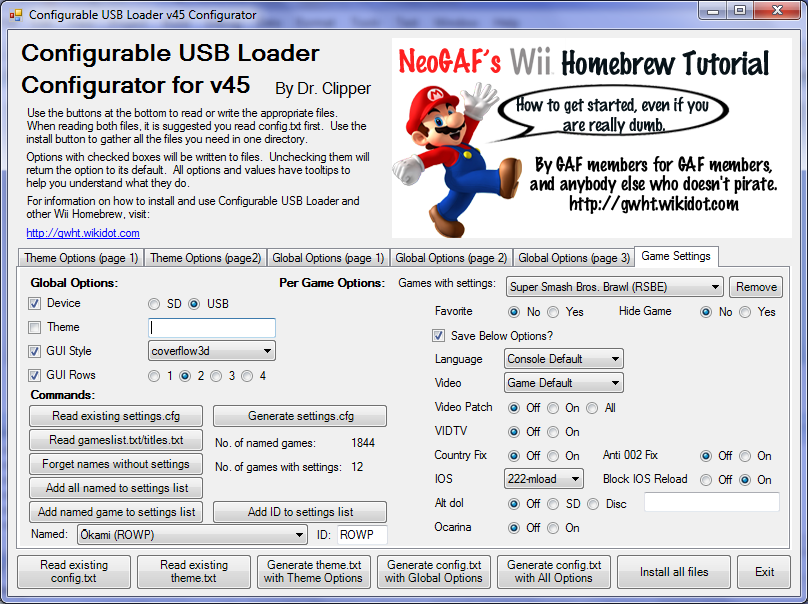
Here's a look at the interface for the new settings.cfg tab:
GameSettings.png


The sample_cdbs have also been updated to handle the new page.
 
milcoi said:
nice work!!
Thanks. I just discovered that I made a faulty assumption, though and it won't work with the loader
frown.gif
. There'll be a fix soon once I work out how to handle this.

Edit: OK, I think I fixed the Configurator bugs. I edited the new post to make it v45.2. It should work now.
 
Just like to say thats to all, after reading of many pages etc I have installed this 1st time without any issues and it works brialliantly.

Thanks again all!
 
QUOTE said:
Yeah, add a config.txt file to sd:/usb-loader and it could all start working properly. Without it there, I believe it will attempt to use the apps subdirectory where the boot.dol is as the base directory rather than sd:/usb-loader. It doesn't matter what is in config.txt. It could be blank, or fully configured the way you want it (don't forget to use the tooltips in the Configurator to figure out what options do).

I found two separate config.txt files on my sd card for the configurable loader. One is located at sd:/inSDRoot/usb-loader/config.

The other one is located at sd:/usb-loader/config. I don't know how two got on the sd card unless I done it while messing with the sd card from the PC.

The path listed from the GUI for the BASE CFG.txt was at sd:/usb-loader/. While the config.txt was listed from sd:/usb-loader/covers. Which one of these do I need to edit? What I was gonna do is just use the path that I used for uLoader 3.1 since all of the covers are working for that loader. It's located at sd:/images folder.

I know I can change the config file to match that path but I don't which one I need to edit. I need to delete one of these config files, right? Let me know which one I should remove & then I can edit the other one to match the path for my game covers from uLoader. I'll see what that does for the missing game covers.

This still might be a problem with game ID's not matching but let's eliminate the config problems first. You may have already stated to me but how do I check the game ID from the GUI? I only see listing for B= GUI, 1= Options, 2= Favorites from the game selected. If I could get the game ID from the GUI then that would help determine if the covers are matching my games. Thanks!
unsure.gif
 
Leave only the one in sd:/usb-loader and delete the other. You were meant to copy the contents of the inSDRoot directory to the SD card, not the directory itself, which is why you have two directories now. The ID is listed on the options page for each game, so just push 1.
 

Site & Scene News

Popular threads in this forum