This guide explains how to setup and use a premade and fixed version of the nxbt library since the current github release is long since unmaintained and unuseable at the time of writing due to an incompatibility issue with Python 3.12. (context: https://github.com/Brikwerk/nxbt/issues/181)
(More context: https://github.com/Brikwerk/nxbt/issues/87)
Downgrading to Python 3.11 avoids the dbus-python build errors and allows it to work again. But this thread is a much easier install process thanks to typenoob doing the work for us!
Goal?
The goal of this thread is to successfully install NXBT so that we can begin to use and make macros for games like Pokemon Legends ZA on either a modded(CFW) or unmodded(vanilla) system. This even works on Nintendo Switch 2!
These instructions are based on a successful setup on a raspberry pi. If you are using another linux distro you will need to adjust the wget instructions and download the proper binary from Typenoob here. Afterwards the rest of the steps should be same. Even if using a virtual machine
First you will need to verify what version of linux you're running. If aarch64 you can continue following this guide like normal! If its another you need to swap out the aarch64 part of the commands with your proper binary like the orange note at the top of the thread suggests!
Next download the NXBT binary from typenoob
Verify that it downloaded
you should see something like
Now make it executable
Now move this binary to your system path and then test it
Test it with
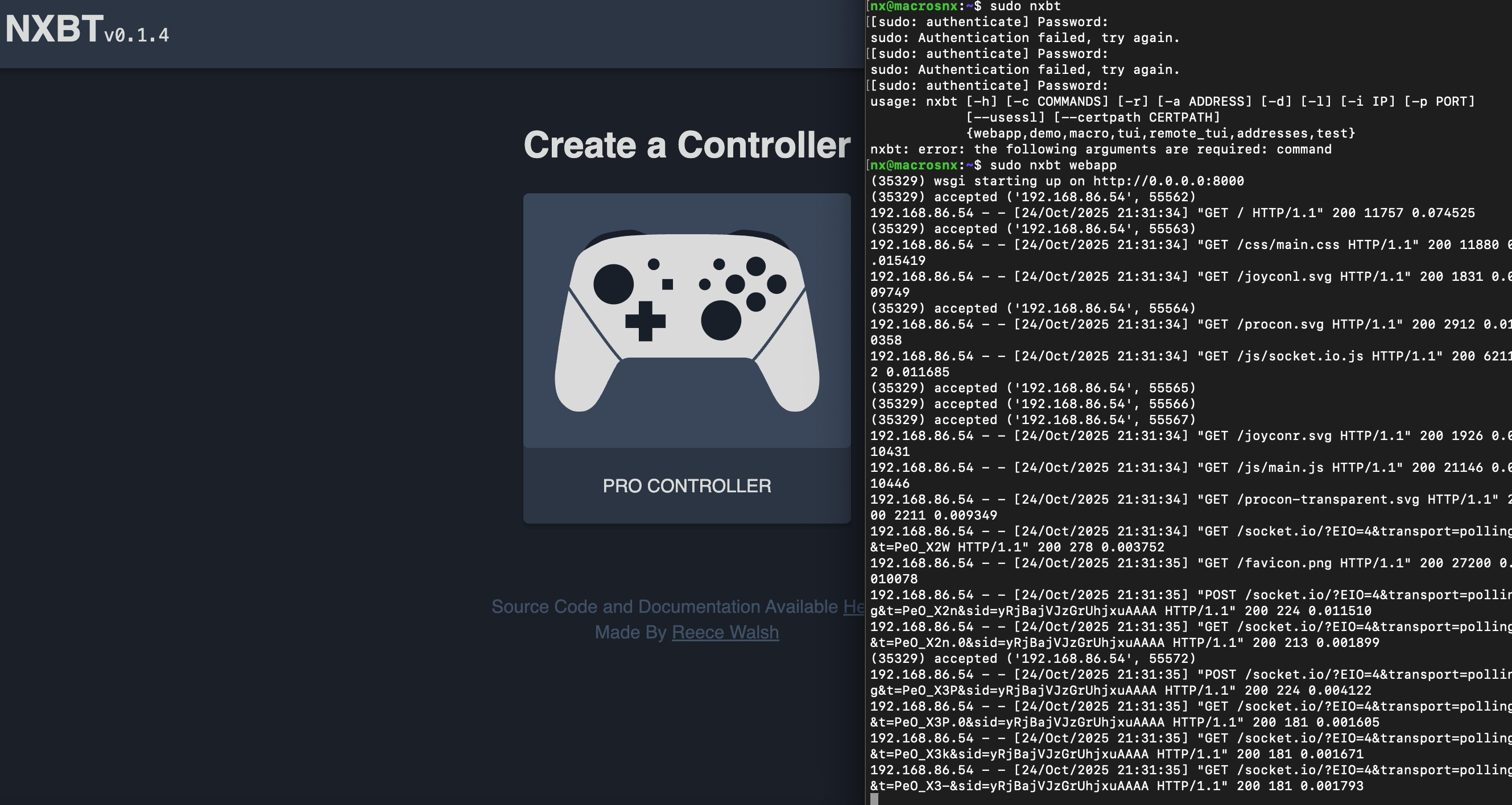
if the webapp launches, great job! You are now done and can begin using the app by visiting your systems IP ORT in a browser. For example my webapp is available at http:macrosnx.local:8000
If you get any errors in regards to bluetooth, you can fix them with the following command. Afterwards the nxbt webapp command should work!
If the nxbt binary expects the Bluetooth service file at /lib/systemd/system/bluetooth.service, but on Xubuntu, it’s typically at /usr/lib/systemd/system/bluetooth.service. Create a symlink to fix this:
(More context: https://github.com/Brikwerk/nxbt/issues/87)
Downgrading to Python 3.11 avoids the dbus-python build errors and allows it to work again. But this thread is a much easier install process thanks to typenoob doing the work for us!
Goal?
The goal of this thread is to successfully install NXBT so that we can begin to use and make macros for games like Pokemon Legends ZA on either a modded(CFW) or unmodded(vanilla) system. This even works on Nintendo Switch 2!
These instructions are based on a successful setup on a raspberry pi. If you are using another linux distro you will need to adjust the wget instructions and download the proper binary from Typenoob here. Afterwards the rest of the steps should be same. Even if using a virtual machine
First you will need to verify what version of linux you're running. If aarch64 you can continue following this guide like normal! If its another you need to swap out the aarch64 part of the commands with your proper binary like the orange note at the top of the thread suggests!
Code:
uname -mNext download the NXBT binary from typenoob
Code:
wget https://github.com/typenoob/nxbt/releases/download/Build_2023.10.29/nxbt-gnu-aarch64Verify that it downloaded
Code:
lsyou should see something like
Code:
nxbt-gnu-aarch64Now make it executable
Code:
chmod +x nxbt-gnu-aarch64Now move this binary to your system path and then test it
Code:
sudo mv nxbt-gnu-aarch64 /usr/local/bin/nxbtTest it with
Code:
sudo nxbt webappif the webapp launches, great job! You are now done and can begin using the app by visiting your systems IP
ORT in a browser. For example my webapp is available at http:macrosnx.local:8000If you get any errors in regards to bluetooth, you can fix them with the following command. Afterwards the nxbt webapp command should work!
Code:
sudo apt-get update<br>sudo apt-get install bluez libdbus-glib-1-dev libdbus-1-dev
sudo systemctl start bluetooth
If the nxbt binary expects the Bluetooth service file at /lib/systemd/system/bluetooth.service, but on Xubuntu, it’s typically at /usr/lib/systemd/system/bluetooth.service. Create a symlink to fix this:
Code:
sudo ln -s /usr/lib/systemd/system/bluetooth.service /lib/systemd/system/bluetooth.service
Last edited by TheStonedModder,