Hacking Tutorial Translation
Updated
Tomodachi Collection: Textures to replace
This is a guide to others trying to figure out what textures to replace in Tomodachi Collection so they can translate it into their language.
You will need:
A computer running Windows or Linux (and hope all the programs work with WINE)
Aseprite or a free alternative: https://libresprite.github.io/
NitroPaint
MKDS Couse Modifier Beta 11
This specific build of Tinke
If you're afraid they'll give you a virus, extract the file and don't run it, then use Virustotal to see if it's malware or not.
I previously commented to use an old version of NitroPaint. The bug got fixed, please update
General Information
1.) Make sure to index your palettes in whatever paint program you're using. I'm going to assume you're using Aseprite or Libresprite to do all your sprite editing. In Aseprite, go to the Sprite tab and click on "Indexed."

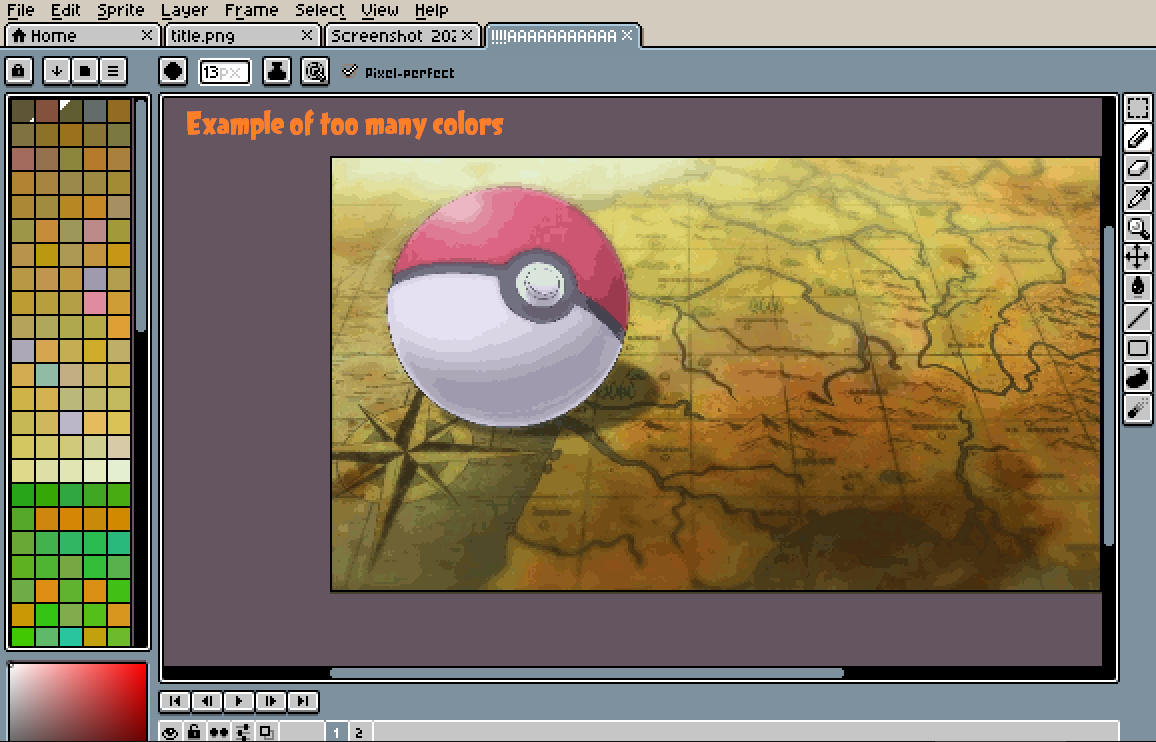
2.) Make sure the sprite you're working with only has 16 colors. This is why you need to index your sprite earlier, to ensure that you're only working with 16 colors. In Aseprite, click on the hamburger menu above your colors and select "New Palette from Sprite" if it has more than 16 colors.

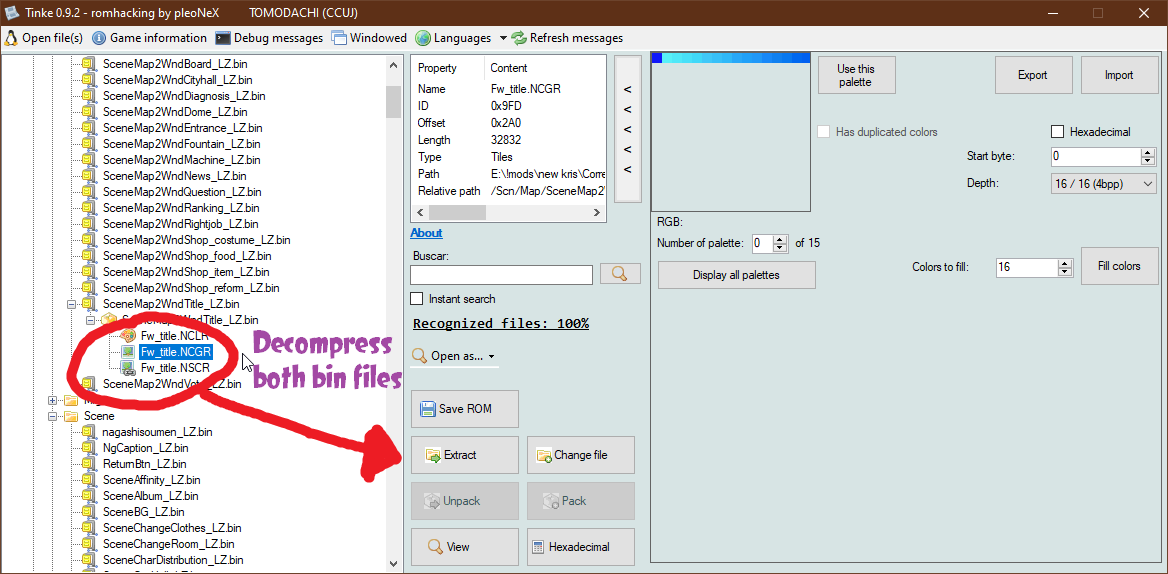
Compress/Decompress: You have to extract the .bin files twice. After you finish editing the files inside, you have to compress both bin files again.
Models
Models have a unique way of storing textures in DS games. Here's how to edit them:

Textures to replace (text in bold)
Mdl/Goods: Textures for the items Miis use (Wii, DS… Could display a game on the Wii)
Mdl/Item: Models for the textured items. Probably useful to replace the Famicom with the NES or modify certain foods
Mdl/Map: Models and textures used on the “map” of the game (that place that acts like a main menu where you touch buildings to go into the buildings)
shop_food has the word “Food” on it
Mdl/Misc is a big directory:
Nws: Three models for day, sunset/sunrise, and night in the Mii News room
Rnk: There’s some text for the rankings board light that needs to be fixed. (rank_board_3d_LZ.bin) Here’s a cruddy template for the lights: light.0.tga light.1.tga light.2.tga
Shp: Two posters in shop_food_A_3D through shop_food_D that say “Food” and “Sale”
Tch: Used when you check on a Mii. Bubble balloon.10_pl has a word that translates to “Dream.”
bungee_3d_LZ: A big’ol sign with the words “Bungee Jump” in Japanese.
divo_3d_LZ: Text on the glass that says “Happy Mii” in English.
fountain_question_3d_LZ: Unused signboard that's used later. Translates to “I want to ask you!”
fountain_schoold_3d_LZ: A nice blackboard for the “Let’s Speak English” part of the game.
fountain_market_3D_LZ: Used in game for the morning market. flag_small translates to “Morning” and poster translates to “50% off! For sale”
fountain_timetable_3D_LZ: A timetable for various events if no events are going on. Translates to “Event Timetable.”
fureai_3D_LZ: Some cheeks that seem to be blushing. Replaced in EU/US localizations of Tomodachi Life.
headStaff_3D_LZ: The heads of the shop clerks. Localized in every version of Tomodachi Life. If you have fancy modeling techniques, go ahead and replace this.
map_shop_reform_3D_LZ: Some very tiny text in shi_door_0_pl that says “Interior.”
musicbox_food_3D_LZ: The food mart has the word “Food” on it.
question_3D_LZ: A big sign like fountain_question. Still says “I want to ask you!” Used in this game's equivilent of Quirky Questions.
roma_class_3D_LZ: Some small text on texture “wall3_.”
silhouette_3d: Has a texture that says “Silhouette Quiz.”
Room folder: There’s some text for the studious room, the classroom, and the Showa era room. It's all Kanji (is that kanji? IDK)
Haven’t digged around to find the text in those models though.
Textures
DS games store textures in three seperate files: NCLR, NCGR, and NSCR or NCER. In order to view them, click on the files in the order I described. You can use Tinke to export them as PNGs and edit them.
If the texture is stored in a NSCR format, open up NitroPaint with the three files, go to the top-left corner and replace your file. Make sure to make the color slider all the way to the right.
There's a more in-depth tutorial for this in the Map section.
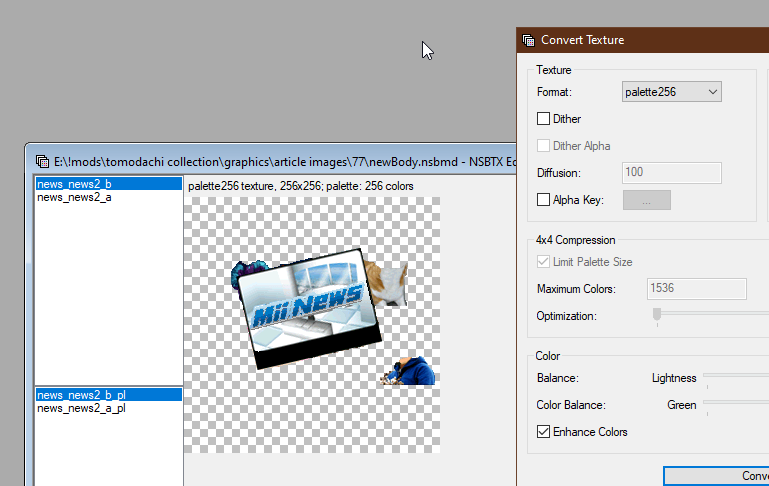
News: NitroPaint can add up to 13ish palletes. I don't think you have to mess with the default palette or anything, but I could be wrong.
Look for this box and manually force the palettes used to be 13.

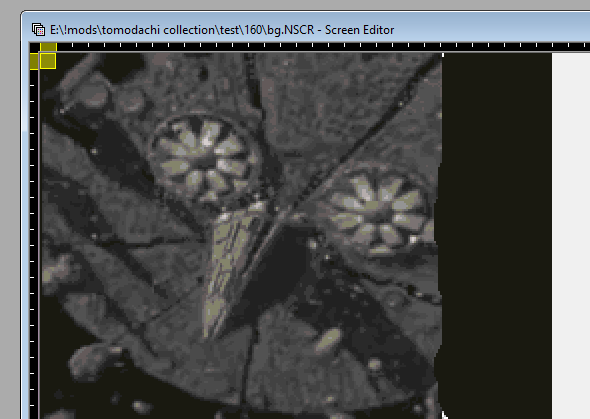
Despite being a 256 X 256 square, pictures are stored with the aspect ratio of 256 X 156. The bottom half will get cut off. Photo below is an example. The glitchy bottom half can be overwritten and nothing bad will happen.

News
When you replace models, make sure to use Palette256 instead of the default.
News_015 has some text on the person’s shirt.
News_026 has a sign
News_077 has the Mii News logo in Japanese
News_078 has the apartment shopping place with the word “Open!”
News_079 has the job tent with the word “Open!”
News_080 has the question hall with the word “Open!”
News_081 has the rankings board with the word “Open”
News_082 has the clothing store with the word “Open”
Replace News_091 with the family guy death pose lol
News_095 has some text in Japanese
News_102 is for a drink. It’d take some effort to photoshop out the “Mix Juice” bottle. Keep the banana.
News_113 is for “10 residents celebration!” (I think)
News_114 is… I’m not sure what this is for.
News_116 has a big banner and a small, thin banner.
News_118 has a bag of labeled potato chips in a brand-new flavor! (Keep the white space in the middle. Mind the thumb!
News_128 is the hit new magazine “Yunu Mii.” Don’t change this unless you want to change the magazine name.
News_136 is a few digits of Pi, likely useful if anyone wants to translate this to greek or something without western arabic numerals
News_147 is for the pawn shop opening.
News_148 is for the compatibility tester opening.
News_158 is for the town hall opening.
News_159 is the “don’t reset” warning.
169: 30 apartments filled up.
170: 50
171: 100
News_160 is the “don’t reset” nag. Everything past 160 is the background test.
Scn/Affn is various poses for the compatibility tester with their models.
Scn/AfwBG is the sprites for the apartments. I’m unsure what A0FwFBG0_LZ through A0FwFBG7_LZ are. Everything past that is empty except for Apart0_LZ,through Apart3_LZ.
FwBgSky is a sky palette.
ApartX_LZ is a bit frustrating to change the texture. If you’re trying to change the texture of the windows (the only reason I can think of is changing them back to Tomodachi Life EU version), you have to go into Tinke and change this dial called the Num palette.

Change it to 2 to change the love, sad, default, and problem windows. 3 is for a boarded up window and for the “I’m outside” window. 0 is for the “I want to play with you” window, or it could also be the empty window and problem windows.
Scn/List is a bit of a tricky one. There are many files titled “BG_list” that appear to be the same texture of a list. I don’t want to try out what happens if you change it.
List_album, List_Changeroom... etc
Some textures might look messed up since they have a specific order to load: Obj_list.NCLR, Obj_list.NCGR, then Obj_ Touch_list.NCER (in this example. You can also open up NSCR files after opening the two original files)
I find it easy to edit OAM files with Tinke. All you have to do is load up the files and go to the sprite you want to change.
First off: Turn off transparency and isolate the sprite you want to change. Make sure nothing else is overlapping it, or else the overlapping textures will be overwritten. It's as simple as exporting and importing PNGs!
The individual sprites will likely load if you click the .NCER file and scroll through the banks.
Here are the banks to translate:
Main Button_L_w - OAM 3
Main Button_L_a - OAM 3 (same as before)
Syusyoku_w - OAM 3 (different)
Syusyoku_a - OAM 3 (same as before, etc)
Syusai_w - OAM 2
Syusai_a - OAM 2
Ippin_w - OAM 2
Ippin_a - OAM 2
Uniform_a - OAM 1
Special_w - OAM 1
Special_a - OAM 1 and 2. I recommend exporting the picture with all the OAMs, then draw the text, then go back and split it into OAM 1 and 2.
Tab_w - OAM 1 and 2
Tab_a - OAM 1
Wa_syoku_w - OAM 1 and 2
Wa_syoku_a - OAM 1 and 2
You_Tyu_w - OAM 1 and 2
You_Tyu_a - OAM 1 and 2
Sometimes the OAM will be shared between w and a.
Export that text-only individual image, edit it but also ensure it fits, then click the OAM with the text, import, and replace it with your text.
When editing text, make sure to use the original palette the OAM used.
List_ChangeRoom_list is a clone of List_Album. After editing and packing all those OAMs, I think the Obj_list.NCGR file changed with your edits. You can try replacing the file from List_Album into List_ChangeRoom, but I haven’t tried that yet.
List_MiiList is the descriptions list of the mii’s personalities. There’s a bunch of Kanji (I think) from A_w through Ya_a that seem to work with the Japanese alphabet based on people's last names. I don’t know if you can change that or not.
Ya_a - OAM 1 and 2
Wa_w - OAM 1
Other_w - OAM 1
Character0_w to Character 13_w - OAM 1. Don’t bother editing the ones with A at the end, it’s just blank.
Month11_a - OAM 3 and 4
Month12_w - OAM 3 and 4. These seem to differ from a.
Month12_a - OAM 3 and 4.
MonthQ_w - OAM 3 and 4
MonthQ_a through BloodO_w are various blood types with letters A,B, and O.
127 - OAM 1
128 - OAM 1
NewsList has no text.
List_RightJobList is a clone of List_MiiList. You can try doing the Obj_list trick again.
List_ShopList has the graphics for the various types of shops. If you want to change the symbol of Yen to something else, you might have to directly edit BG_list where the Yen symbol is. (Looks like 円, also appears somewhere in the BMG text files)

List_TouchList is a shorter version of List_Album.
MainButton_M_w - OAM 3
MainButton_M_a - OAM 3
MainButton_L_w - OAM 3
MainButton_L_a - OAM 3
Syusyoku_w - OAM 2
Syusyoku_a - OAM 2
Syusai_w - OAM 2
Syusai_a - OAM 2
Unisex_a - OAM 1 and 2, most of the text graphic is on 1.
Unisex_w - OAM 1 and 2
Uniform_a - OAM 1
Special_w - OAM 1
Special_a - OAM 1 and 2
Tab_w - OAM 1 and 2
Tab_a - OAM 1 and 2
Check - OAM 1 and 2
List_TushinItemList is a clone of List_Album.
List_TushinList is a clone of List_MiiList.
List_WriteSongList is a clone of List_MiiList.
MiiList_ is likely a GUI for all the parts of the game. I don’t know what happens if you mess with it.
Map
You're going to change every file in here except for WndVote.
The first step’s pretty simple: Extract the NSCR as a PNG after clicking on NCLR and NCGR. You can then edit that file in a paint editor. I think these textures can use 32 colors, but I haven’t checked that yet. The blue outline boxes are transparent.
To import your image, you have to use Nitropaint again. First, extract all the files with Tinke
and save them to a folder. Probably a good idea to name the folder the same thing as the bin.
Next, go into Nitropaint and load those 3 files again. Go to the top left corner in the NSCR file, right click, and press “Import Bitmap Here.” It says to use a bitmap but a transparent PNG will work fine. Select Overwrite Palette and look at your palette selection. You don’t want to override the blue palette, which is usually palette 0. To prevent this, use the “Base” box to overwrite the palette into another slot.
After that, click on the window of the file you’re working with, and save it as a different file. Repeat this for the NSCR and NCLR files.
If NitroPaint doesn't work, try importing the PNG into Tinke like an OAM file.

Scene
You can't replace these files unless you use the specific version of Tinke I included at the top.
Scene Album: The menus for the records of all your items, clothing, etc.
Scene FriendList: Profile for Miis you can view at the Town Hall
SceneMap2: The OAMs CAN be replaced, but last time I tried replacing them in Tinke, it crashed the game
The “New!” sign when there’s a new item to collect, the “Tap!” sign at the title screen.
The “News Flash!” sign is very complicated. First off, look at the “Cell image options” checkboxes to the left of the export/import buttons. Deselect transparency, click on Show cell border. Export the text, and individually export each OAM as separate files. Tinke won’t automatically rename them.
Sadly, you have to make the “News Flash!” sign fit inside the original Japanese text.
Stretch your text to that box. You then have to divide your text up into little boxes based on the cell borders of each OAM part.
Scene MiiNews: Very complicated. BG_down has the Mii News text copypasted over the bottom screen, OBJ_up contains parts of the Mii News logo in different OAM tiles. Don’t forget about Bank 9, which has a little logo in the top right corner.
Scene Affinity: BG_up NCLR, NCGR, then BG_up_select.NSCR has some japanese text that's a bit hard to see.

Scene Ranking: Lots of textures for the various ranks. Should be Fw_blahblahblah.
favorite - who does look alike like the most
SceneTestNgXXX (not really documented anywhere so I figured why not)
Bold text includes text you might want to replace.
Minigames/other
For the minigames, you can either try to replace the files with NitroPaint or Tinke. If NitroPaint removes the transparency of the background, use Tinke's replacement feature. (BG_UP NCLR NCGR and then BG_Frame NCSR usually)
Ng100: Hypnosis menus and dream particles
Ng104: The big Fountain sign that tells you the events
Ng105: Finger ride
Ng107: Back Scratching
Ng109: Hallway?
Ng110: Butt writing quiz (players can't solve this unless they know hiragana. Try to look for the model animation in mdl/Ica and change it up if possible... might be a NSBCA file? Let me know if you managed to do this)
Ng111: Pepper dream
Ng112: Likely crude debug stuff
Ng113: A dog and a foot
Ng116: Travel tickets or honeymoon. BG_up sign is unused, but OBJ_up is used. OBJ_up_hm = Honeymoon
Ng117: RPS/Look that way win or loose. Standard = the harder one with RPS
You have to align your text in the NCGR file, otherwise one of the frames will get corrupted
Ng119: Mosquito Minigame
Ng121: “There’s something on me. Can you get it off me?”
Ng122: Finger ride background
Ng125: Card game icon with text
Ng129: Draw on a Mii’s face at night prank
Ng132:I have no idea. Maybe the bottom of a dialogue box?
Ng133: Daruma Doll minigame sign
Ng134: Tiles minigame sign
Ng135: Something with chopsticks? Fishing?
Ng136: Menu for shop
Ng137: Clapping hands
Ng138: Big hand holding object in this shape: n
Ng139: Titles for the compatibility tester
Ng13: Mountain dream
Ng143: Arrow and hand holding at something
Ng149: Empty photo frame
Ng20: Bathroom entrance graphic
Ng28: Rollercoaster “jetcoaster”
Ng32: A corner? “magarikado”
Ng34: Racetrack “race”
Ng39: Fighting game background “bg”
Ng43: a yellow square.
Ng44: Various newspapers with text on them
Ng45: Cat
Ng48: A weird pattern and arrows
Ng50: Feeding the birds minigame
Ng52: Crude drawings of a balloon, tree
Ng55: That one dream where the head of the Mii moves around like a snake
Ng58: Crude Xmas tree with some ornaments
Ng62: A handbag
Ng63: Donations box?
Ng66: Pointing finger with a watermark
Ng69: Whatever this is →

Ng71: Something involving a shooting star and a thought bubble
Ng75: Country flags of the places to visit, beta graphics for the honeymoon
Ng87: Alien antennae and a road with some trees
Ng94: Star sparkle
Ng95: Guess the item quiz
Ng97: Some crude mockups of something. I don’t speak Japanese so I don’t know what this is
SceneVote: Judgement bay two choices only. There’s a few examples that have text
SceneWriteSong: Has a label at the end of the OBJ list that says “Edited”\
Hopefully some of this made sense.
You will need:
A computer running Windows or Linux (and hope all the programs work with WINE)
Aseprite or a free alternative: https://libresprite.github.io/
NitroPaint
MKDS Couse Modifier Beta 11
This specific build of Tinke
If you're afraid they'll give you a virus, extract the file and don't run it, then use Virustotal to see if it's malware or not.
I previously commented to use an old version of NitroPaint. The bug got fixed, please update
General Information
1.) Make sure to index your palettes in whatever paint program you're using. I'm going to assume you're using Aseprite or Libresprite to do all your sprite editing. In Aseprite, go to the Sprite tab and click on "Indexed."
2.) Make sure the sprite you're working with only has 16 colors. This is why you need to index your sprite earlier, to ensure that you're only working with 16 colors. In Aseprite, click on the hamburger menu above your colors and select "New Palette from Sprite" if it has more than 16 colors.
Compress/Decompress: You have to extract the .bin files twice. After you finish editing the files inside, you have to compress both bin files again.
Models
Models have a unique way of storing textures in DS games. Here's how to edit them:
- Extract the model file. Should be in the nsbmd format.
- Load up MKDS Course Modifier Beta 11
- Enter the Tools tab, then Nitro System, then NSBMD → NSBMD + NSBTX (it's the one on the top).
- Save the files as different names. I find it helpful to rename the NSBMD to "model_name_textureless.NSBMD" and the NSBTX files to "model_name_textures.NSBTX."
- NitroPaint works fine with this, but make sure to set the correct palette for your sprite. It also forces you to export/import all the textures as a TGA file. Tinke gives you some errors.
- Open up the TGA file in Aseprite and edit it. Remember, you’re only limited by the palette. (Tip: Make sure to save the layered file as an ase file. After finishing up, save the file as a TGA file.)
- Make sure to make the color mode as Indexed, then Export as TGA. There should be a popup that has the bit depth. This has to be set to 24. If not, try "save as" instead. Also, don't compress the TGA file.
- Replace the textures and palette with your edited texture and palette. Don't click on the "Add" button.
- After replacing the texture, make sure to save it. Keep in mind this will overwrite the file you extracted. If you don't want that, go to the File tab and click on "Save as" and rename it to something else.
- Repeat steps 4-6. Every time you replace a texture, save the file. If you renamed it to something else, don't create another file.
- Open up MKDS Course Modifier Beta 11, enter tools, then Nitro system, then NSMBD+NSBTX -> NSBMD (the one on the bottom.) For the NSBMD, choose the textureless model, then the textures to the textureless model. Save this as a different file. Maybe something like "final.NSBMD"
- Finally playtest it in-game. You probably did something wrong if there's a white screen.
- NitroPaint works fine with this, but make sure to set the correct palette for your sprite. It also forces you to export/import all the textures as a TGA file. Tinke gives you some errors.
Textures to replace (text in bold)
Mdl/Goods: Textures for the items Miis use (Wii, DS… Could display a game on the Wii)
Mdl/Item: Models for the textured items. Probably useful to replace the Famicom with the NES or modify certain foods
Mdl/Map: Models and textures used on the “map” of the game (that place that acts like a main menu where you touch buildings to go into the buildings)
shop_food has the word “Food” on it
Mdl/Misc is a big directory:
Nws: Three models for day, sunset/sunrise, and night in the Mii News room
Rnk: There’s some text for the rankings board light that needs to be fixed. (rank_board_3d_LZ.bin) Here’s a cruddy template for the lights: light.0.tga light.1.tga light.2.tga
Shp: Two posters in shop_food_A_3D through shop_food_D that say “Food” and “Sale”
Tch: Used when you check on a Mii. Bubble balloon.10_pl has a word that translates to “Dream.”
bungee_3d_LZ: A big’ol sign with the words “Bungee Jump” in Japanese.
divo_3d_LZ: Text on the glass that says “Happy Mii” in English.
fountain_question_3d_LZ: Unused signboard that's used later. Translates to “I want to ask you!”
fountain_schoold_3d_LZ: A nice blackboard for the “Let’s Speak English” part of the game.
fountain_market_3D_LZ: Used in game for the morning market. flag_small translates to “Morning” and poster translates to “50% off! For sale”
fountain_timetable_3D_LZ: A timetable for various events if no events are going on. Translates to “Event Timetable.”
fureai_3D_LZ: Some cheeks that seem to be blushing. Replaced in EU/US localizations of Tomodachi Life.
headStaff_3D_LZ: The heads of the shop clerks. Localized in every version of Tomodachi Life. If you have fancy modeling techniques, go ahead and replace this.
map_shop_reform_3D_LZ: Some very tiny text in shi_door_0_pl that says “Interior.”
musicbox_food_3D_LZ: The food mart has the word “Food” on it.
question_3D_LZ: A big sign like fountain_question. Still says “I want to ask you!” Used in this game's equivilent of Quirky Questions.
roma_class_3D_LZ: Some small text on texture “wall3_.”
silhouette_3d: Has a texture that says “Silhouette Quiz.”
Room folder: There’s some text for the studious room, the classroom, and the Showa era room. It's all Kanji (is that kanji? IDK)
Haven’t digged around to find the text in those models though.
Textures
DS games store textures in three seperate files: NCLR, NCGR, and NSCR or NCER. In order to view them, click on the files in the order I described. You can use Tinke to export them as PNGs and edit them.
If the texture is stored in a NSCR format, open up NitroPaint with the three files, go to the top-left corner and replace your file. Make sure to make the color slider all the way to the right.
There's a more in-depth tutorial for this in the Map section.
News: NitroPaint can add up to 13ish palletes. I don't think you have to mess with the default palette or anything, but I could be wrong.
Look for this box and manually force the palettes used to be 13.
Despite being a 256 X 256 square, pictures are stored with the aspect ratio of 256 X 156. The bottom half will get cut off. Photo below is an example. The glitchy bottom half can be overwritten and nothing bad will happen.
News
When you replace models, make sure to use Palette256 instead of the default.
News_015 has some text on the person’s shirt.
News_026 has a sign
News_077 has the Mii News logo in Japanese
News_078 has the apartment shopping place with the word “Open!”
News_079 has the job tent with the word “Open!”
News_080 has the question hall with the word “Open!”
News_081 has the rankings board with the word “Open”
News_082 has the clothing store with the word “Open”
Replace News_091 with the family guy death pose lol
News_095 has some text in Japanese
News_102 is for a drink. It’d take some effort to photoshop out the “Mix Juice” bottle. Keep the banana.
News_113 is for “10 residents celebration!” (I think)
News_114 is… I’m not sure what this is for.
News_116 has a big banner and a small, thin banner.
News_118 has a bag of labeled potato chips in a brand-new flavor! (Keep the white space in the middle. Mind the thumb!
News_128 is the hit new magazine “Yunu Mii.” Don’t change this unless you want to change the magazine name.
News_136 is a few digits of Pi, likely useful if anyone wants to translate this to greek or something without western arabic numerals
News_147 is for the pawn shop opening.
News_148 is for the compatibility tester opening.
News_158 is for the town hall opening.
News_159 is the “don’t reset” warning.
169: 30 apartments filled up.
170: 50
171: 100
News_160 is the “don’t reset” nag. Everything past 160 is the background test.
Scn/Affn is various poses for the compatibility tester with their models.
Scn/AfwBG is the sprites for the apartments. I’m unsure what A0FwFBG0_LZ through A0FwFBG7_LZ are. Everything past that is empty except for Apart0_LZ,through Apart3_LZ.
FwBgSky is a sky palette.
ApartX_LZ is a bit frustrating to change the texture. If you’re trying to change the texture of the windows (the only reason I can think of is changing them back to Tomodachi Life EU version), you have to go into Tinke and change this dial called the Num palette.
Change it to 2 to change the love, sad, default, and problem windows. 3 is for a boarded up window and for the “I’m outside” window. 0 is for the “I want to play with you” window, or it could also be the empty window and problem windows.
Scn/List is a bit of a tricky one. There are many files titled “BG_list” that appear to be the same texture of a list. I don’t want to try out what happens if you change it.
List_album, List_Changeroom... etc
Some textures might look messed up since they have a specific order to load: Obj_list.NCLR, Obj_list.NCGR, then Obj_ Touch_list.NCER (in this example. You can also open up NSCR files after opening the two original files)
I find it easy to edit OAM files with Tinke. All you have to do is load up the files and go to the sprite you want to change.
First off: Turn off transparency and isolate the sprite you want to change. Make sure nothing else is overlapping it, or else the overlapping textures will be overwritten. It's as simple as exporting and importing PNGs!
The individual sprites will likely load if you click the .NCER file and scroll through the banks.
Here are the banks to translate:
Main Button_L_w - OAM 3
Main Button_L_a - OAM 3 (same as before)
Syusyoku_w - OAM 3 (different)
Syusyoku_a - OAM 3 (same as before, etc)
Syusai_w - OAM 2
Syusai_a - OAM 2
Ippin_w - OAM 2
Ippin_a - OAM 2
Uniform_a - OAM 1
Special_w - OAM 1
Special_a - OAM 1 and 2. I recommend exporting the picture with all the OAMs, then draw the text, then go back and split it into OAM 1 and 2.
Tab_w - OAM 1 and 2
Tab_a - OAM 1
Wa_syoku_w - OAM 1 and 2
Wa_syoku_a - OAM 1 and 2
You_Tyu_w - OAM 1 and 2
You_Tyu_a - OAM 1 and 2
Sometimes the OAM will be shared between w and a.
Export that text-only individual image, edit it but also ensure it fits, then click the OAM with the text, import, and replace it with your text.
When editing text, make sure to use the original palette the OAM used.
List_ChangeRoom_list is a clone of List_Album. After editing and packing all those OAMs, I think the Obj_list.NCGR file changed with your edits. You can try replacing the file from List_Album into List_ChangeRoom, but I haven’t tried that yet.
List_MiiList is the descriptions list of the mii’s personalities. There’s a bunch of Kanji (I think) from A_w through Ya_a that seem to work with the Japanese alphabet based on people's last names. I don’t know if you can change that or not.
Ya_a - OAM 1 and 2
Wa_w - OAM 1
Other_w - OAM 1
Character0_w to Character 13_w - OAM 1. Don’t bother editing the ones with A at the end, it’s just blank.
Month11_a - OAM 3 and 4
Month12_w - OAM 3 and 4. These seem to differ from a.
Month12_a - OAM 3 and 4.
MonthQ_w - OAM 3 and 4
MonthQ_a through BloodO_w are various blood types with letters A,B, and O.
127 - OAM 1
128 - OAM 1
NewsList has no text.
List_RightJobList is a clone of List_MiiList. You can try doing the Obj_list trick again.
List_ShopList has the graphics for the various types of shops. If you want to change the symbol of Yen to something else, you might have to directly edit BG_list where the Yen symbol is. (Looks like 円, also appears somewhere in the BMG text files)
List_TouchList is a shorter version of List_Album.
MainButton_M_w - OAM 3
MainButton_M_a - OAM 3
MainButton_L_w - OAM 3
MainButton_L_a - OAM 3
Syusyoku_w - OAM 2
Syusyoku_a - OAM 2
Syusai_w - OAM 2
Syusai_a - OAM 2
Unisex_a - OAM 1 and 2, most of the text graphic is on 1.
Unisex_w - OAM 1 and 2
Uniform_a - OAM 1
Special_w - OAM 1
Special_a - OAM 1 and 2
Tab_w - OAM 1 and 2
Tab_a - OAM 1 and 2
Check - OAM 1 and 2
List_TushinItemList is a clone of List_Album.
List_TushinList is a clone of List_MiiList.
List_WriteSongList is a clone of List_MiiList.
MiiList_ is likely a GUI for all the parts of the game. I don’t know what happens if you mess with it.
Map
You're going to change every file in here except for WndVote.
The first step’s pretty simple: Extract the NSCR as a PNG after clicking on NCLR and NCGR. You can then edit that file in a paint editor. I think these textures can use 32 colors, but I haven’t checked that yet. The blue outline boxes are transparent.
To import your image, you have to use Nitropaint again. First, extract all the files with Tinke
and save them to a folder. Probably a good idea to name the folder the same thing as the bin.
Next, go into Nitropaint and load those 3 files again. Go to the top left corner in the NSCR file, right click, and press “Import Bitmap Here.” It says to use a bitmap but a transparent PNG will work fine. Select Overwrite Palette and look at your palette selection. You don’t want to override the blue palette, which is usually palette 0. To prevent this, use the “Base” box to overwrite the palette into another slot.
After that, click on the window of the file you’re working with, and save it as a different file. Repeat this for the NSCR and NCLR files.
If NitroPaint doesn't work, try importing the PNG into Tinke like an OAM file.
Scene
You can't replace these files unless you use the specific version of Tinke I included at the top.
Scene Album: The menus for the records of all your items, clothing, etc.
Scene FriendList: Profile for Miis you can view at the Town Hall
SceneMap2: The OAMs CAN be replaced, but last time I tried replacing them in Tinke, it crashed the game
The “New!” sign when there’s a new item to collect, the “Tap!” sign at the title screen.
The “News Flash!” sign is very complicated. First off, look at the “Cell image options” checkboxes to the left of the export/import buttons. Deselect transparency, click on Show cell border. Export the text, and individually export each OAM as separate files. Tinke won’t automatically rename them.
Sadly, you have to make the “News Flash!” sign fit inside the original Japanese text.
Stretch your text to that box. You then have to divide your text up into little boxes based on the cell borders of each OAM part.
Scene MiiNews: Very complicated. BG_down has the Mii News text copypasted over the bottom screen, OBJ_up contains parts of the Mii News logo in different OAM tiles. Don’t forget about Bank 9, which has a little logo in the top right corner.
Scene Affinity: BG_up NCLR, NCGR, then BG_up_select.NSCR has some japanese text that's a bit hard to see.
Scene Ranking: Lots of textures for the various ranks. Should be Fw_blahblahblah.
favorite - who does look alike like the most
SceneTestNgXXX (not really documented anywhere so I figured why not)
Bold text includes text you might want to replace.
Minigames/other
For the minigames, you can either try to replace the files with NitroPaint or Tinke. If NitroPaint removes the transparency of the background, use Tinke's replacement feature. (BG_UP NCLR NCGR and then BG_Frame NCSR usually)
Ng100: Hypnosis menus and dream particles
Ng104: The big Fountain sign that tells you the events
Ng105: Finger ride
Ng107: Back Scratching
Ng109: Hallway?
Ng110: Butt writing quiz (players can't solve this unless they know hiragana. Try to look for the model animation in mdl/Ica and change it up if possible... might be a NSBCA file? Let me know if you managed to do this)
Ng111: Pepper dream
Ng112: Likely crude debug stuff
Ng113: A dog and a foot
Ng116: Travel tickets or honeymoon. BG_up sign is unused, but OBJ_up is used. OBJ_up_hm = Honeymoon
Ng117: RPS/Look that way win or loose. Standard = the harder one with RPS
You have to align your text in the NCGR file, otherwise one of the frames will get corrupted
Ng119: Mosquito Minigame
Ng121: “There’s something on me. Can you get it off me?”
Ng122: Finger ride background
Ng125: Card game icon with text
Ng129: Draw on a Mii’s face at night prank
Ng132:I have no idea. Maybe the bottom of a dialogue box?
Ng133: Daruma Doll minigame sign
Ng134: Tiles minigame sign
Ng135: Something with chopsticks? Fishing?
Ng136: Menu for shop
Ng137: Clapping hands
Ng138: Big hand holding object in this shape: n
Ng139: Titles for the compatibility tester
Ng13: Mountain dream
Ng143: Arrow and hand holding at something
Ng149: Empty photo frame
Ng20: Bathroom entrance graphic
Ng28: Rollercoaster “jetcoaster”
Ng32: A corner? “magarikado”
Ng34: Racetrack “race”
Ng39: Fighting game background “bg”
Ng43: a yellow square.
Ng44: Various newspapers with text on them
Ng45: Cat
Ng48: A weird pattern and arrows
Ng50: Feeding the birds minigame
Ng52: Crude drawings of a balloon, tree
Ng55: That one dream where the head of the Mii moves around like a snake
Ng58: Crude Xmas tree with some ornaments
Ng62: A handbag
Ng63: Donations box?
Ng66: Pointing finger with a watermark
Ng69: Whatever this is →
Ng71: Something involving a shooting star and a thought bubble
Ng75: Country flags of the places to visit, beta graphics for the honeymoon
Ng87: Alien antennae and a road with some trees
Ng94: Star sparkle
Ng95: Guess the item quiz
Ng97: Some crude mockups of something. I don’t speak Japanese so I don’t know what this is
SceneVote: Judgement bay two choices only. There’s a few examples that have text
SceneWriteSong: Has a label at the end of the OBJ list that says “Edited”\
Hopefully some of this made sense.
Attachments


Last edited by morelikejonarbuckle0,


 ( вот ссылка на наш канал в телеграмме если интересно - @tomadachitranslators )