



Hello,
I've had some problems with the Itemzflow Game Manager improperly detecting games.
The paths for the game are stored in a database file that is very simple to edit.
This guide uses Windows tools but the same thing can be done using Linux.
You'll need:
FileZilla or some other FTP client.
SQLite-win32 or some other SQL database editor.
I've included an example here
1. Use FileZilla to download the itemzflow "PS5_Apps.db" file to the desktop.
/user/data/itemzflow
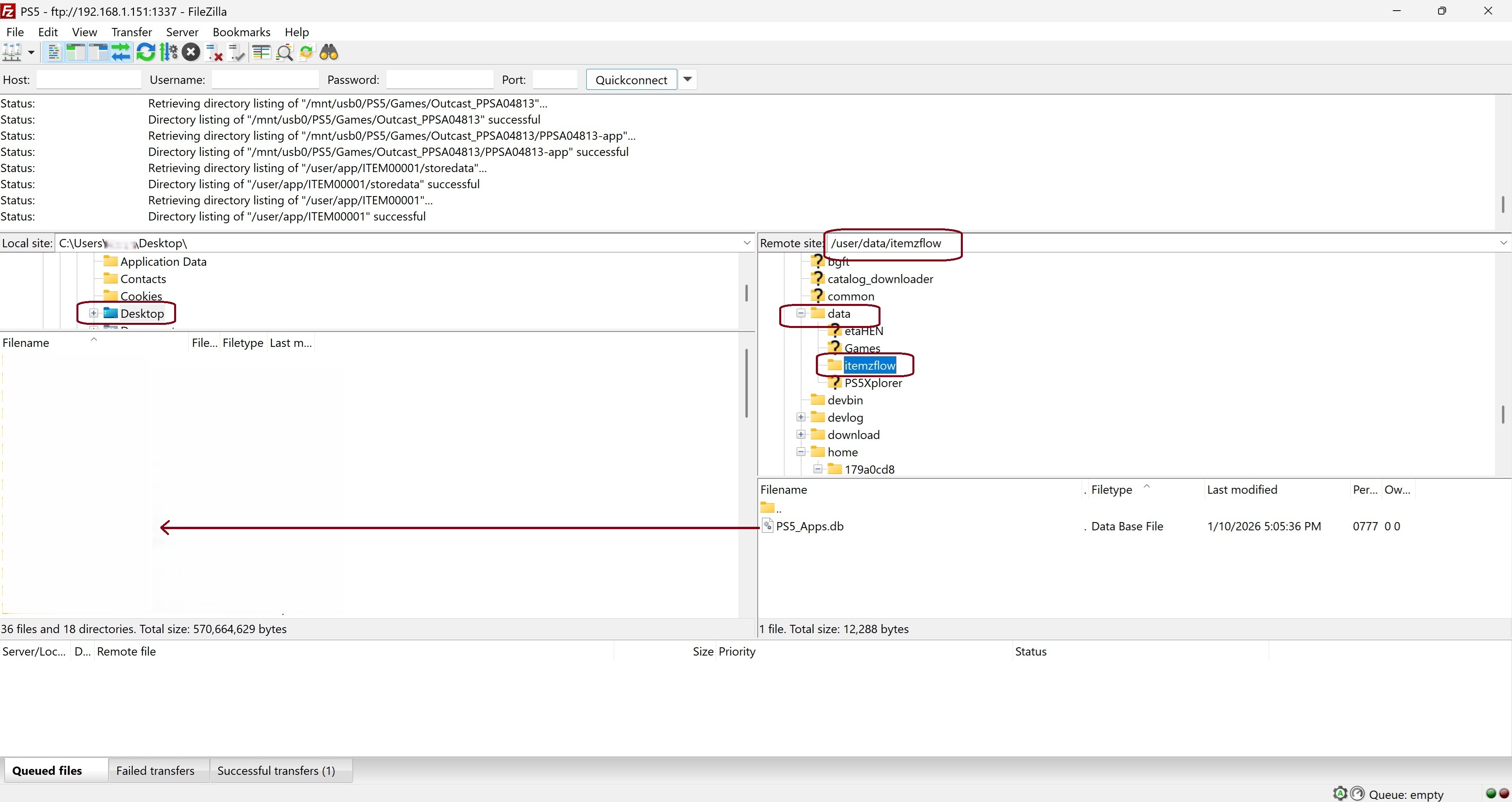
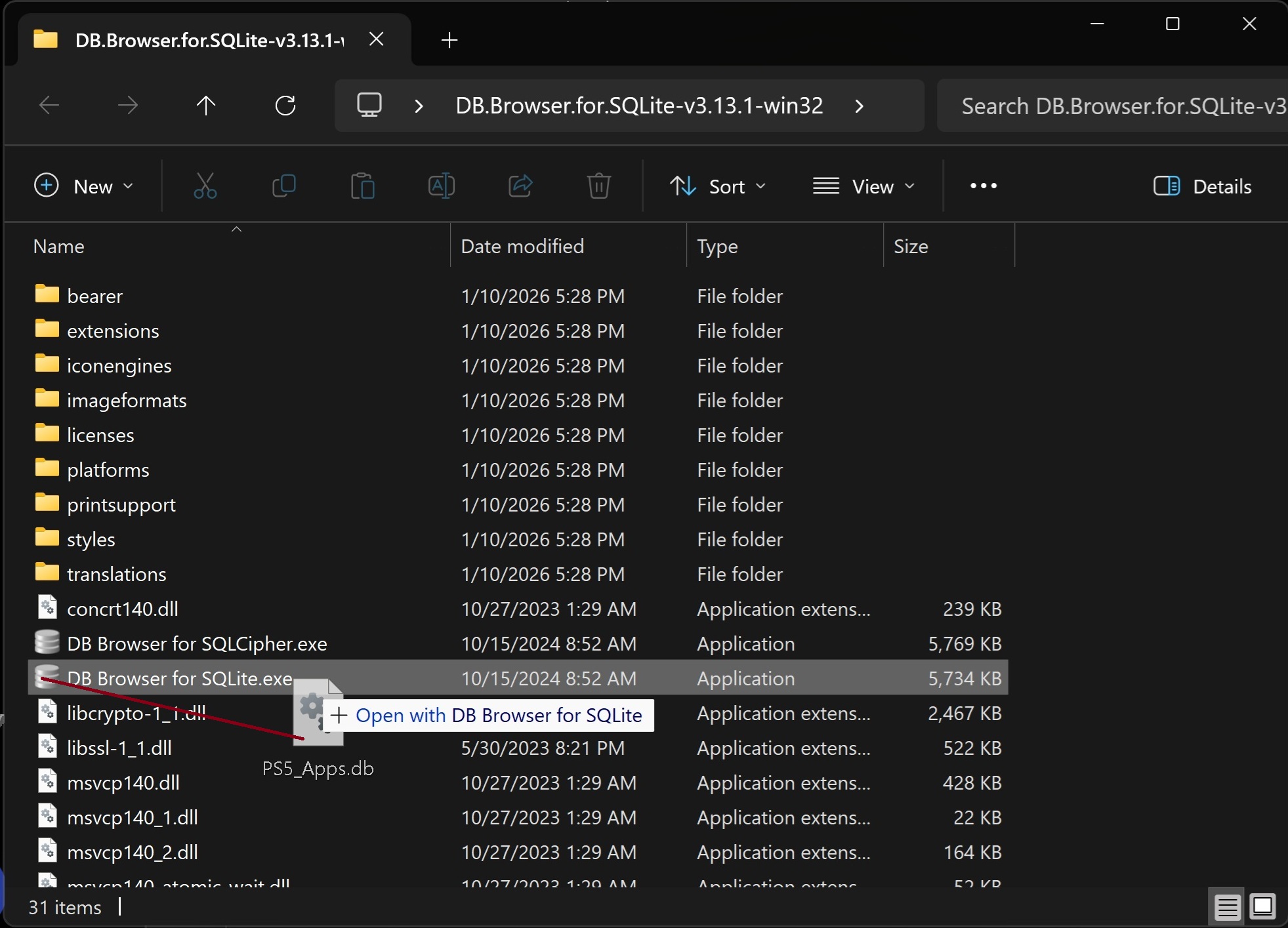
2. Drag and Drop PS5_Apps.db on top of "DB Browser for SQLite.exe"
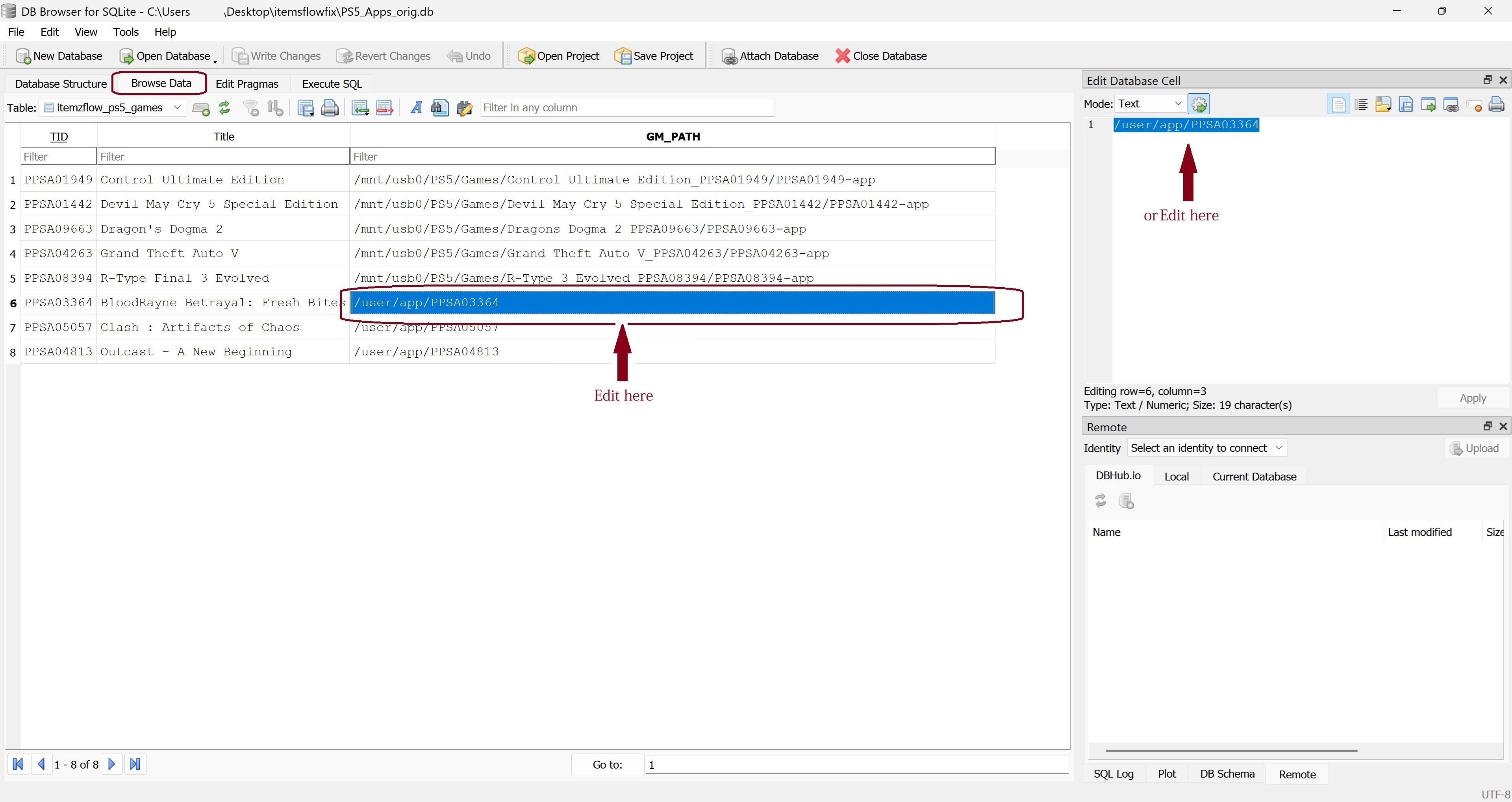
3. Under the Browse Data tab find the games with the incorrect paths.
In this example its BloodRayne
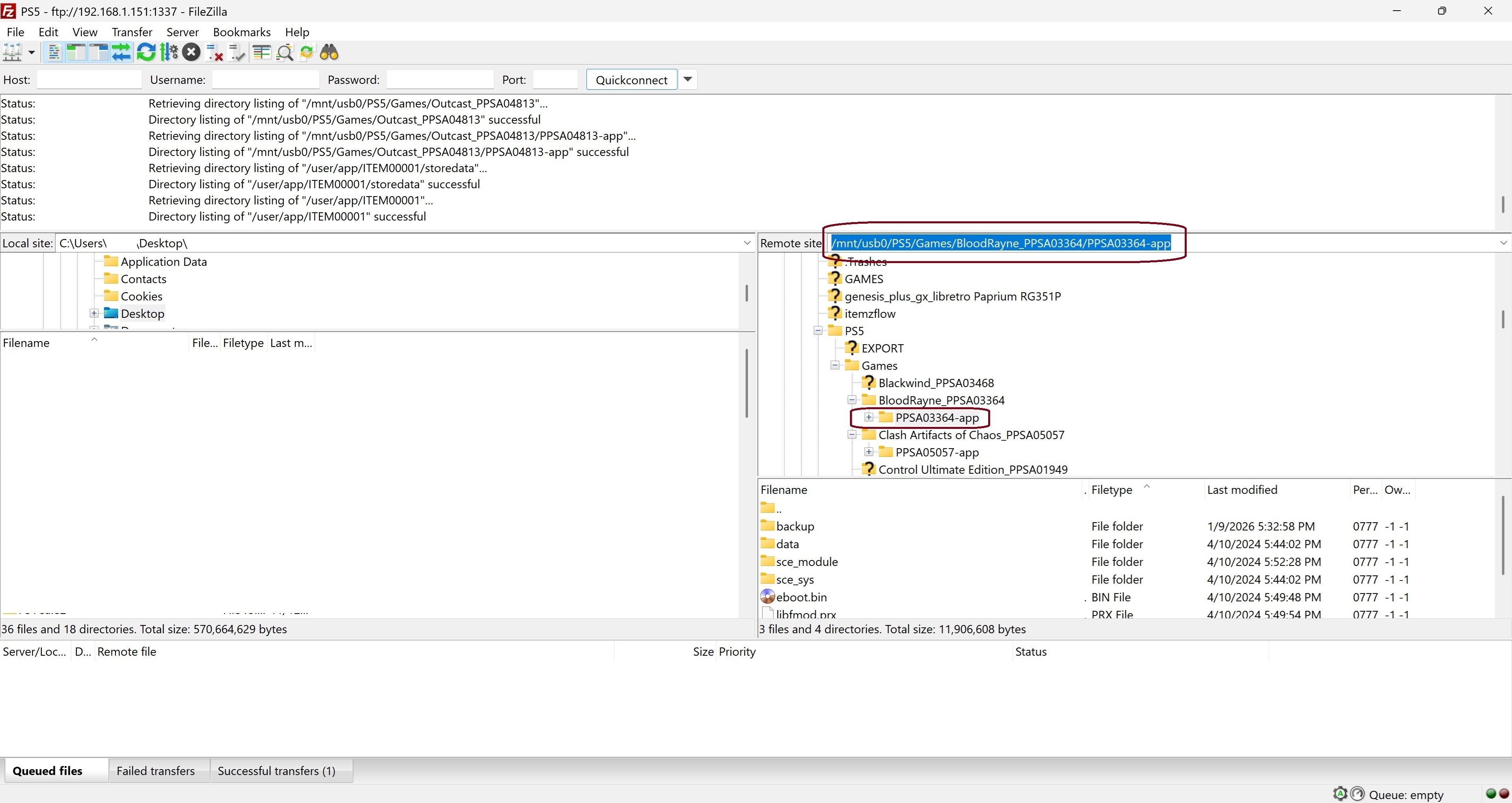
4. Using the FTP client find the correct path to the game on the PS5.
Highlight and Copy the complete Path from the FTP client window.
5. Paste the correct path.
Save the database and upload it to the PS5
File > Save All

This method can also be used to add games to the database instead of using the scanner.
Right Clink on the last line of the database, Duplicate it and then overwrite it with the new data.
The game icon will be filled in after starting the game once.
Here, I've added three new games.

This is how it appears the very first time.

And then the Icon for the game is filled in after the first good run.

I've had some problems with the Itemzflow Game Manager improperly detecting games.
The paths for the game are stored in a database file that is very simple to edit.
This guide uses Windows tools but the same thing can be done using Linux.
You'll need:
FileZilla or some other FTP client.
SQLite-win32 or some other SQL database editor.
I've included an example here
1. Use FileZilla to download the itemzflow "PS5_Apps.db" file to the desktop.
/user/data/itemzflow
2. Drag and Drop PS5_Apps.db on top of "DB Browser for SQLite.exe"
3. Under the Browse Data tab find the games with the incorrect paths.
In this example its BloodRayne
4. Using the FTP client find the correct path to the game on the PS5.
Highlight and Copy the complete Path from the FTP client window.
5. Paste the correct path.
Save the database and upload it to the PS5
File > Save All
This method can also be used to add games to the database instead of using the scanner.
Right Clink on the last line of the database, Duplicate it and then overwrite it with the new data.
The game icon will be filled in after starting the game once.
Here, I've added three new games.
This is how it appears the very first time.
And then the Icon for the game is filled in after the first good run.
Last edited by MicroNut99,


