 Ultimate Hacking Keyboard 80 GBAtemp review
Hardware
Product Information:
- Official Store: https://uhk.io/product/uhk80
Review Approach:
The Ultimate Hacking Keyboard, a title I shall be shortening to UHK from here, is one of my favourite keyboards. Being improved upon with the UHK v2 some time ago, I felt Ultimate Gadget Labs had hit every marker I was looking for. Now with more keys and wireless offerings, we take a look at their latest creation in the UHK 80 to see whether it's worth its $429 asking price.
A Whole New Keyboard
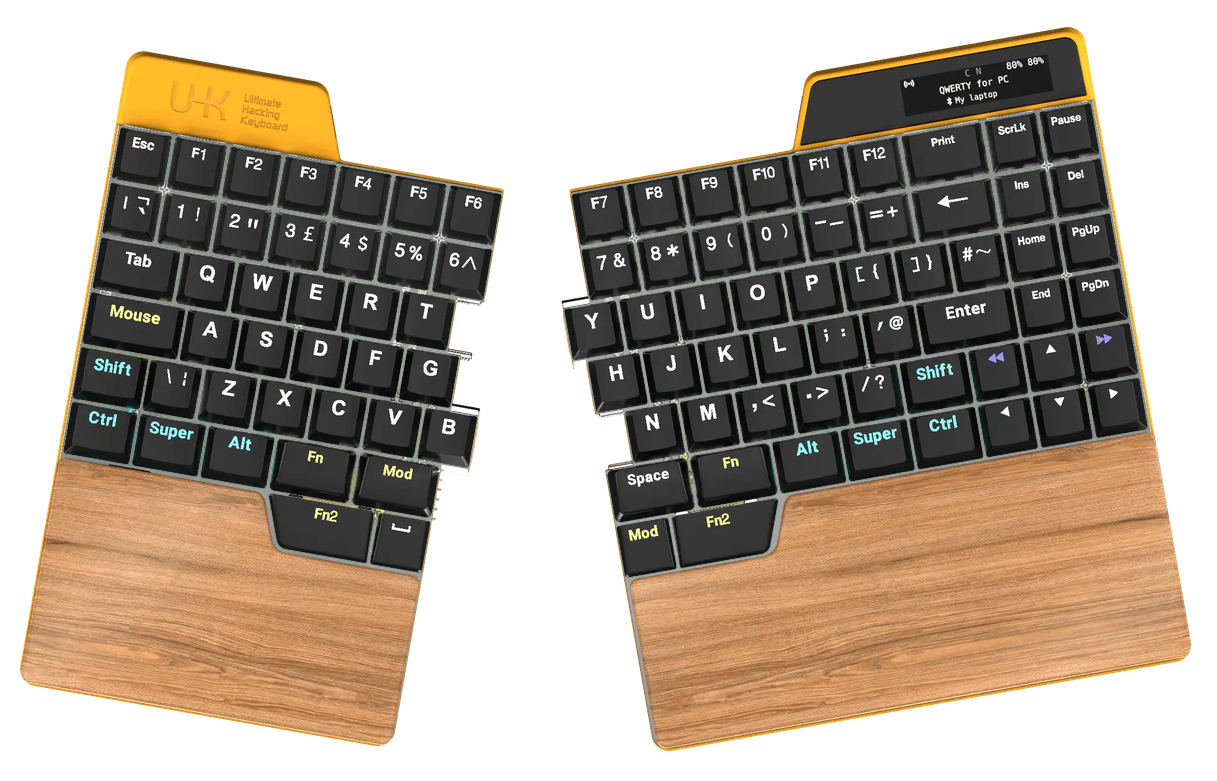
So exactly what is it we’re getting here? The UHK 80 is the big brother of the previous model, now retroactively called the UHK 60. Both are split keyboards with a focus on ergonomics, with the UHK 60 adopting a relatively standard 60% layout, and the UHK 80 adopting a bit of an adapted 80% layout. New here is the function row, as well as pretty much everything to the right of the backspace key. The arrow keys are also a new addition here, with the original designs making use of a modifier layer to have access to those over the IJKL keys. This 80% layout is interesting, though I was surprised by just how little I actually made use of the extra keys. They're nice to have, that much I'm certain of, but the other improvements feel more impactful.
The biggest would without a doubt be the wireless functionality. It adds such an incredible degree of versatility to an already-great keyboard. You have a pretty good list of options here too, with you really able to use the keyboard however best suits your needs. At its most basic you have a fully-wired setup. This involves a USB C cable in the right half of the keyboard, and a coiled cable connecting the halves together. This is essentially how the UHK 60 worked. A step up from that, you can have the right half of the keyboard plugged in while having the left half communicate with it wirelessly. And a further step from there would be to use both halves wirelessly, making use of either Bluetooth or the included 2.4G USB dongle to connect to your device of choice.
I will make a note here to say that the wireless connectivity has been a point of contention in my time using the keyboard. I’d have frequent crashes that would require I press a button on the back of the keyboard halves to reboot them when using either the Bluetooth or 2.4G wireless modes. Having recently picked up the keyboard again after a month or so due to me moving house, this does seem to have been fixed though. My preferred ways to use the keyboard have been having the right half connected with a wire, and full wireless connectivity via Bluetooth, and on the most recent firmware, neither have had any kind of problem. It is a shame to see the keyboard having released with these issues, but it does appear they’ve been addressed at this point. Annoyingly I’ve not been able to test the 2.4G connectivity since moving, with the dongle having unfortunately being misplaced. When it is located, I’ll update this review with a brief addendum.


Naturally with wireless connectivity being a feature now, the UHK is packing a battery in each of its halves. For the left we’re looking at 3500mAh, and for the right it’s 5000mAh. That larger battery in the right side does make sense too, with it having more keys to light, as well as a screen to power and actually housing the brains of the keyboard. The left half basically just talks to the right. Those battery numbers amount to up to a month between charges if you can go without the LEDs, with that going down to as little as a day without charging if you use them on maximum brightness. Making use of the free software, you can customise the LED behaviour to be different when plugged in compared to wireless use, and that’s definitely what I’d recommend. The LEDs follow the UHK 60 in lighting up to show modifier layer keys, so I can definitely see them being useful when starting out. For me though, I tend to just turn them off and be done with it. One nice note here is that the batteries are user replaceable, with them being readily available via the official web store.
With the UHK 80 we do also see a pleasant update in terms of its built-in display screen. In the previous models we’ve looked at made use of an LED segment display. This is a bit like what you see on calculators, with a small number of segments that can be lit or unlit to make letters and numbers. It worked, but naturally the information you could show through it was limited. I also almost broke mine thinking the film over it was something to be removed when that was distinctly not the case. On the UHK 80 we’re looking at a much more modern OLED display, showing you your current layout in verbose text, your connectivity options, any active modifier layers, and the battery percentage for each keyboard half. It looks great, and is a notable step up from the previous design. It doesn’t seem like there’s much in the way of customisation for it though, which does feel like a missed opportunity. Other brands let you use these screens as a small way to personalise your keyboard, so it’d be nice to see that supported here too.
The final somewhat notable change is the inclusion of a built-in wrist rest. Previously this would have been a separate add-on. It can only really be a positive in my mind; you can’t use this as a split keyboard without your wrists having somewhere to rest. Much to my surprise they’re not screwed in at all, with the clips being incredibly easy to remove if you want to replace them. This is actually where the batteries are housed, making both replacements trivial. Similar to the batteries, the wooden palm pads are also available to buy if you find you’ve messed yours up. It’s really great to see. With the high price of the keyboard, you really do want that peace of mind that you won’t need to replace the whole thing for smaller parts being damaged or degrading over time.


Though not included with the keyboard as standard, you are able to pick up a riser kit separately to enable tenting at anything from 10 degrees to a frankly mad 60 degrees. I did give this a brief play, with it being fairly easy to setup at least, but it just didn’t gel well with me. I’ve always found the tenting available using the detachable feet to be perfectly comfortable, so it’s what I’ve stuck with. I do think the risers have one particularly nice use case though, and that’s if you’re somebody who might want to use the keyboard without it being split from time to time. You can combine both halves to have an otherwise pretty ordinary keyboard, but if you’re using the feet as I do, you’ll have to remove them and place them back on. The riser offers something of an easier experience there, if only marginally.
Hardware Customisation
When it comes to customisation options, the UHK 80 does a lot right. Right at checkout you have a healthy assortment of options in terms of case colour and pre-installed switches. You do have the option to install your own switches later too, with the board being hot-swappable. It’s fairly standard nowadays, especially at this price point, but it’s still good to mention. Where the UHK 80 does disappoint me though is in its keycaps. Don’t get me wrong, they’re fine to use, and do look decent enough with the keyboard’s LEDs shining through. My issues stem from two key areas: the use of non-standard keycaps, and the apparent reuse of the UHK 60 keycaps through much of the board.
I don't know if I can recommend Silent Pink switches... I had to swap them out.
The first of these problems is pretty apparent for those wanting to get their own keycaps. Your main problem children are the four keys that sit at the bottom of the keyboard: Fn2, Space, Mod, and a second Fn2 key. These actually make use of low profile switches, but on top of that the Fn2 keys feature a unique shape with a slanted edge. You’re just not going to find a keycap set that will be able to fill in these gaps, and that’s a genuine shame. I loved customising my UHK v2, and I would’ve loved to have done the same here. But knowing parts of the keyboard would either have to be left not matching or exposed, it just doesn’t seem appealing.
My second problem is admittedly more minor, but I was disappointed to see that the UHK 80 didn’t have its own unique keycaps. Visually it’s odd to see the function keys printed on the side of the numbers when there is an actual function row right above them. To some extent I can understand it, with the keyboard still having all of the same mappings as the UHK 60 out of the box. And as I touched on before, my hands still want to use a lot of those mappings. Some just end up feeling superfluous regardless. I would’ve liked to have seen the team behind the keyboard think more deeply about the extra space they have and how that could be tailored for more unique mappings. And by extension, a slightly different set of keycaps. Having said that though, they were clearly onto something with the UHK 60, so I can see why they would’ve opted to stick with that same core set of mappings. It’s something I still find myself a little mixed on.


Outside of the keycaps, much of the same customisation is available as we saw in the UHK 60. Beyond swapping switches, the main draw would probably be the additional modules that can be purchased. These are the same modules I covered in my previous review, with them again being compatible here. It’s nice you don’t have to rebuy them at least, especially with their relatively high price tag. We didn’t get any new releases alongside the UHK 80, with the options still just being a three key cluster on the left half, and a choice between a trackball, trackpoint, and touchpad module for the right. The design philosophy of the keyboard is still to keep your hands rooted in a comfortable position, and I really think having some kind of mouse attachment is crucial to that. As soon as the keyboard came out of the box I paired it with the trackpoint module I had previously enjoyed, and it remains just as good. You get easy access to scrolling actions by holding the nearby Mod key, accessible with the left thumb, and the two clicks are easy to reach. I still don’t find myself using the key cluster much, but it’s nice to have the option for even more keys. They’re all remappable, naturally.
Fantastic Software
The software driving the UHK 80 hasn’t changed, with UHK Agent supporting each of their available keyboards. That’s not to say there haven’t been some useful updates for the new model though, most of them relating to the batteries and various connectivity options available. The most helpful of these to me is the ability to name the Bluetooth connections stored on the keyboard; with the keyboard able to switch between up to 20 devices, it’s a fantastically handy thing. Having connected once, the MAC address will show up on the Agent software, allowing you to assign a name to it. From there you can also map a specific key to connect to it, or just make use of the default Fn2 layer that has mappings to cycle between all of the ones you have stored. To give them credit here, I do like how they reused the UHK 60 keycaps to make this clear. It’s Fn2 + J and L to go backwards and forwards between connections, making use of the arrows on the keycaps. As you scroll through the screen updates with the name you’ve given a device. It just works, and it works really well. I’ve never had such an easy time using one keyboard between multiple systems. When you add the fact it’s not just a keyboard, but a mouse too, you have a remarkably fluid system.
Looking past the connectivity configuration, we get a few handy features to optimise the battery use. One of these is fairly standard, allowing you to extend the battery life by limiting the maximum capacity. Though nice to see, I would’ve been interested in a way to configure this on a half by half basis. With me usually having my right half plugged in without the left, I would like to go as long as possible without having to plug the left side in. It’s a minor thing, but would be great to see in future updates. The other battery option is something I’ve not seen before, giving you the option to limit LED brightness to speed up charging. It’s interesting, and I’ve never seen quite so much fuss being made about the LEDs on a keyboard. With me rarely using LEDs on my keyboards, it’s difficult for me to say whether this kind of battery drain is common, or whether they just chose some really bright lights. Either way, this option is a good one to see.


The UHK 80 has a grand total of 32MB of internal storage, with UHK Agent showing you how much you’ve used, as well as making backups of the configuration when changes are saved to the keyboard. 32MB might not seem like a lot, but with the keyboard featuring Colemak, Dvorak, and Qwerty for both Windows and Mac right out of the box, and only taking up 4MB of space for it, you soon realise it’s more than enough. You can, of course, clear out any of these that you wouldn’t be using. Reducing it down to just having Qwerty for Windows, that 4MB of used space goes right down to 1.2MB. That space can be handy if you want to have some more complex macros on the go.
A Stellar Offering
Though I have had my complaints, most of them stem from the fact that it doesn’t stray too far from the UHK 60 before it. That isn’t necessarily a bad thing when the UHK 60 was, and still is, one of my favourite keyboards. Going beyond simply adding more keys to a winning formula, Ultimate Gadget Labs took the opportunity to enhance what they had. Adding wireless connectivity and a genuinely helpful display into the mix, we have what is without a doubt their best keyboard to date. The only major mark I could place against it is the difficulty in getting a complete set of keycaps should you want to customise it that way. This is an expensive keyboard, make no mistake, but it's one I have no issues recommending all the same.
If you’re happy with the set they come with out of the box and you’re wanting an excellent split keyboard experience, I’d have no issues at all recommending it.
Verdict
- More keys!
- Great wireless functionality
- Solid battery life with no LEDs on
- Fantastic software support
- Nice assortment of module add-ons
- Batteries and wrist rest easily replaceable and available to buy
- Poor battery life with LEDs enabled
- Unique keycaps make replacements difficult