Tutorial
Updated
How to create Nintendo Switch games with Unreal Engine 4.22.3
Note: NSPs build with a leaked SDK are not allowed to be shared on GBATemp (and most likely nowhere else too) because they were build with "stolen code". These NSPs can only be installed on hacked switches with sigpatches, so please only do projects for yourself instead of publishing them and making Nintendo mad & possibly even sue you.
Prerequisites
The leaked SDKs that you can find online usually do not have the same folder structure. They are often incomplete, scrambled or in other ways messed up which makes it hard to write a unified guide for them. I will therefore base this guide on a 7.3.2 SDK. Your experience might be different and its a lot of trial and error to get it working.
"Installing" the SDK
IF YOU HAVE SDK VERSION 7.3.2 LEAK FOLDERS MIGHT BE ALREADY SET UP! IF SO, JUST ADD THE FOLDER TO PATH AND INSTALL THE REQUISITES!
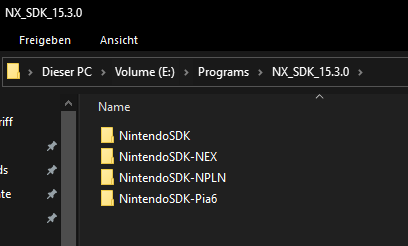
The complete SDK consists of many "addons" and most (if not all) of them are needed to make the build process work. You basically want to go through all folders and check if they have either a "NintendoSDK", "NintendoSDK-NEX", "NintendoSDK-NPLN" or "NintendoSDK-Pia6" subfolder and then merge them on your harddrive. Usually you will not overwrite any files except for maybe a license file. If you do this, you basically have a complete SDK with all addons installed to it. This is how it should look like on your harddrive once you are done (- the combined size is about 24GB.):

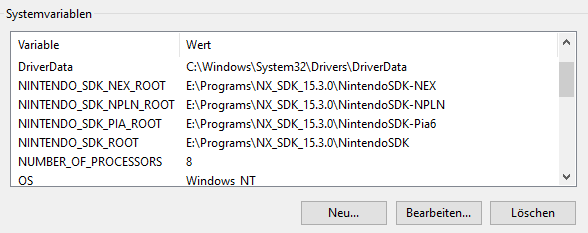
After you have extracted the necessary data, its time to add some environment variables. The folder path changes depending on where you put the SDK files obviously.
Restart your PC for them to take effect.
After that, go to your SDK folder and into Installers. Install the stuff inside the Vsi, VcRuntime and NintendoSdkVsExtension.
Building Unreal Engine from Source Code and Installing the Switch support
Firstly, you would need to build the Engine. To do so, execute the bat file named "Setup". If you get any errors, you have to download a file that you can find on the Unreal Engine source release named Commit.gitdeps.xml and then replace the one in Engine/Build/Commit.gitdeps.xml with the new one.
Once the setup is done, extract all the files from Switch_4.22.3-release.zip into the same folder the Unreal Engine Source is located. It should replace the Engine folder. After that, click on GenerateProjectFiles.bat and let it finish. It may take a long time. Once that's finished, open the UE4.sln file with Visual Studio 2017.
Inside Visual Studio 2017, set the target to Development and select the Switch platform. Click on compile. When it finishes, change the target to Development Editor and use Win64 as the platform and compile again. After that, click on run and make a game project.

Creating a game
Inside your game project, go to File, Package Project and select Switch.

You MAY experience some errors during the building process, I'll cover a few I've managed to fix on my part:
1. XML errors when compiling
This is where the newer SDK comes in, go to NintendoSDK\Resources\SpecFiles\ and get the Application.desc file and copy that one, then paste it where you have your SDK setup, replacing the original file.
2. An error that occurs when trying to make the NSP and has tells you that the directory doesn't exist or something
You either need to put the Engine or Project to some folder without any spaces or weird characters or go to this File (Engine\Source\Programs\AutomationTool\Switch\SwitchPlatform.Automation.cs) and change from:
to:
Making it installable
If you did everything correctly, you should now have an NSP file. But lets be honest, you do not own a dev unit to install the NSP on, do you?
Well, to be able to install and play your game on a retail switch, you need to repack it with your own retail unit keys. Use lockpick_rcm to get them and place them in (create if the folder does not exist):
You can then use hactool or any other method of your liking to repack the NSP. I used and improved the repacker that Slluxx made for Unity NSP repackaging (totally not vibecoded ) (check attachments) that does the job for me, however i wont guarantee that it works for you too. Either double-click the files or simply drag an NSP onto them. You will need the latest Python installed in your machine.
Make sure that hacpack is on your harddrive and added to your PATH envoronment variable.

To use my repacker, the NSP needs to have its titleID somewhere inside the filename. You can check the titleID in Unreal Engine under "Project Settings -> Platforms -> Switch -> Build -> Application ID " as "Application ID" (the 0x is NOT part of the titleID). So you can rename your NSP to something like "mygame_01004b9000490000.nsp or whatever you like, then simply drag the NSP on repacker.exe.
Once you have a repacked NSP, you can install it to a retail unit running Atmosphere with sigpatches.
Have fun creating some games!
Result
The result could look like this:

Credits
nintendosss - For helping me setting this up and for the Application.desc fixes.
@Slluxx - For the original Unity guide, I've used some parts of his post here! (i hope you dont mind )
)
Prerequisites
- A leaked (or official) Nintendo Switch SDK from Nintendo (for example NX SDK 7.3.2) *
- Another leaked SDK but a newer version, like 16.1.0
- Unreal Engine 4.22.3 Source Code, can be found on Epic Game's GitHub page.
- A leaked (or official) Unreal Engine 4.22-3 for Nintendo Switch SDK files *
- Visual Studio 2017
- HacPack on your harddrive and added to your PATH environment variable
The leaked SDKs that you can find online usually do not have the same folder structure. They are often incomplete, scrambled or in other ways messed up which makes it hard to write a unified guide for them. I will therefore base this guide on a 7.3.2 SDK. Your experience might be different and its a lot of trial and error to get it working.
"Installing" the SDK
IF YOU HAVE SDK VERSION 7.3.2 LEAK FOLDERS MIGHT BE ALREADY SET UP! IF SO, JUST ADD THE FOLDER TO PATH AND INSTALL THE REQUISITES!
The complete SDK consists of many "addons" and most (if not all) of them are needed to make the build process work. You basically want to go through all folders and check if they have either a "NintendoSDK", "NintendoSDK-NEX", "NintendoSDK-NPLN" or "NintendoSDK-Pia6" subfolder and then merge them on your harddrive. Usually you will not overwrite any files except for maybe a license file. If you do this, you basically have a complete SDK with all addons installed to it. This is how it should look like on your harddrive once you are done (- the combined size is about 24GB.):
After you have extracted the necessary data, its time to add some environment variables. The folder path changes depending on where you put the SDK files obviously.
Restart your PC for them to take effect.
After that, go to your SDK folder and into Installers. Install the stuff inside the Vsi, VcRuntime and NintendoSdkVsExtension.
Building Unreal Engine from Source Code and Installing the Switch support
Firstly, you would need to build the Engine. To do so, execute the bat file named "Setup". If you get any errors, you have to download a file that you can find on the Unreal Engine source release named Commit.gitdeps.xml and then replace the one in Engine/Build/Commit.gitdeps.xml with the new one.
Once the setup is done, extract all the files from Switch_4.22.3-release.zip into the same folder the Unreal Engine Source is located. It should replace the Engine folder. After that, click on GenerateProjectFiles.bat and let it finish. It may take a long time. Once that's finished, open the UE4.sln file with Visual Studio 2017.
Inside Visual Studio 2017, set the target to Development and select the Switch platform. Click on compile. When it finishes, change the target to Development Editor and use Win64 as the platform and compile again. After that, click on run and make a game project.
Creating a game
Inside your game project, go to File, Package Project and select Switch.
You MAY experience some errors during the building process, I'll cover a few I've managed to fix on my part:
1. XML errors when compiling
This is where the newer SDK comes in, go to NintendoSDK\Resources\SpecFiles\ and get the Application.desc file and copy that one, then paste it where you have your SDK setup, replacing the original file.
2. An error that occurs when trying to make the NSP and has tells you that the directory doesn't exist or something
You either need to put the Engine or Project to some folder without any spaces or weird characters or go to this File (Engine\Source\Programs\AutomationTool\Switch\SwitchPlatform.Automation.cs) and change from:
C++:
--filter {5},to:
C++:
--filter \"{5}\",1. System.InvalidOperationException: There is an error in XML document (894, 3). ---> System.ArgumentException: Either an undefined element is in use or the definition of an element already exists. :Signature + other stuff that may show up like "SystemResourceSize" not supported or "TID out of scope".
You will need to edit NintendoSDK\Resources\SpecFiles\Application.desc and change the following.
Signature error
To fix it, remove or comment the line that says "Signature" Example:
System.ApplicationException: Core/SystemResourceSize is specified, but use of the virtual address memory management feature is not permitted.
In order to fix this error, go to the line 410 and find this:
You have to add a few more systemcalls. After adding them, it should look like this:
System.ApplicationException: The value 0x01004b9000490000 for Core/ApplicationId is outside the scope.
Scroll to the top of the XML and find these:
Replace the IDs to this:
You will need to edit NintendoSDK\Resources\SpecFiles\Application.desc and change the following.
Signature error
To fix it, remove or comment the line that says "Signature" Example:
XML:
<!-- <Signature>[REDACTED]</Signature> -->System.ApplicationException: Core/SystemResourceSize is specified, but use of the virtual address memory management feature is not permitted.
In order to fix this error, go to the line 410 and find this:
XML:
<EnableSystemCalls>
      <Name>GetInfo</Name>
      <SystemCallId>41</SystemCallId>
</EnableSystemCalls>
You have to add a few more systemcalls. After adding them, it should look like this:
XML:
<EnableSystemCalls>
      <Name>GetInfo</Name>
      <SystemCallId>41</SystemCallId>
</EnableSystemCalls>
<EnableSystemCalls>
      <Name>MapPhysicalMemory</Name>
      <SystemCallId>44</SystemCallId>
</EnableSystemCalls>
<EnableSystemCalls>
      <Name>UnmapPhysicalMemory</Name>
      <SystemCallId>45</SystemCallId>
</EnableSystemCalls>
System.ApplicationException: The value 0x01004b9000490000 for Core/ApplicationId is outside the scope.
Scroll to the top of the XML and find these:
XML:
<ProgramIdMin>0x0100000000002065</ProgramIdMin>
<ProgramIdMax>0x0100000000002065</ProgramIdMax>
Replace the IDs to this:
XML:
<ProgramIdMin>0x0100000000010000</ProgramIdMin>
<ProgramIdMax>0x01FFFFFFFFFFFFFF</ProgramIdMax>
Making it installable
If you did everything correctly, you should now have an NSP file. But lets be honest, you do not own a dev unit to install the NSP on, do you?
Well, to be able to install and play your game on a retail switch, you need to repack it with your own retail unit keys. Use lockpick_rcm to get them and place them in (create if the folder does not exist):
Code:
C:\Users\<YOUR USER NAME>\.switchYou can then use hactool or any other method of your liking to repack the NSP. I used and improved the repacker that Slluxx made for Unity NSP repackaging (totally not vibecoded
) (check attachments) that does the job for me, however i wont guarantee that it works for you too. Either double-click the files or simply drag an NSP onto them. You will need the latest Python installed in your machine.Make sure that hacpack is on your harddrive and added to your PATH envoronment variable.
To use my repacker, the NSP needs to have its titleID somewhere inside the filename. You can check the titleID in Unreal Engine under "Project Settings -> Platforms -> Switch -> Build -> Application ID " as "Application ID" (the 0x is NOT part of the titleID). So you can rename your NSP to something like "mygame_01004b9000490000.nsp or whatever you like, then simply drag the NSP on repacker.exe.
Once you have a repacked NSP, you can install it to a retail unit running Atmosphere with sigpatches.
Have fun creating some games!
Result
The result could look like this:
Credits
nintendosss - For helping me setting this up and for the Application.desc fixes.
@Slluxx - For the original Unity guide, I've used some parts of his post here! (i hope you dont mind
)Attachments
Last edited by YoshiCrystal,