Migrating Switch's old SD Card to a new one

  • Thread starter Thread starter ATEMVEGETA
  • Start date Start date
  • Views Views 1,631
  • Replies Replies 22
  • Likes Likes 1

ATEMVEGETA

Well-Known Member
Newcomer
Joined
Jan 24, 2016
Messages
89
Reaction score
6
Trophies
1
Age
36
XP
307
Country
Greece
My modded switch is showing me some error while trying to update to a new Atmoshphere version and I've been told that the issue is caused because of damaged SD Card.
So I bought a new SD Card and I wanna migrate everything from my old SD Card to the new one and try update the CFW with the new Card.

But, I have not tried any kind of Switch modding myself so far and I have no idea how to start doing such an action.
(I have someone else hack/mod my Switch)

I know that the procedure is not as simple as copy-pasting everything from the old SD Card to the new one, if I'm not mistaken it needs some kind of formating procedure.

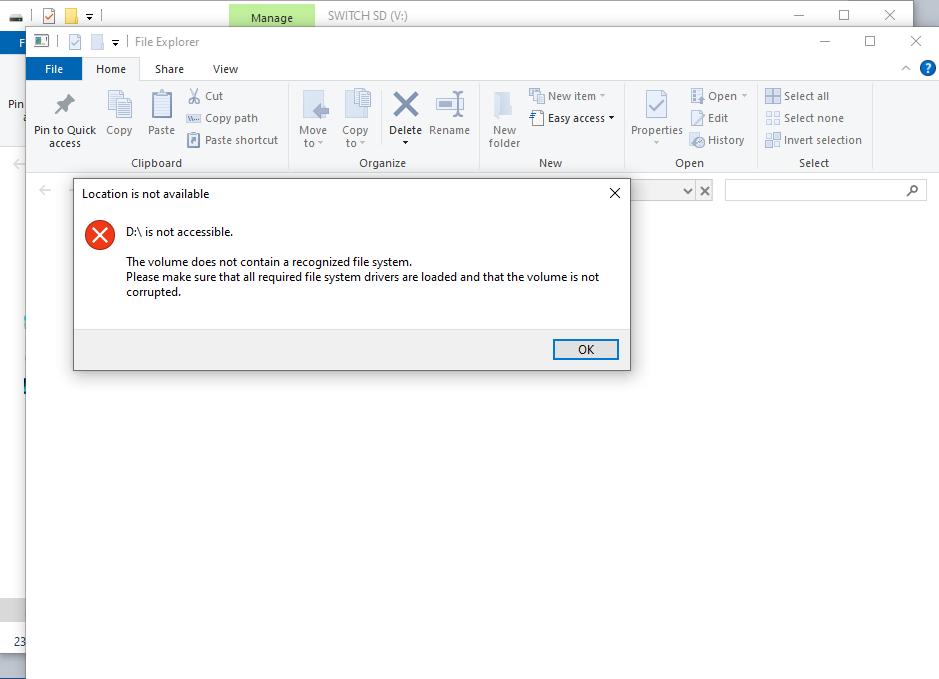
I also notice that when I connect my old SD Card to my PC it shows it as 2 different drive partitions and asks for a format when it connects. I don't do it ofc, and I just close the empty partition.

This is what it shows when I connect the SD Card to the PC:
1.png


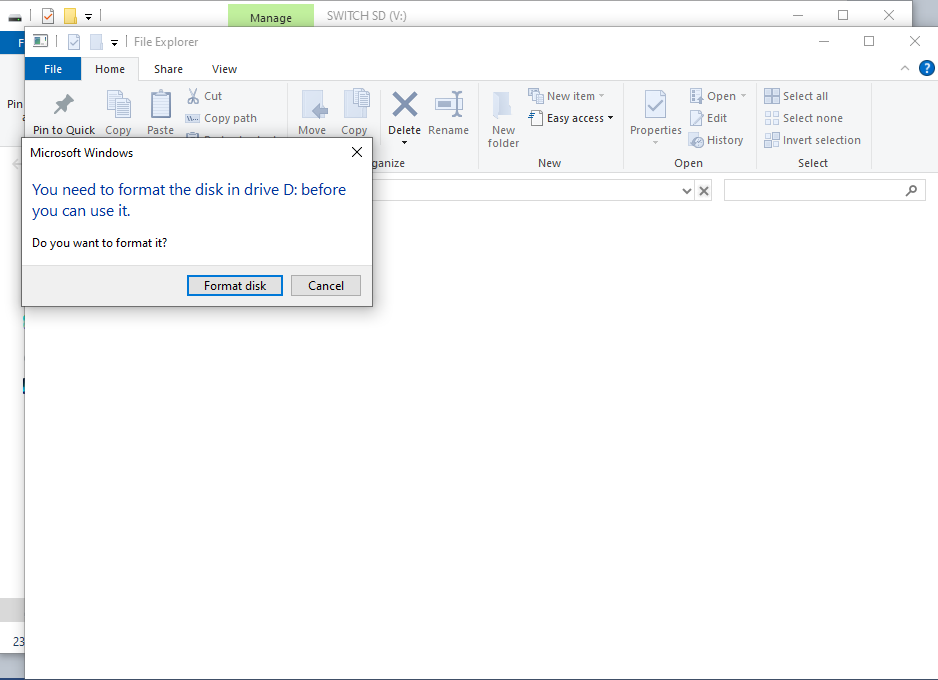
After clicking "Cancel":
2.png


These are the contents of my SD Card:
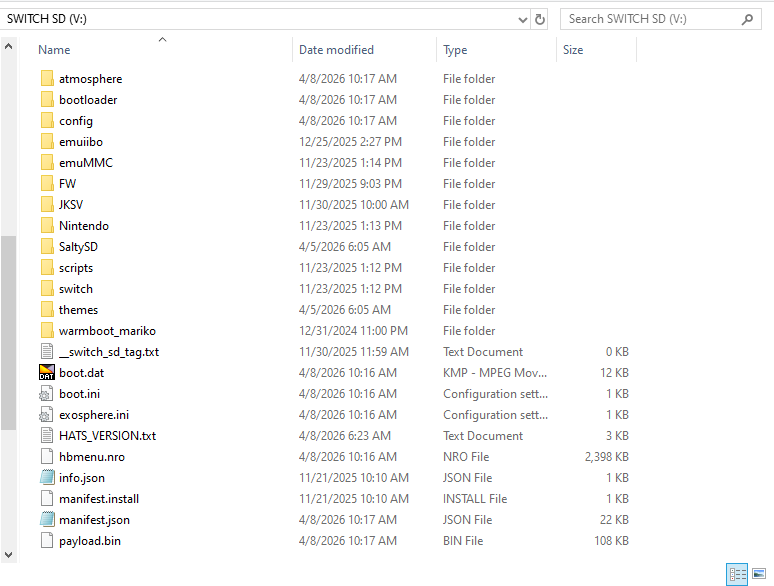
3.png


The 2 partitions of the SD Card as shown on "My PC":
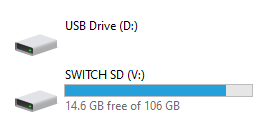
4.png


The person who modded my Switch told me that this is the normal behaviour of the SD Card when connected to the PC and I will just ignore the format message and Cancel it.

So, how can I migrate to a new SD Card and make my Switch use that SD Card instead?

Thanks in advance!! :)
 
  • Like
Reactions: impeeza
How can I confirm that I have a partition based emunand so I wont do any fatal mistake?

You can check under computer management-> disk management if you have a second partition like 29GB if you have a V1 or V2 switch or switch lite or 58GB GB if you have an OLED then you partition emunand.

1776102978831.png
 
My guess the 12GB is your partition emunand.
To be honest I'm not sure what that means exactly but I can at least assume I have a partition based emunand! :D

I can see there are 3 methods for partition based emunand in the link you posted. Are those methods equally ok to use or should I prefer one for some safer reason?
 
To be honest I'm not sure what that means exactly but I can at least assume I have a partition based emunand! :D

I can see there are 3 methods for partition based emunand in the link you posted. Are those methods equally ok to use or should I prefer one for some safer reason?

You should be okay as long you follow direction correctly, you can probably go with the hekate or emutool method, since NxNANDManager haven't been updated for a few years.
 
  • Like
Reactions: ATEMVEGETA
I faced a storage limit problem when creating the new SD Card. While both the new and the old cards are 128 GB, according to the instructions the new SD Card's usable storage is only 90 GB while the previous card had 106 GB and the total size of every files to be copied back are 104 GB (after backing up also the rawnand.bin.xx, BOOT0, and BOOT1 files).

How I'm supposed to deal with this? Is there any unessasary files I can skip copying and add them later?

1776719117733.png

Post automatically merged:

Maybe the previous SD Card didn't do this step as far as '29 FULL' but at higher value thus the more usable storage space:
"Move the emuMMC (RAW) slider to 29 FULL"
 
I faced a storage limit problem when creating the new SD Card. While both the new and the old cards are 128 GB, according to the instructions the new SD Card's usable storage is only 90 GB while the previous card had 106 GB and the total size of every files to be copied back are 104 GB (after backing up also the rawnand.bin.xx, BOOT0, and BOOT1 files).

How I'm supposed to deal with this? Is there any unessasary files I can skip copying and add them later?

View attachment 569194
Post automatically merged:

Maybe the previous SD Card didn't do this step as far as '29 FULL' but at higher value thus the more usable storage space:
"Move the emuMMC (RAW) slider to 29 FULL"

Well your new emunand is 29GB and your old one is 12GB so there is your problem. You probably copied the sysnand NAND instead of the 12GB emulated NAND.
 
Last edited by Hayato213,
1776722635069.png


When backing up the Emunand NAND file you need to turn on SD emuMMC RAW Partition when backing up rawnand and boot0/boot1, I guess rebackup the Nand and format the new card using tool like minipartition wizard by formatting the entire card, including the other 29 GB partition you created.
 
I indeed turned ON the "SD emuMMC RAW Partition". Actually I followed EXACTLY the steps from this guide:


The problem is that after I did the '29 FULL' at the emuMMC (RAW), it left only 90 GB of space in the SD card. The old hard had more space. Both cards are originaly 128 GB. Could it be that the old card DIDN'T use '29 FULL' but a different option there?
Post automatically merged:

According to ChatGPT, an Partition-based emuNAND (RAW) ocupies about 29–32 GB (basically a full copy of the Switch’s internal NAND).

So, for my 128 GB SD Card, the 90 GB that were left for usage totally make sense. So, I can assume that the old SD Card had a wrong formating.

What can I do now to have all the old files back to my new SD? The backup creation of the Emunand NAND ocupied a lot of space which I will get back after its "recover" but before that it has to fit inside the SD along with the other files.

What files can I safely "skip" adding to the SD card for now in order to perform the restoration successfully and add them later?

I know some folders like JKSV and FW can be skipped. What else can I skip? I need a total of 12 GB.
 
Last edited by ATEMVEGETA,
Format the new card to get the full amount of space, use like minitool partition wizard then redo the nand backup and then restore it on the new card.
 
Well right now even if you copied your files over it won't work as it is wrong emunand, you made a copy of your sysnand, all your games won't work.
Actually, I did it correctly! Everything works fine and the games work in the new SD Card. The storage is still 90GB though so the old card may have had wrong format, idk.
 
Actually, I did it correctly! Everything works fine and the games work in the new SD Card. The storage is still 90GB though so the old card may have had wrong format, idk.

I thought you would buy a larger size though, I guess the current problem is that your primary partition for the rest of your data is like 16GB smaller than the old card.
 

Site & Scene News

Popular threads in this forum